Sales and marketingInquiries and reportsCustomer statistics
output:CustRevenue
Business process
Measure sales performance
Menu item
output:CustRevenue
Setup steps
1 on this page
Show what matters for
SETUP GUIDEHow to set it up8 sections. Choose a role to highlight what matters to you.
Everyone
1What it is and why
What it is
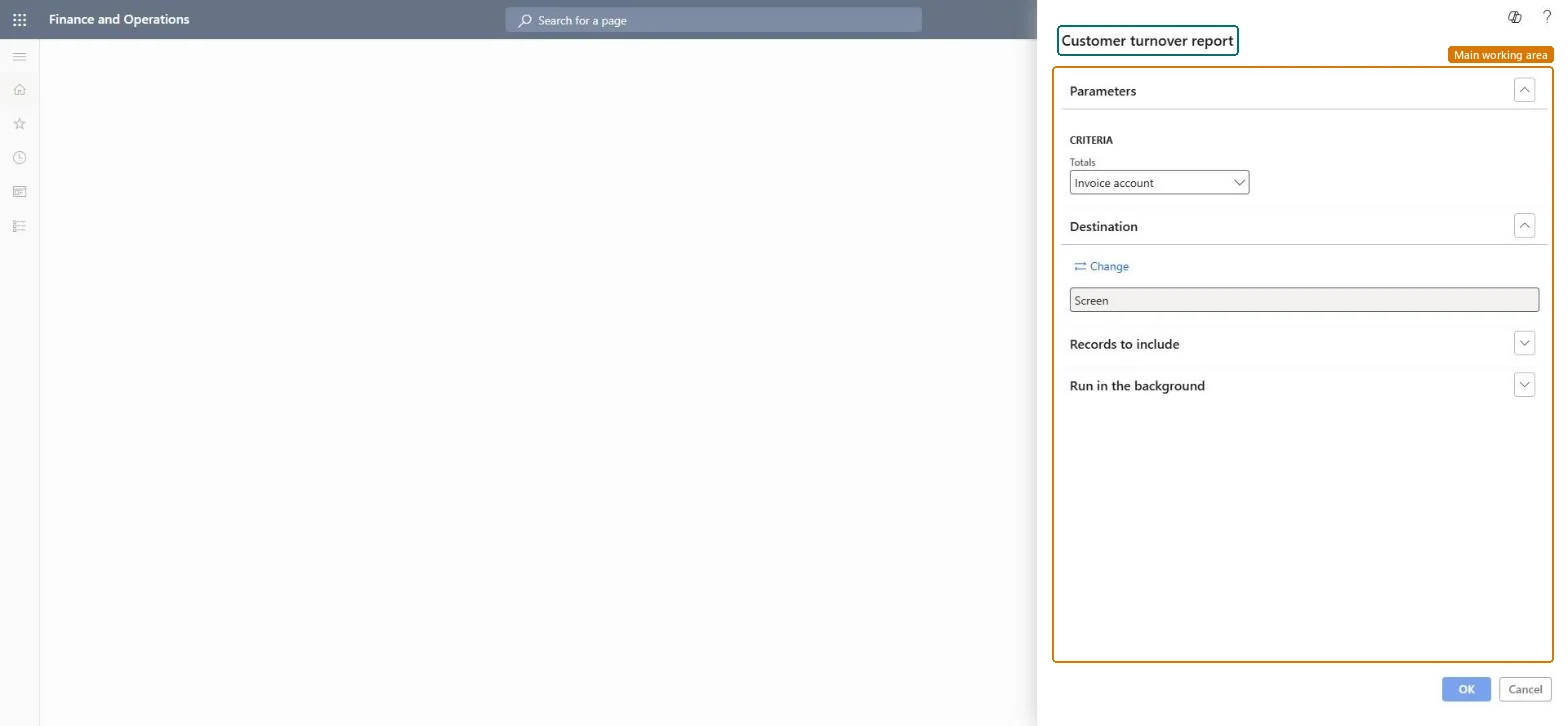
A report that shows customer invoice totals, sorted by invoice account or by order account.
What you do here
Use it to see what each customer was invoiced, for example for a year-end customer review or a rebate discussion.
Example
For example, BEAT invoices the stores of chain BEAT-000300 through one head-office invoice account. With Criteria set to Invoice account the head office shows 640,000.00; with Order account the same amount is split over its 12 stores.
The page in Dynamics 365. page title tab to open what to set or check
About the examples: Examples and screenshots in this guide use BEAT, a demo company in a Dynamics 365 test environment. Use your own company's codes and values instead of copying them.
When to run it
When to run it
When you need invoiced totals per customer, for example for a year-end review.
How often
On demand, typically at period or year end.
What the output shows
Invoice totals for each customer, by invoice account or order account depending on Criteria.
Choose Criteria first: invoice account or order account.When customers order for another invoice account, the two choices total the same invoices under different customers.
On the live system, Sales manager, Accounts receivable manager, Sales representative, Collections manager and Accounting manager use this page; 9 roles can run it in total. No Feature management feature is needed to open it.
Checked in Dynamics 365
Solution architect
5Design impact
Shared or per company
Per company: the report reads the data of the legal entity you run it in. To compare legal entities, run it in each one. Checked in Dynamics 365
Can it be undone
Reversible: Running the inquiry or report changes no data.
If you change it later
Totals are read from posted invoices at run time; invoices posted later need a new run. Revenue per customer group and customer is also available in the Sales and profitability performance Power BI content. Microsoft Learn
Technical architect
6Technical
Menu item
output:CustRevenueChecked in Dynamics 365
Form
SysOperationTemplateFormChecked in Dynamics 365
Roles to set it up and use it
To use itSales manager TradeSalesManagerAccounts receivable manager CustInvoiceAccountsReceivableManagerSales representative TradeSalesRepresentativeCollections manager CollectionLetterCollectionsManagerAccounting manager LedgerAccountingManagerGive people one of these roles. On this system, 9 roles can run this page.Checked in Dynamics 365
Developer
7Developer
Open it by URL
https://<your-environment>/?mi=output:CustRevenue
Data migration
Load order: Customer turnover report has no data entity in Data management. It is a report: it totals posted invoices and stores nothing of its own.Checked in Dynamics 365