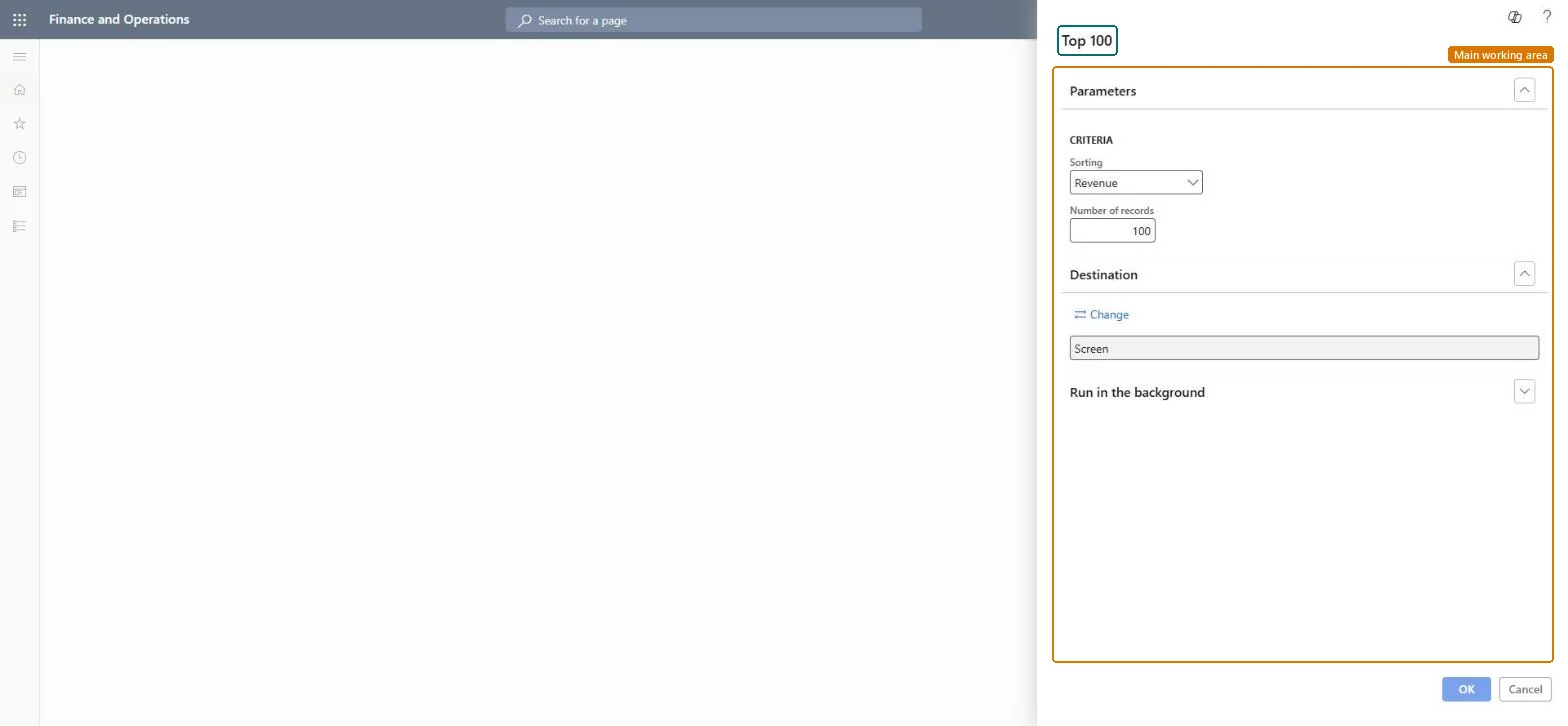
A report that ranks customers, the top 100 by default, sorted by the option you choose, with Revenue as the default sorting. It always runs across all customers of the legal entity.
Sales and marketingInquiries and reportsCustomer statistics
output:salesRankingReport
Business process
Measure sales performance
Menu item
output:salesRankingReport
Setup steps
1 on this page
Show what matters for
PAGE GUIDEWhat the page does and how to use it8 sections. Choose a role to highlight what matters to you.
Everyone
1What it is and why
What it is
A report that ranks customers, the top 100 by default, sorted by the option you choose, with Revenue as the default sorting. It always runs across all customers of the legal entity.
What you do here
Use it to list your leading customers for account planning or a sales review.
Example
For example, BEAT runs Top 100 at the end of October with Sorting Revenue and Number of records 10; BEAT-000123 ranks first with 1,240,000.00, and two customers in the top 10 have no account manager yet.
The page in Dynamics 365. page title tab to open what to set or check
About the examples: Examples and screenshots in this guide use BEAT, a demo company in a Dynamics 365 test environment. Use your own company's codes and values instead of copying them.
When to run it
When to run it
When you prepare account planning or a sales review.
How often
On demand, for example at period end.
What the output shows
A ranked list of customers sorted by the option in Sorting, with as many rows as Number of records.
Source: Checked in Dynamics 365
Setup steps on this page
Rank the top customers
List the leading customers for account planning.
Steps from Microsoft
Go to Sales and marketing > Inquiries and reports > Customer statistics > Top 100.
In Sorting, keep Revenue to rank by sales, or choose another sorting option.
In Number of records, keep 100 or enter a smaller number such as 10 for a short list; the report always covers all customers.
Read the ranking and check the account owner and credit terms of the top customers.
What ranks the customers; Revenue is the default and puts the customers with the highest sales first.Checked in Dynamics 365
Revenue
Number of records
How many customers are printed; 100 by default.Checked in Dynamics 365
10
Common errors and fixes
Message
What to do
Records to include can't be changed in the Top 100 dialog.
This is by design: the Improve "Top 100" customers report performance feature always runs the report across all customers and disables the Records to include settings. Use Number of records to shorten the list. Microsoft Learn
Test checklist
Run Top 100 with Sorting Revenue and Number of records 5.
Check that 5 customers are printed in falling order of revenue.
Check that the first customer is the one with the highest sales in the customer list.
On the live system, Sales manager and Chief executive officer use this page; 2 roles can run it in total. The Improve "Top 100" customers report performance feature is always on (mandatory as of 10.0.29).
Per company: the report reads the data of the legal entity you run it in. To compare legal entities, run it in each one. Checked in Dynamics 365
Can it be undone
Reversible: The report changes no data; it only reads sales figures. Run it again with other parameters at any time. Checked in Dynamics 365
If you change it later
The Improve "Top 100" customers report performance feature is mandatory as of 10.0.29, so custom queries on this report are no longer possible; it always ranks all customers. Microsoft Learn
Technical architect
6Technical
Menu item
output:salesRankingReportChecked in Dynamics 365
Form
SysOperationTemplateFormChecked in Dynamics 365
Roles to set it up and use it
To use itSales manager TradeSalesManagerChief executive officer CompanyChiefExecutiveOfficerGive people one of these roles. On this system, 2 roles can run this page.Checked in Dynamics 365
Load order: Top 100 has no data entity in Data management. It is a report: it ranks customers by their sales and stores nothing of its own.Checked in Dynamics 365