Sales and marketingInquiries and reportsSales and marketing reports
output:smmActivityAnalyses
Business process
Analyze sales
Menu item
output:smmActivityAnalyses
Setup steps
1 on this page
Show what matters for
SETUP GUIDEHow to set it up8 sections. Choose a role to highlight what matters to you.
Everyone
1What it is and why
What it is
A report that analyzes the activity types and priorities of the activities of selected workers.
What you do here
Use it to see how workers spread their activities over activity types and priorities, for example before a sales team review. It is part of the built-in CRM; many projects run activities in Dynamics 365 Sales with prospect to cash instead.
Example
For example, BEAT's sales manager runs the report for the five workers of team NORTH for one activity type. It shows that Jodie Strand logged 14 high-priority activities of that type in October while two colleagues logged none, which starts the coaching talk.
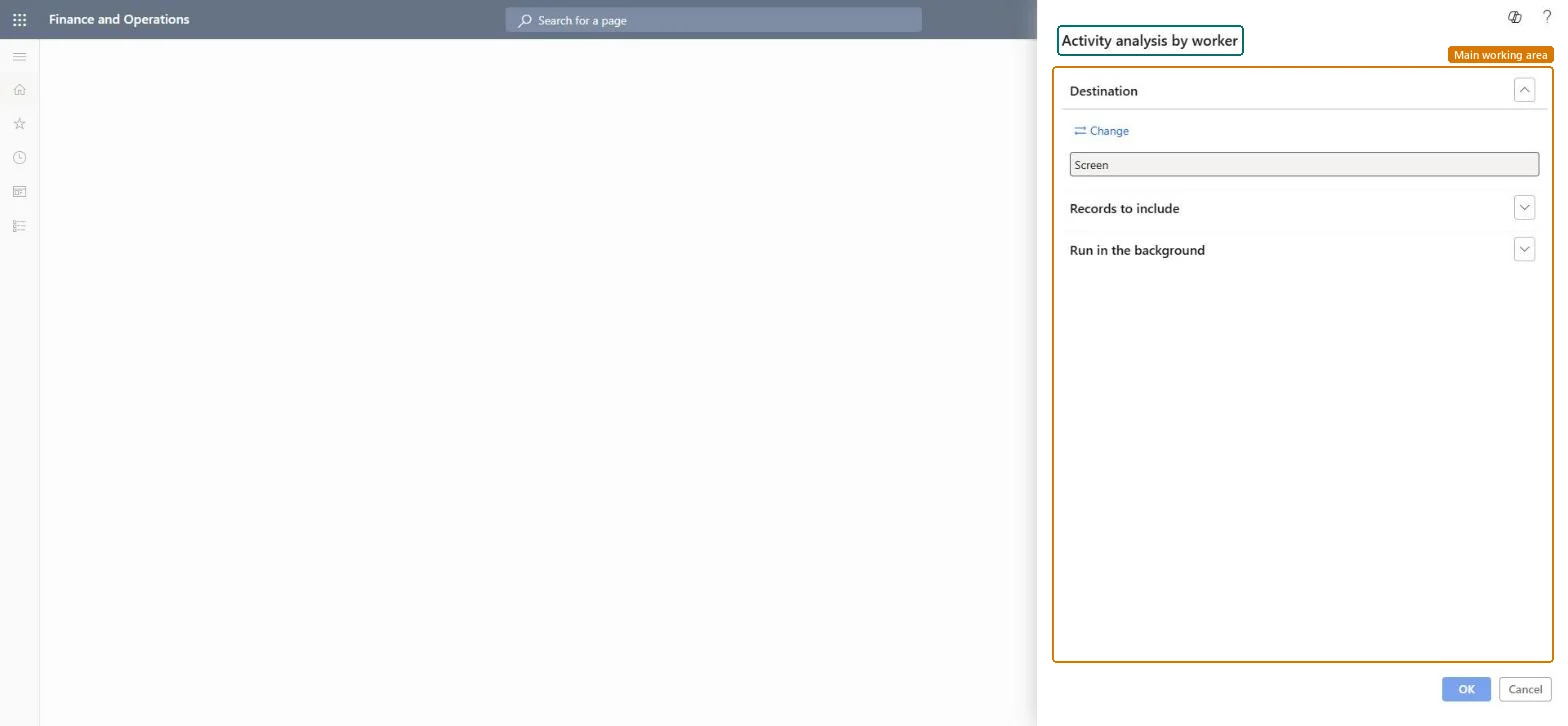
The page in Dynamics 365. page title tab to open what to set or check
About the examples: Examples and screenshots in this guide use BEAT, a demo company in a Dynamics 365 test environment. Use your own company's codes and values instead of copying them.
When to run it
When to run it
Before a sales team review, when a manager wants to see how workers spend their activity time.
How often
On demand, for example monthly.
What the output shows
Activities per selected worker, broken down by activity type and priority.
Set Type to one activity type and decide whether Template activities are included before you run it.Mixing activity types and template activities makes busy and idle workers look alike.
On the live system, Sales manager, Marketing manager, Collections manager, Customer service manager and Marketing coordinator use this page; 6 roles can run it in total. No Feature management feature is needed to open it.
Checked in Dynamics 365
Solution architect
5Design impact
Shared or per company
Per company: the report reads the data of the legal entity you run it in. To compare legal entities, run it in each one. Checked in Dynamics 365
Can it be undone
Reversible: Running the inquiry or report changes no data.
If you change it later
The report reads activities as they are at run time; activities created later appear only when you run it again. Prospect to cash synchronizes accounts, contacts, products, quotations, orders and invoices with Dynamics 365 Sales, not activities, so activities kept in Sales don't appear here. Microsoft Learn
Technical architect
6Technical
Menu item
output:smmActivityAnalysesChecked in Dynamics 365
Form
SysOperationTemplateFormChecked in Dynamics 365
Roles to set it up and use it
To use itSales manager TradeSalesManagerMarketing manager CRMMarketingManagerCollections manager CollectionLetterCollectionsManagerCustomer service manager TradeCustomerServiceManagerMarketing coordinator CRMMarketingCoordinatorGive people one of these roles. On this system, 6 roles can run this page.Checked in Dynamics 365
Load order: Activity analysis by worker has no data entity in Data management. It is a report: it reads activities and stores no data of its own. Migrate activities with their own entities if you need the history.Checked in Dynamics 365