Manage (create, update, delete) contacts and accounts manually in Dynamics 365 finance and operations app
Menu item
smmContactsListPage
Main table
ContactPerson
Data entity
smmContactPersonV2Entity
Setup steps
1 on this page
Show what matters for
SETUP GUIDEHow to set it up8 sections. Choose a role to highlight what matters to you.
Everyone
1What it is and why
What it is
A list page of contact records for individual people, such as the people you deal with at customers, vendors and prospects.
What you do here
Use this page to create, update and delete contacts and to link each contact to a customer, vendor or prospect.
Example
For example, BEAT adds Dana Whitfield as a contact for prospect BEAT-P-000318, marks her as VIP and Direct mail, and later picks her as a call list target for the spring campaign.
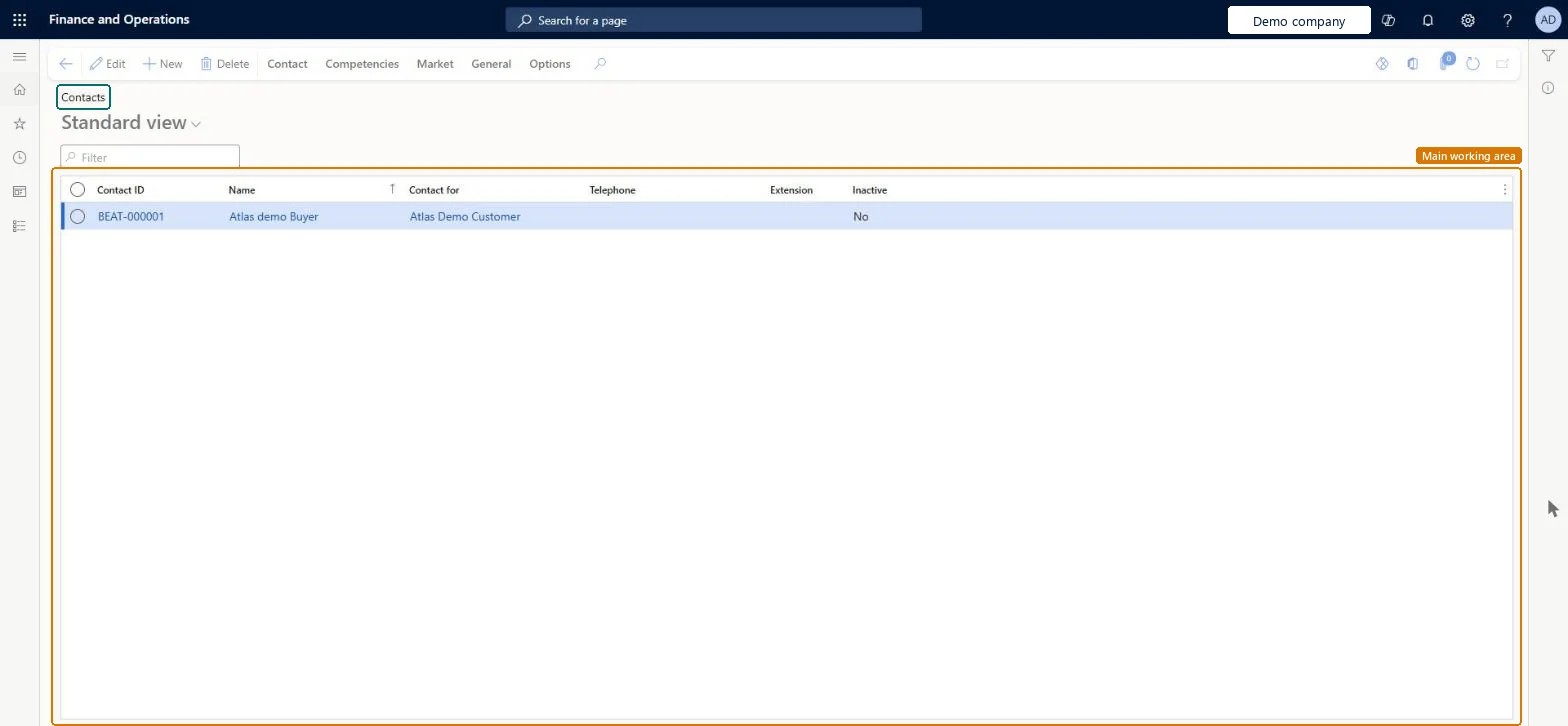
The page in Dynamics 365. page title tab to open what to set or check
About the examples: Examples and screenshots in this guide use BEAT, a demo company in a Dynamics 365 test environment. Use your own company's codes and values instead of copying them.
Setup steps on this page
Decide where contacts are maintained
Use this page to keep one contact record per person at your customers, vendors and prospects.
Steps from Microsoft
Go to Sales and marketing > Relationships > Contacts > All contacts.
On the Action Pane, on the Contact tab, select Contact.
Enter the contact's name, select the country/region, and enter the address and contact information.
Select Save and open to add more details now, or Save and close to finish later.
To remove a contact, first take it off any lead or opportunity it is attached to, then select Delete on the Contact tab.
Set VIP, Direct mail and the contact's title consistently from the first contact, so campaign targets and mass quotations can select contacts by them.Mass create quotations sends quotations to the contacts it selects, and you can filter contacts on title, VIP and direct mail; an account with no contacts gets no quotation.
New records on this page take their Contact ID from the ContactPersonId reference; BEAT uses number sequence Basi_4. Checked in Dynamics 365
Feature management and licence
Licence or add-in
With prospect integration to Dynamics 365 Sales, a contact created for a prospect in Supply Chain Management is also created in Sales; where it appears there depends on whether the dual-write global address book solution is deployed.
Reversible with effort: A contact can be deleted only after it is removed from leads and opportunities.
If you change it later
A contact that is attached to a lead or an opportunity can't be deleted until it's removed from that record. Mass create quotations sends quotations to the contacts of each account, so a customer or prospect with no contacts gets no quotation. Microsoft Learn
Technical architect
6Technical
Menu item
smmContactsListPageChecked in Dynamics 365
Form
smmContactPersonChecked in Dynamics 365
Table
ContactPersonShown as “Contacts” in Record infoKey field: ContactPersonId, ContactForParty, ContactForParty_Name, Party, Party_NameChecked in Dynamics 365
To set it up or change itSales representative TradeSalesRepresentativeSales clerk TradeSalesClerkCustomer service representative TradeCustomerServiceRepresentativeMarketing coordinator CRMMarketingCoordinatorPurchasing manager TradePurchasingManagerTo use itSales manager TradeSalesManagerMarketing manager CRMMarketingManagerCustomer service manager TradeCustomerServiceManagerService delivery manager SMAServiceDeliveryManagerService dispatcher SMADispatcherGive people one of these roles. On this system, 20 roles can open this page.Checked in Dynamics 365
Actions on the page
Contact: Maintain, Accounts, Requests, AttachmentsCompetencies: CompetenciesMarket: Automation, Telemarketing, MailingsGeneral: Related information, ActivitiesOptions: Personalize, Page options, ShareChecked in Dynamics 365
smmContactPersonV2Entity (Contacts V2): loaded for each company.Load order: Load contacts after the customers, vendors and prospects they belong to, because each contact points to its party in Contact for.Load first: customers, vendors, prospects (smmProspectEntity)Microsoft Learn
Checked in a working Dynamics 365 system, version 10.0.49: the menu item, form, table and security, the page.
To cite this step: SM-CRM-010, Decide where contacts are maintained. Beyond ERP Atlas Hub, 2026-11-11. https://www.beyonderp.cloud/atlas/step/SM-CRM-010