Manage (create, update, delete) contacts and accounts manually in Dynamics 365 finance and operations app
Menu item
CustTableListPage
Main table
CustTable
Data entity
CustCustomerV3Entity
Setup steps
1 on this page
Show what matters for
SETUP GUIDEHow to set it up8 sections. Choose a role to highlight what matters to you.
Everyone
1What it is and why
What it is
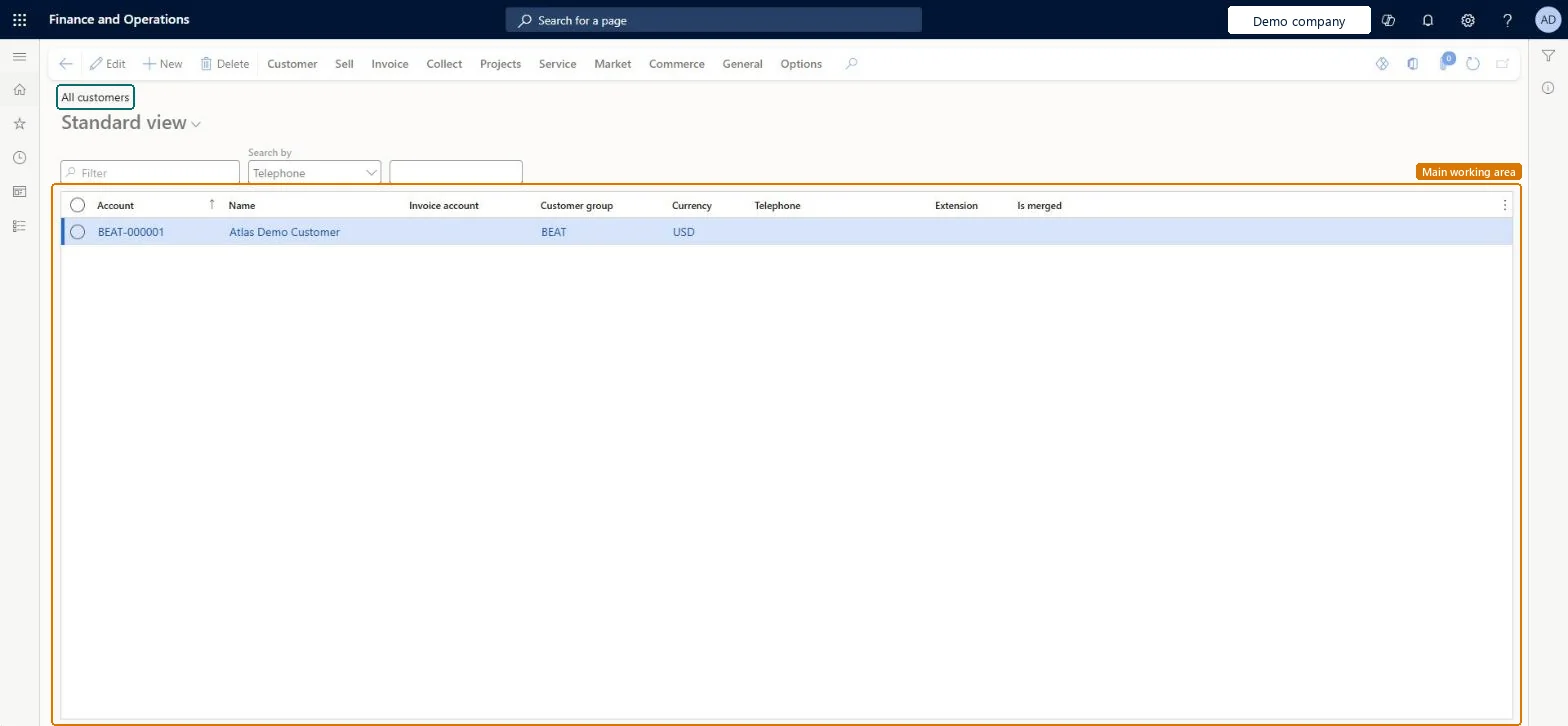
The list of customer accounts of the legal entity. Each customer is an organization or a person and carries the defaults (customer group, terms of payment, credit limit, delivery and tax settings) that sales orders copy.
What you do here
Use this page to create and maintain customer accounts, set the credit limit the credit check uses, and start quotations and sales orders for a customer.
Example
For example, BEAT creates customer BEAT-000123 (Type Organization) in customer group WHOLESALE with terms of payment Net30 and a credit limit of 25,000.00, then starts sales order SO-001234 for it from the Sell tab.
The page in Dynamics 365. page title tab to open what to set or check
About the examples: Examples and screenshots in this guide use BEAT, a demo company in a Dynamics 365 test environment. Use your own company's codes and values instead of copying them.
Setup steps on this page
Create and maintain customer accounts
Set up customer accounts so that orders copy the right defaults and the credit check works.
Steps from Microsoft
Go to Sales and marketing > Customers > All customers.
Select New, enter the Customer account (or let the number sequence fill it), and set Type to Organization or Person.
Enter the Name and select the Customer group, then select Save.
On the Credit and collections FastTab, enter the Credit limit; set Mandatory credit limit if the Credit limit type in the parameters is None but this customer must still be checked.
On the Payment defaults FastTab, select the Terms of payment and Method of payment.
On the Sell tab, select Sales order to create the first order for the customer.
The group the customer belongs to; groups supply shared defaults, and every new customer needs one.Microsoft Learn
CustGroup
Credit limit
The most credit you extend to the customer. It must be higher than 0.00 to be used as the credit limit, and it's checked when documents are updated.Microsoft Learn
25,000.00
CreditMax
Terms of payment
How due dates are calculated for the customer's invoices; the terms are used on the customer's documents.Microsoft Learn
PaymTermId
Invoicing and delivery on hold
Blocks the customer; while it's set, shipments for the customer can't be confirmed.Microsoft Learn
No
Blocked
Mandatory credit limit
When the Credit limit type is None, selecting this makes the system still check this customer's credit limit against the balance.Microsoft Learn
Yes
MandatoryCreditLimit
Type
Organization for a commercial customer, Person for a consumer. Both are stored in the same customer table.Microsoft Learn
Organization
Common errors and fixes
Message
What to do
Shipment %1 cannot be confirmed because customer is on hold for %2.
Clear the reason for the hold, then on the customer's Credit and collections FastTab set Invoicing and delivery on hold to No and confirm the shipment again. Repeat for every blocked customer on the load. Microsoft Learn
Test checklist
With Credit management blocking rules and checkpoints set up, open a test customer and on the Credit and collections FastTab set Credit limit to 0.00 and Mandatory credit limit to Yes.
Create and confirm a sales order for that customer.
Check that Message details shows 'Order has been sent to credit management' and that the order is on Credit and collections > Credit management hold list > All credit holds.
Set Unlimited credit limit to Yes on the same customer, create and confirm another order, and check that it isn't put on hold.
Decide the customer account numbering (number sequence) before go-live, and set Customer group, Terms of payment and Credit limit on every customer you sell to on credit.The customer account ID can only be changed later with Rename, which rewrites every reference to the old ID; the other defaults are copied to each new order.
On the live system, Sales clerk, Sales manager, Sales representative and Accounts receivable clerk use this page. Credit limit checks on this page follow the Credit management feature, which is on by default and needs blocking rules; the classic credit limit check applies only when that feature is off.
Per company: each legal entity keeps its own customer accounts, unless cross-company data sharing is set up for customers. Microsoft Learn
Can it be undone
Hard to reverse: Most fields can be edited later; the account ID changes only through Rename.
If you change it later
When customer approvals are turned on, changes to fields enabled for approval are held as proposed changes and only applied after the workflow is approved. Microsoft Learn
Technical architect
6Technical
Menu item
CustTableListPageChecked in Dynamics 365
Form
CustTableChecked in Dynamics 365
Table
CustTableShown as “Customers” in Record infoChecked in Dynamics 365
To set it up or change itSales manager TradeSalesManagerRental manager RentalManagerAccounts receivable manager CustInvoiceAccountsReceivableManagerCredit management manager CredManManagerCredit management clerk CredManClerkTo use itRental coordinator agent RentalCoordinatorAgentAccounts receivable clerk CustInvoiceAccountsReceivableClerkSales clerk TradeSalesClerkSales representative TradeSalesRepresentativeRetail service RetailServiceGive people one of these roles. On this system, 38 roles can open this page.Checked in Dynamics 365
Actions on the page
Customer: Accounts, Transactions, Balance, Forecast, Set up, Attachments, Catalogs, Customer service, Registration, PropertiesSell: New, Related information, Trade agreements, Set up, Approved customerInvoice: New, Set up, Journals, Related informationCollect: New, Collection letters, Interest note adjustment, Interest, Customer balances, Settle, DeductionsProjects: New, Project control, Related informationService: New, Related informationMarket: Campaigns, Telemarketing, MailingsCommerce: Related information, Media, Attributes, LoyaltyGeneral: New, Activities, Accounts, Set up, StatisticsOptions: Personalize, Page options, ShareChecked in Dynamics 365
CustCustomerV3Entity Customers V3: loaded for each company.Load order: Load customer groups first (every new customer needs one) and terms of payment, then Customers V3, then any detail entities.Load first: Customer groups, Terms of paymentMicrosoft Learn