About the examples: Examples and screenshots in this guide use BEAT, a demo company in a Dynamics 365 test environment. Use your own company's codes and values instead of copying them.
Step by step, with screenshots
Set up Monitoring and telemetry parameters1 screen
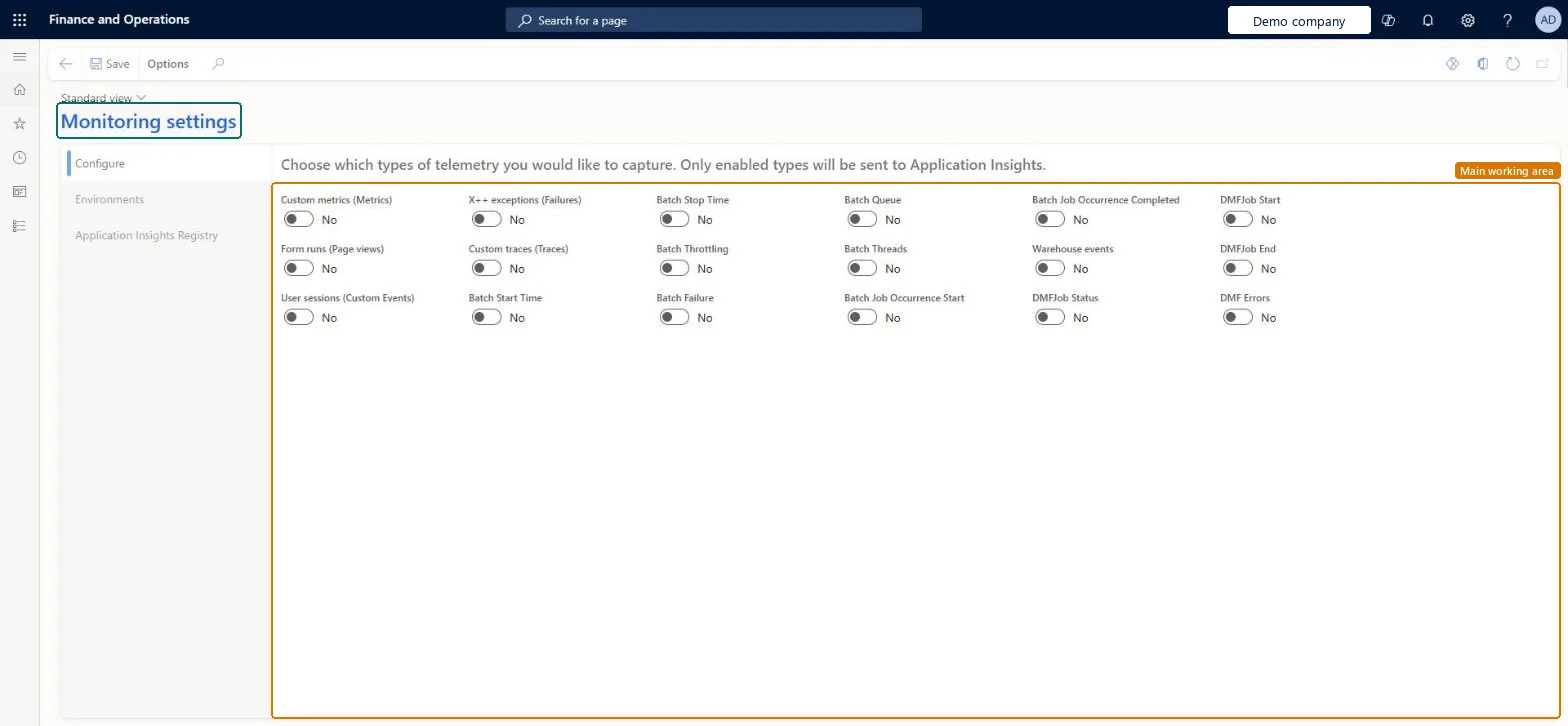
Use this page to send telemetry from Finance and Supply Chain Management to your own Application Insights resource for monitoring and troubleshooting.
Screen 1
Review the monitoring and telemetry settings
Go to System administration > Setup > Monitoring and telemetry parameters
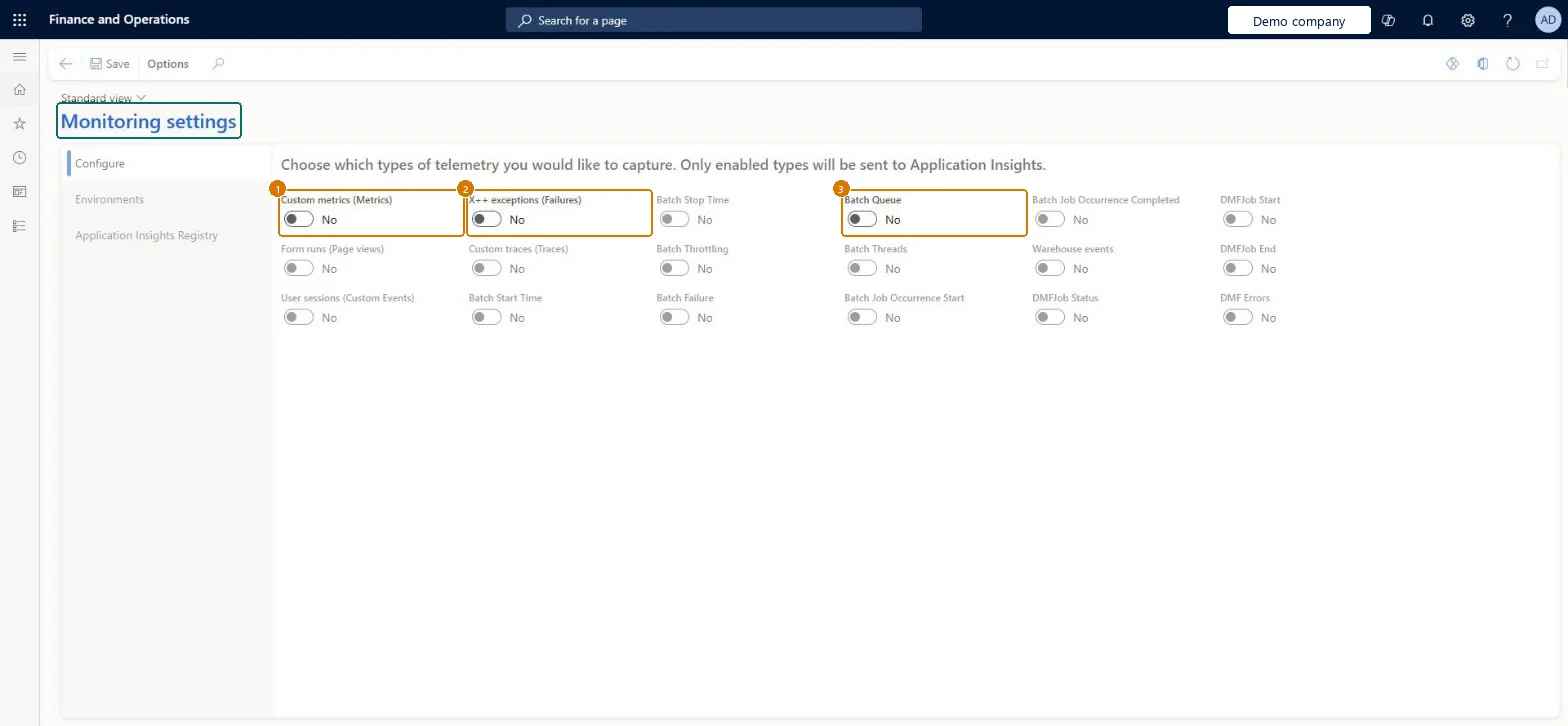
Open the Configure tab and review which types of telemetry are turned on
Turn on the types you want sent to Application Insights
Open the Environments and Application Insights Registry tabs to set where the telemetry goes
Select Save
Show the full screen page title tab to open what to set or check
Steps from Microsoft
In the Feature management workspace, enable the Monitoring and Telemetry feature.
Go to System administration > Monitoring and Telemetry parameters.
On the Environments tab, add a record for each environment with its Environment ID and Environment Mode.
On the Application Insights Registry tab, add a record for each environment mode with its connection string.
On the Configure tab, turn on each type of telemetry to send.
Development, test or production; keeps telemetry from each kind of environment apart.Microsoft Learn
EnvironmentMode
Connection String
The connection string used to connect to Application Insights.Microsoft Learn
Instrumentation Key
An older way to connect; ignored when a connection string is entered.Microsoft Learn
Warehouse events
Sends warehousing telemetry to Application Insights.Microsoft Learn
CaptureWarehouseEvents
Common errors and fixes
Message
What to do
No telemetry arrives in Application Insights
Check that the Monitoring and Telemetry feature is on, that the environment ID is on the Environments tab with its Environment Mode, that the mode has a Connection String on the Application Insights Registry tab, and that the telemetry type is on in the Configure tab. Microsoft Learn
Test checklist
Turn on the Monitoring and Telemetry feature.
Add the environment ID with its Environment Mode on the Environments tab.
Add the Connection String for that mode on the Application Insights Registry tab.
Turn on one telemetry type on the Configure tab (for example Warehouse events) and check data arrives in Application Insights.
One Environments row for every environment (development, test and production) and one Application Insights Registry row per Environment Mode, using Connection StringEntering all environments keeps the setup correct after database refreshes. If a connection string is given, the instrumentation key is ignored.
One setup in the environment's database, with a row per environment on the Environments tab; because the setup travels with database copies, Learn has you enter all your environments so it stays correct after a refresh. Microsoft Learn
Can it be undone
Reversible: Rows and telemetry types can be changed at any time.
If you change it later
Entering all your environments keeps this setup correct and in sync after database refreshes. Microsoft Learn
Technical architect
6Technical
Menu item
SysIntParametersChecked in Dynamics 365
Form
SysIntParametersChecked in Dynamics 365
Table
SysIntParametersShown as “Integration Parameters” in Record infoChecked in Dynamics 365
Who can open it
PrivilegesMaintain monitoring and telemetry SysMonitoringAndTelemetryMaintainDutiesMaintain monitoring and telemetry SysMonitoringAndTelemetryMaintain1 security roleMonitoring and telemetry administrator SysMonitoringAndTelemetryAdministratorChecked in Dynamics 365
Roles to set it up and use it
To set it up or change itMonitoring and telemetry administrator SysMonitoringAndTelemetryAdministratorGive people one of these roles. On this system, 1 role can open this page.Checked in Dynamics 365
Actions on the page
Options: Personalize, Page options, Edit, ShareChecked in Dynamics 365
Developer
7Developer
Open it by URL
https://<your-environment>/?mi=SysIntParameters
Data migration
Load order: Monitoring and telemetry parameters has no data entity in Data management, so it can't be loaded from a file or a configuration template. Enter the environments, connection strings and telemetry types by hand; the setup is copied with the database to other environments.Checked in Dynamics 365
Checked in a working Dynamics 365 system, version 10.0.49: the menu item, form, table and security, the page, the demo records and the values in the screenshots.
To cite this step: SA-SETUP-390, Set up Monitoring and telemetry parameters. Beyond ERP Atlas Hub, 2026-11-11. https://www.beyonderp.cloud/atlas/step/SA-SETUP-390