Setup step on the Export Entity Store to Azure data lake page · System administration
Set up Export Entity Store to Azure data lake
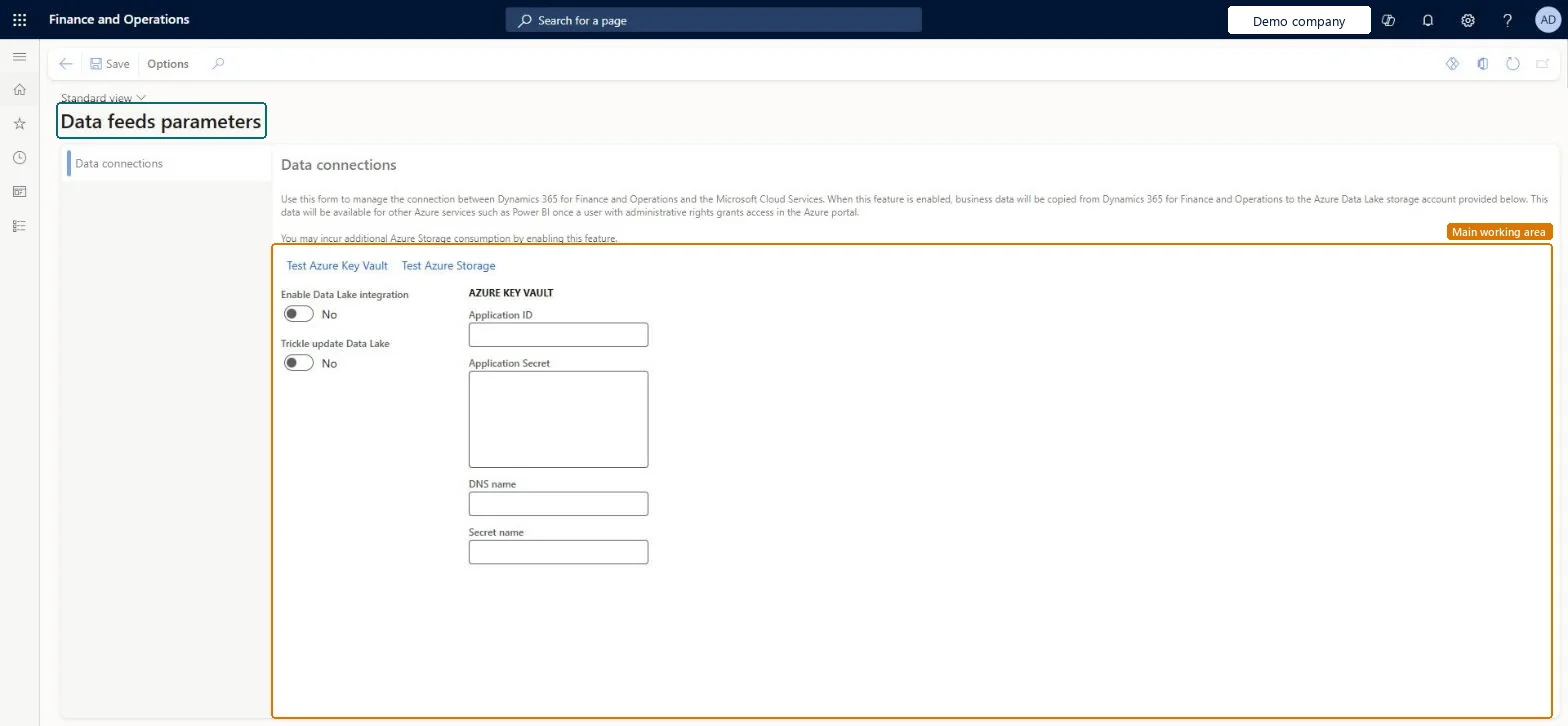
A setup page, titled Data feeds parameters, where you manage the connection between the application and Microsoft cloud services so that business data is copied to an Azure Data Lake storage account.
System administrationSetupExport data to Azure data lake
DataFeedsDataConnection
Business process
Administer system features
Menu item
DataFeedsDataConnection
Main table
BIMeasurementParameters
Setup steps
1 on this page
Show what matters for
SETUP GUIDEHow to set it up8 sections. Choose a role to highlight what matters to you.
Everyone
1What it is and why
What it is
A setup page, titled Data feeds parameters, where you manage the connection between the application and Microsoft cloud services so that business data is copied to an Azure Data Lake storage account.
What you do here
Use this page to enable Data Lake integration, enter the Azure Key Vault details (application ID, application secret, DNS name and secret name), and test the Azure Key Vault and Azure Storage connections.
Example
For example, before turning on Commerce product recommendations, BEAT enables Data Lake integration here, tests the Azure Key Vault and Azure Storage connections, and turns on Automatic Refresh Enabled for the RetailSales entry on Entity Store.
The page in Dynamics 365. page title tab to open what to set or check
About the examples: Examples and screenshots in this guide use BEAT, a demo company in a Dynamics 365 test environment. Use your own company's codes and values instead of copying them.
Step by step, with screenshots
Set up Export Entity Store to Azure data lake1 screen
Screen 1
Review the data lake connection
Go to System administration > Setup > Export data to Azure data lake > Export Entity Store to Azure data lake
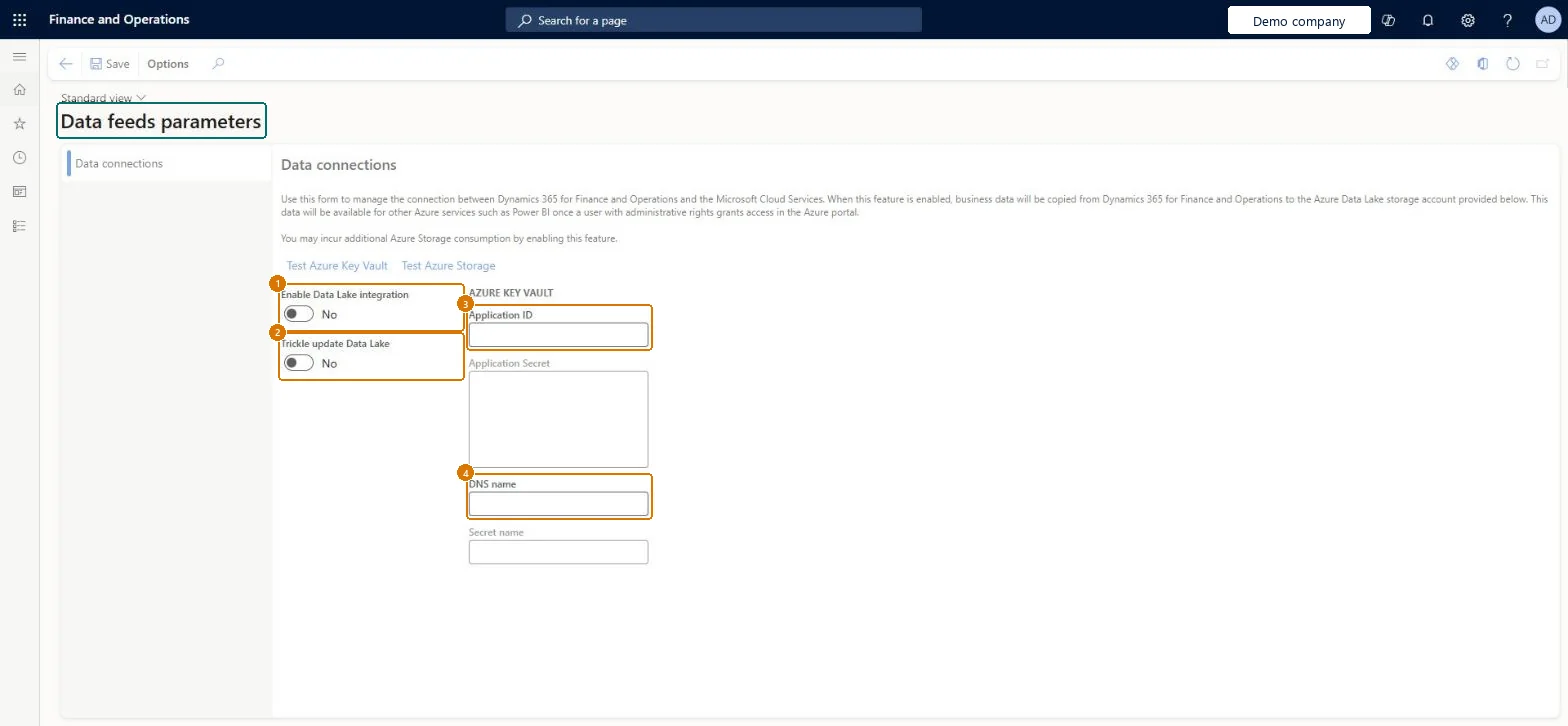
Review the Enable Data Lake integration and Trickle update Data Lake options
Enter the Azure Key Vault application ID, application secret, DNS name and secret name
Select Test Azure Key Vault and Test Azure Storage
Select Save
Show the full screen page title tab to open what to set or check
Steps from Microsoft
Go to System administration > Setup > Export data to Azure data lake > Export Entity Store to Azure data lake.
On the Data connections tab, set Enable Data Lake integration to Yes.
Under Azure Key Vault, enter the Application ID, Application Secret, DNS name and Secret name.
Select Test Azure Key Vault to test that connection.
Select Test Azure Storage to test that connection.
Enable Data Lake integration with the Key Vault Application ID, Application Secret, DNS Name and Secret name, and save only after Test Azure Key Vault and Test Azure Storage both succeedThe Key Vault details are needed to read the storage secret, and Learn has you test both connections before relying on the setup.
Commerce product recommendations, turned on in Feature management, need this connection. No Feature management feature needs to be turned on for this page.
Reversible: The connection values can be changed and the tests rerun at any time.
If you change it later
After the connection is set up, all customer data in the environment's Entity store mirrors automatically to your Azure Data Lake Storage Gen2 account, and Commerce product recommendations use the same storage. Microsoft Learn
Technical architect
6Technical
Menu item
DataFeedsDataConnectionChecked in Dynamics 365
Form
DataFeedsDataConnectionChecked in Dynamics 365
Table
BIMeasurementParametersShown as “BI Parameters” in Record infoChecked in Dynamics 365
Load order: Export Entity Store to Azure data lake has no data entity in Data management, so it can't be loaded from a file or a configuration template. Enter the Key Vault details by hand in each environment and run both connection tests.Checked in Dynamics 365
Checked in a working Dynamics 365 system, version 10.0.49: the menu item, form, table and security, the page, the demo records and the values in the screenshots.
To cite this step: SA-SETUP-380, Set up Export Entity Store to Azure data lake. Beyond ERP Atlas Hub, 2026-11-11. https://www.beyonderp.cloud/atlas/step/SA-SETUP-380