About the examples: Examples and screenshots in this guide use BEAT, a demo company in a Dynamics 365 test environment. Use your own company's codes and values instead of copying them.
Step by step, with screenshots
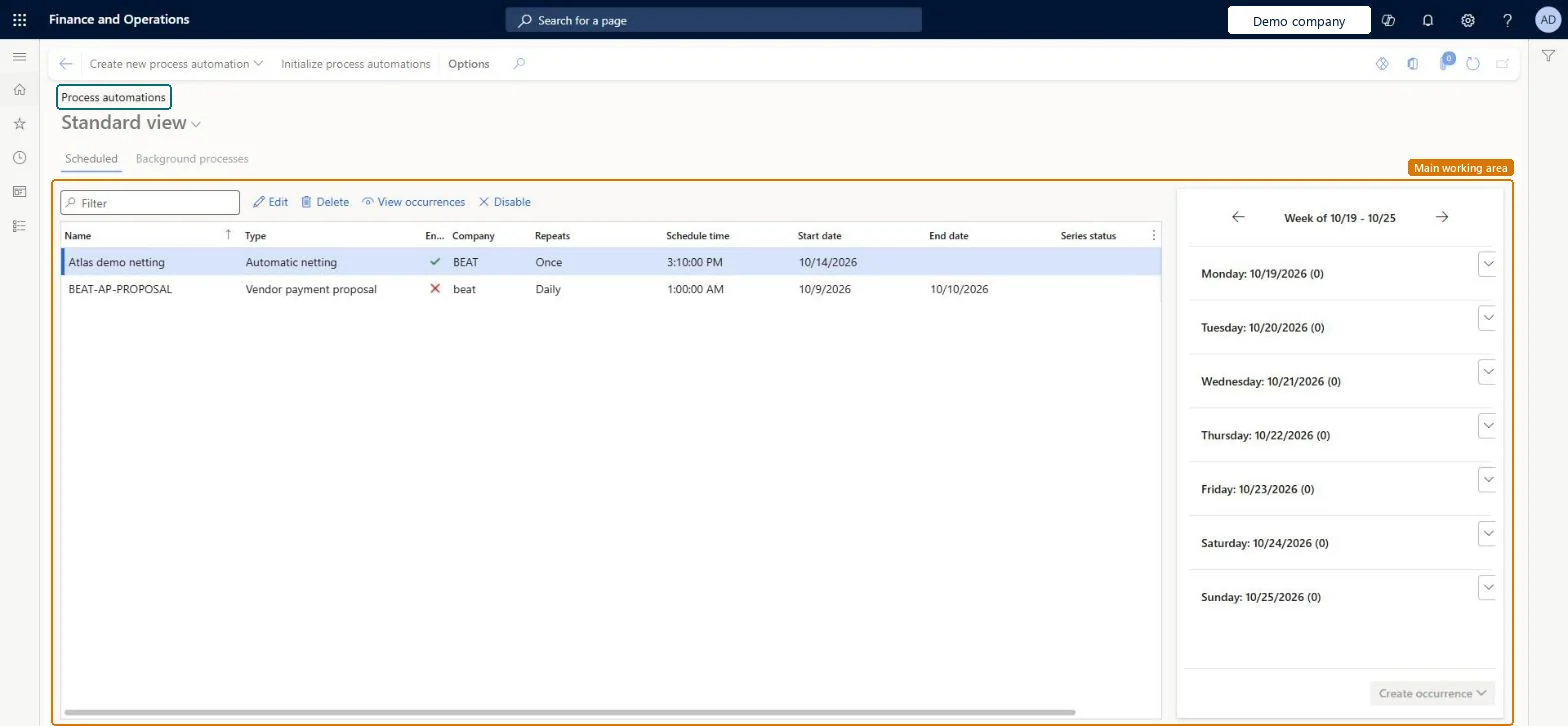
Set up Process automations1 screen
Use this page to add, edit, delete or pause scheduled series, and to change the schedule of background processes.
Screen 1
Review the scheduled process automations
Go to System administration > Setup > Process automations
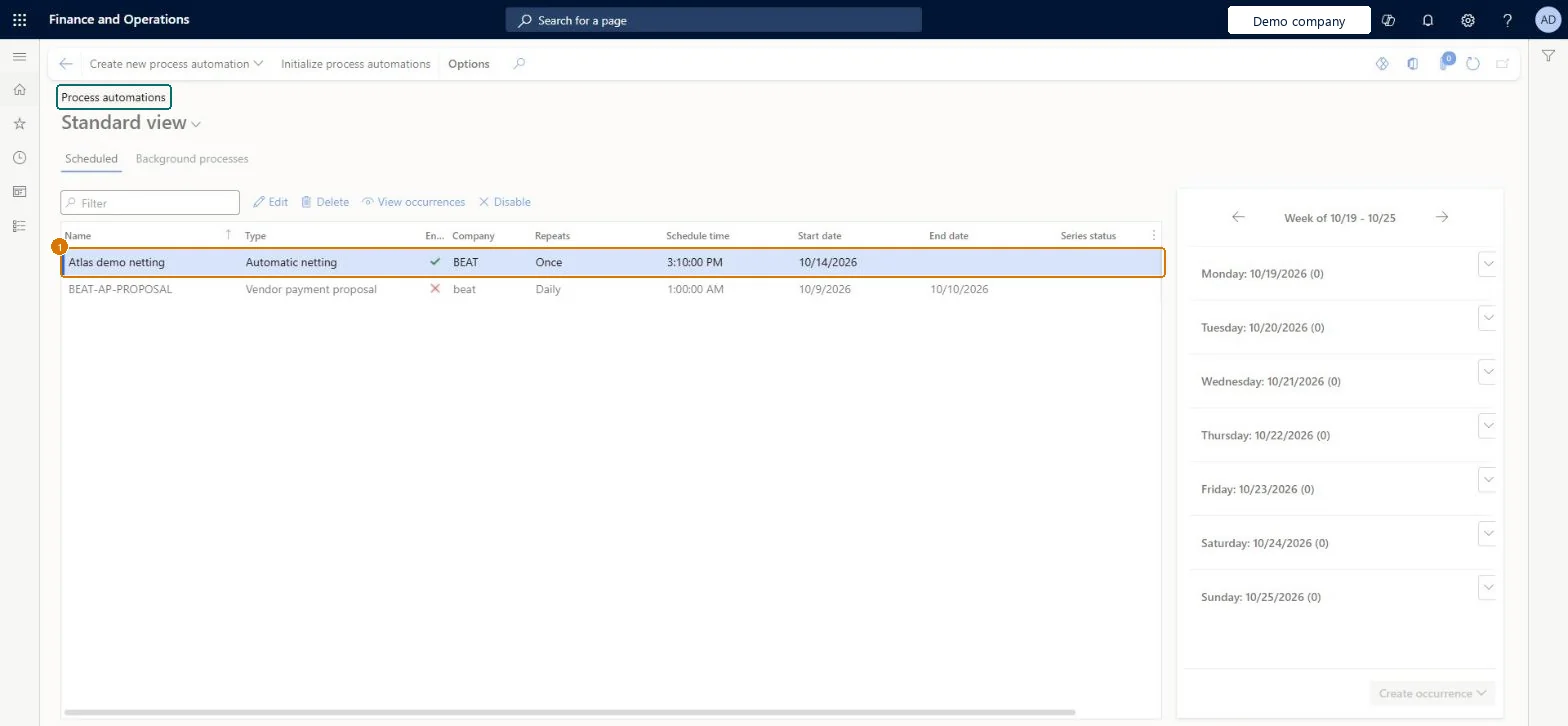
On the Scheduled tab, review each series, its type, company and schedule
Select a series, then select Edit to change its schedule, or Disable to pause it
Select View occurrences to see when it runs
Use Create new process automation to add a series
Show the full screen page title tab to open what to set or check
Steps from Microsoft
Go to System administration > Setup > Process automations and select the Background processes tab.
Select Data maintenance job to find opportunities, and then select Edit.
Set a sleep period, and save.
Repeat for Data maintenance job to run fixes.
When the maintenance work is done, remove the sleep periods.
Shows the scheduled work of the selected series, one week at a time.Microsoft Learn
Cleanup job for the message processor
A background process that the system creates when at least one message queue has cleanup days set; by default it runs daily, and you change its schedule here with Edit.Microsoft Learn
Runs daily by default
Common errors and fixes
Message
What to do
Past occurrences run all at once after a feature is turned back on
When a feature is disabled, its occurrences and background processes aren't scheduled; when it is enabled again, occurrences that are in the past run immediately. Disable the series first if they shouldn't catch up. Microsoft Learn
No series or background process runs at all
The scheduling engine relies on the Process automation polling system job. Check it in Batch jobs and run Initialize process automations if it is missing or in error. Microsoft Learn
Test checklist
Check on Batch jobs that Process automation polling system job is running.
Create a series and check its occurrences in the calendar view.
Change one occurrence and check the other occurrences are unchanged.
On Background processes, select View most recent results for a process.
Schedule and pause series from this page, and leave the Process automation polling system job untouched; use Initialize process automation if that job isn't running or is in errorThe scheduling engine depends on the Process automation polling system job, and Learn says not to alter it; Initialize process automation resets it and picks up new automations.
System administrators manage series and background processes here. Processes that belong to a feature disabled in Feature management don't show in the list. No Feature management feature needs to be turned on for this page.
Load order: Process automations has no data entity in Data management, so it can't be loaded from a file or a configuration template. Series are created by the processes that use them (or added on this page) and background processes come with the application; set them up again in each environment.Checked in Dynamics 365
Checked in a working Dynamics 365 system, version 10.0.49: the menu item, form, table and security, the page, the demo records and the values in the screenshots.
To cite this step: SA-SETUP-400, Set up Process automations. Beyond ERP Atlas Hub, 2026-11-11. https://www.beyonderp.cloud/atlas/step/SA-SETUP-400