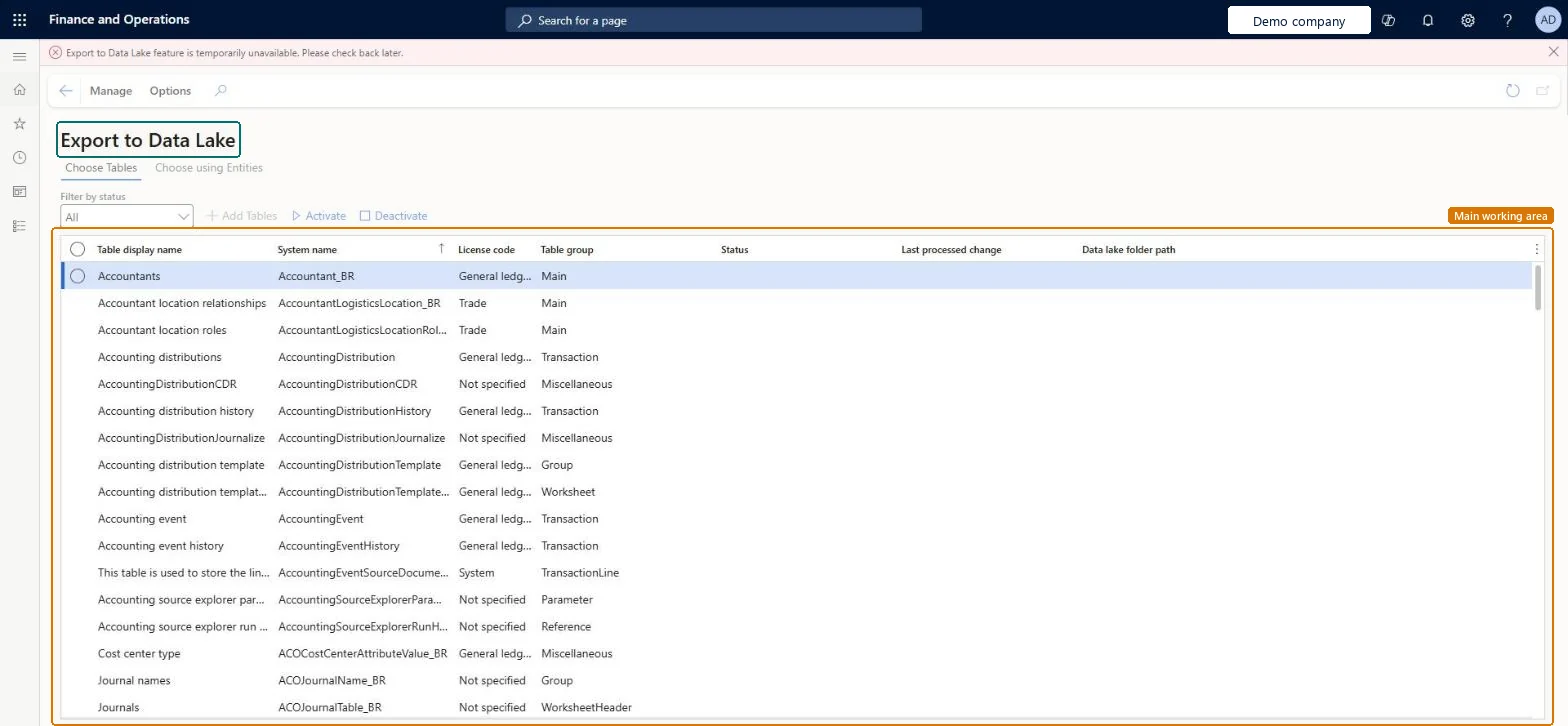
A setup page for Export to Azure Data Lake, a retired service that permanently stops on November 30, 2026; until then it exports finance and operations table data to Azure Data Lake Storage Gen2.
System administrationSetupExport data to Azure data lake
DataFeedsDefinitionWorkspace
Business process
Administer system features
Menu item
DataFeedsDefinitionWorkspace
Setup steps
1 on this page
Show what matters for
PAGE GUIDEWhat the page does and how to use it8 sections. Choose a role to highlight what matters to you.
Everyone
1What it is and why
What it is
A setup page for Export to Azure Data Lake, a retired service that permanently stops on November 30, 2026; until then it exports finance and operations table data to Azure Data Lake Storage Gen2.
What you do here
Use this page only to manage tables that an existing export still sends while you move them to Azure Synapse Link for Dataverse or Link to Microsoft Fabric; don't build new pipelines on it.
Example
For example, BEAT lists the tables it still exports on the Choose Tables tab, sets up the same tables in Azure Synapse Link for Dataverse, checks that the figures match, and then deactivates them here before November 30, 2026.
The page in Dynamics 365. page title tab to open what to set or check
About the examples: Examples and screenshots in this guide use BEAT, a demo company in a Dynamics 365 test environment. Use your own company's codes and values instead of copying them.
Step by step, with screenshots
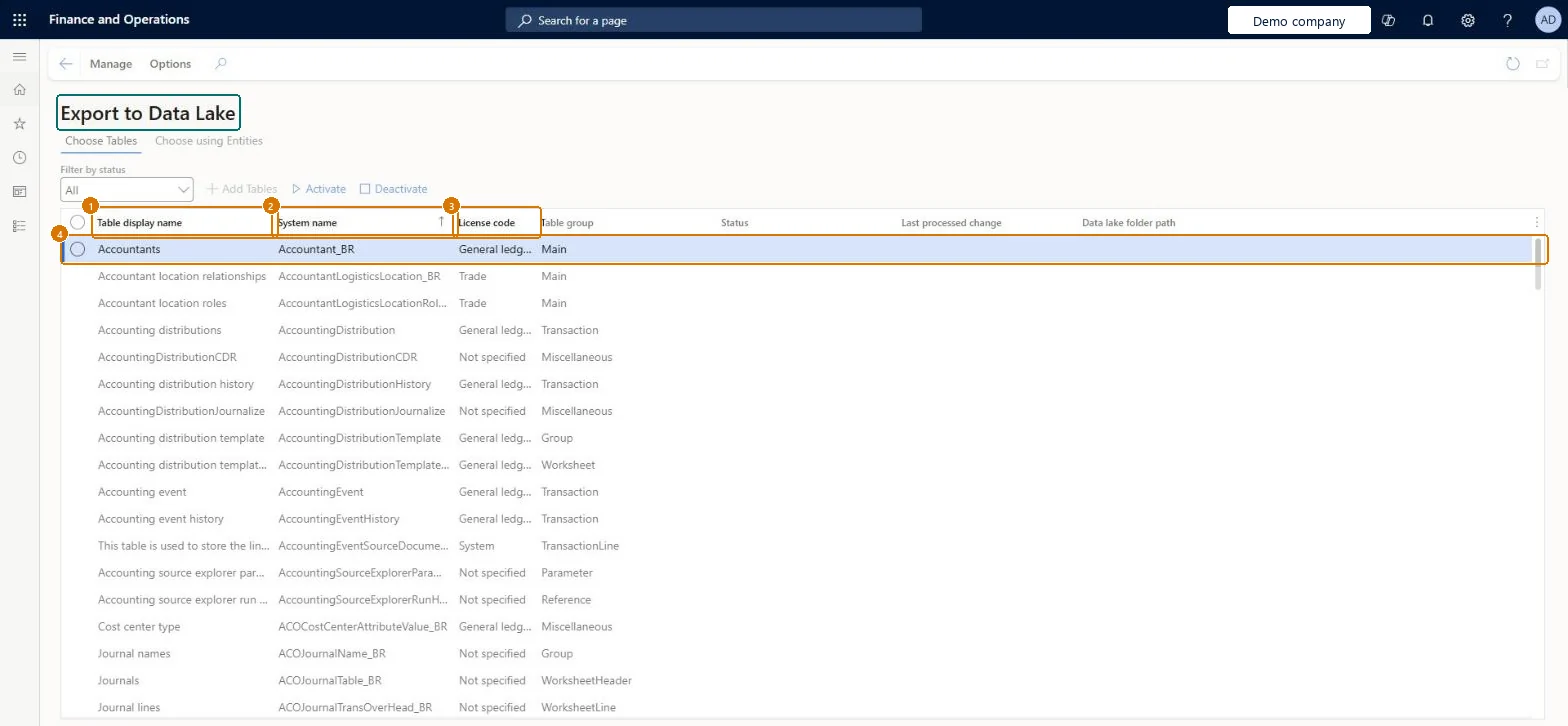
Set up Export to Data Lake1 screen
Use this page to keep table data and metadata in the data lake up to date through initial and incremental exports.
Screen 1
Review an existing Export to Data Lake feed before moving it
Go to System administration > Setup > Export data to Azure data lake > Export to Data Lake
Open the page only to review an existing feed: Export to Data Lake is retired, and Microsoft set November 30, 2026 as the date it stops exporting
On the Choose Tables tab, check which tables are still active
Plan the move of those tables to Azure Synapse Link for Dataverse or Link to Microsoft Fabric; do not activate new tables here
Show the full screen page title tab to open what to set or check
How to use it
Go to System administration > Setup > Export data to Azure data lake > Export to Data Lake.
On the Choose Tables tab, use Filter by status to narrow the list of tables.
Select a table, then select Activate or Deactivate.
Select Add Tables to add tables to the list.
Select the Choose using Entities tab to pick tables by entity.
Open the Manage tab to find Rebuild data feed catalog and Metadata.
Source: Checked in Dynamics 365
Fields on the page
Field
What it means
Choose Tables (tab)
Lists the tables in the export; Filter by status narrows the list and Activate or Deactivate starts or stops a table.Checked in Dynamics 365
Choose using Entities (tab)
Picks the tables to export through data entities.Checked in Dynamics 365
Rebuild data feed catalog (Manage)
Rebuilds the list of tables the export can offer.Checked in Dynamics 365
Common errors and fixes
Message
What to do
The data lake stops receiving new or changed data
Export to Azure Data Lake permanently stops on November 30, 2026, with no extensions. Move the tables to Azure Synapse Link for Dataverse or Link to Microsoft Fabric. Microsoft Learn
Test checklist
List every table exported today and the downstream consumers.
Set up the same tables in Link to Microsoft Fabric or Azure Synapse Link for Dataverse.
Change a record and check the change reaches the new destination.
Point downstream reports to the new destination and check the figures match.
Uninstall the Export to Data lake add-in from the environment page in Lifecycle Services.
Don't use it for new pipelines; move existing ones to Link to Microsoft Fabric or Azure Synapse Link for Dataverse, then uninstall the Export to Data lake add-in in Lifecycle ServicesExport to Azure Data Lake was retired on November 1, 2024 and permanently stops on November 30, 2026, after which it doesn't export new or changed data.
Environment-wide: the export runs through the Export to Data lake add-in installed on the environment in Lifecycle Services. Microsoft Learn
Can it be undone
One-way: Warning: After November 30, 2026 Export to Data Lake permanently stops and can't be extended. Uninstalling the add-in starts turning off change data capture for its tables. Microsoft Learn
If you change it later
Export to Azure Data Lake is retired: Microsoft set November 30, 2026 as the date it stops exporting new or changed data and replaces it with Azure Synapse Link for Dataverse, so new data pipelines should not be built on it. Microsoft Learn
Technical architect
6Technical
Menu item
DataFeedsDefinitionWorkspaceChecked in Dynamics 365
Form
DataFeedsDefinitionWorkspaceChecked in Dynamics 365
Load order: Export to Data Lake has no data entity in Data management, so it can't be loaded from a file or a configuration template. The table selection is made on this page in each environment; for the replacement, choose the tables in Azure Synapse Link for Dataverse.Checked in Dynamics 365
Checked in a working Dynamics 365 system, version 10.0.49: the menu item, form, table and security, the page, the demo records and the values in the screenshots.