Setup step on the Data cache parameters page · System administration
Set up Data cache parameters
A setup page that switches the data cache framework on or off for the whole environment and sets how cached data is refreshed; the framework keeps the data behind workspace count tiles, lists and KPIs.
SETUP GUIDEHow to set it up8 sections. Choose a role to highlight what matters to you.
Everyone
1What it is and why
What it is
A setup page that switches the data cache framework on or off for the whole environment and sets how cached data is refreshed; the framework keeps the data behind workspace count tiles, lists and KPIs.
What you do here
Use this page to turn the data cache on or off, to set whether a refresh is forced on a cache miss and the refresh frequency threshold, and to flush the system cache.
Example
For example, when a count tile in BEAT shows an out-of-date number, an administrator first checks here that the data cache is Enabled, then changes that tile's refresh frequency on Tile data cache configuration instead of turning caching off.
The page in Dynamics 365. page title tab to open what to set or check
About the examples: Examples and screenshots in this guide use BEAT, a demo company in a Dynamics 365 test environment. Use your own company's codes and values instead of copying them.
Step by step, with screenshots
Set up Data cache parameters1 screen
Screen 1
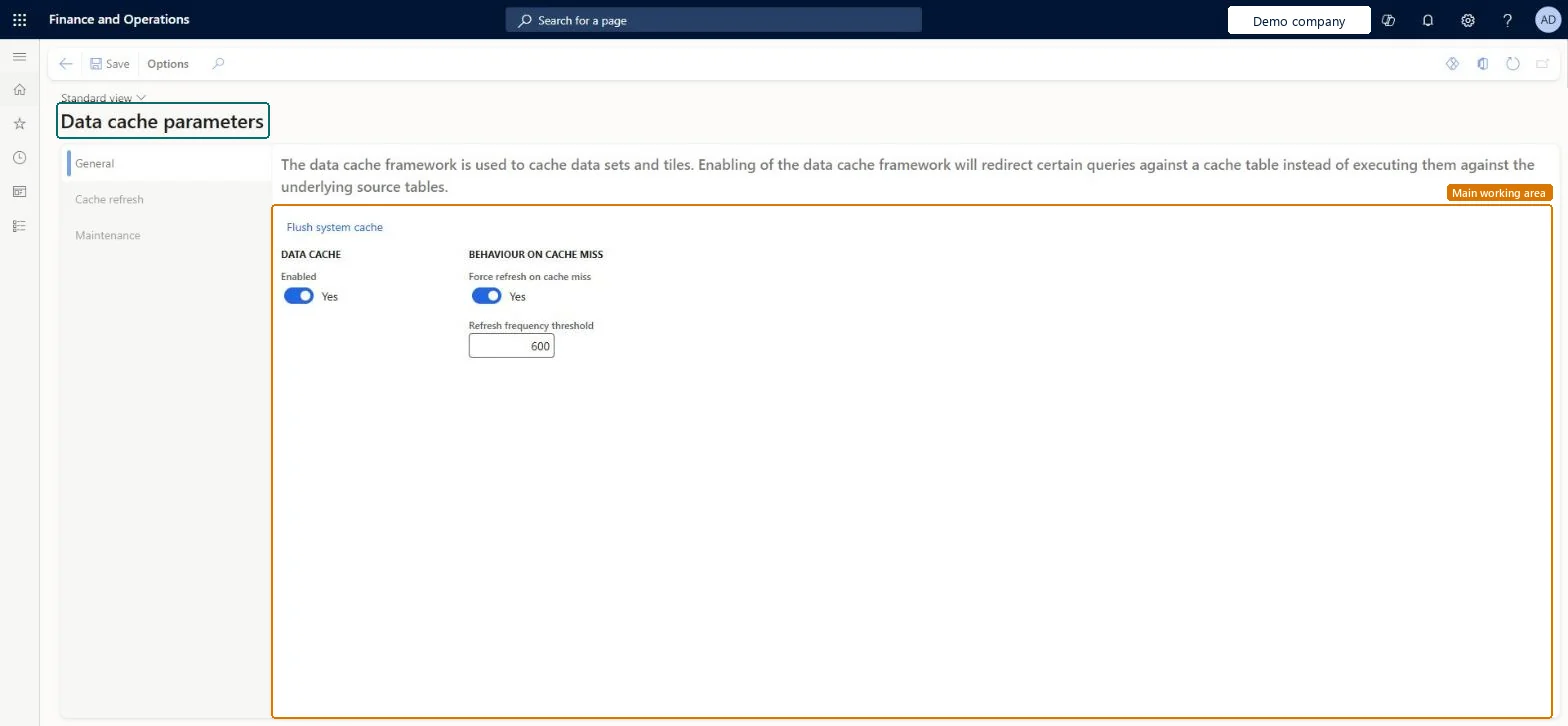
Review the data cache parameters
Go to System administration > Setup > Data cache > Data cache parameters
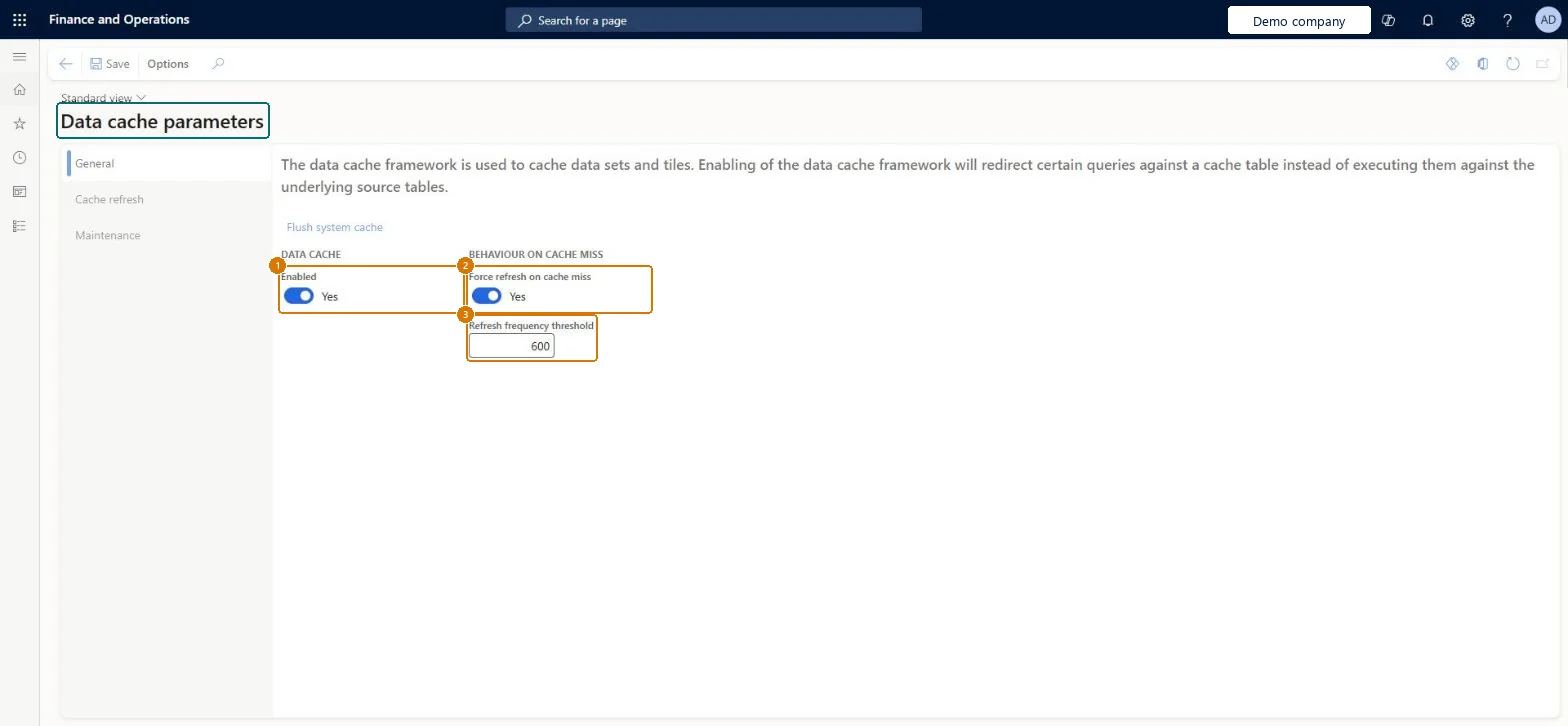
Review whether the data cache is enabled
Review whether a refresh is forced on a cache miss and the refresh frequency threshold
Open the Cache refresh and Maintenance tabs for the remaining options
Show the full screen page title tab to open what to set or check
How to use it
Go to System administration > Setup > Data cache > Data cache parameters.
On the General tab, set Enabled under Data cache.
Set Force refresh on cache miss and enter the Refresh frequency threshold.
Select the Cache refresh or Maintenance tab to set those options.
Select Flush system cache to flush the system cache.
Keep the data cache Enabled and tune individual caches on the cache configuration pages instead of switching the framework offCaching is what keeps workspaces fast when data comes from poorly performing queries and many users need the same data at the same time.
Reversible: The settings can be changed back at any time.
If you change it later
The framework sets up caching behind every count tile and is what keeps workspaces responsive when their data comes from slow queries, so a change here affects every workspace that uses cached tiles or lists. Microsoft Learn
Technical architect
6Technical
Menu item
SysDataCacheParametersChecked in Dynamics 365
Form
SysDataCacheParametersChecked in Dynamics 365
Table
SysDataCacheParametersShown as “Data cache parameters” in Record infoChecked in Dynamics 365
Who can open it
PrivilegesSysDataCacheConfigurationDutiesMaintain system settings SysServerSettingsMaintain1 security roleInformation technology manager SysServerITManagerChecked in Dynamics 365
Roles to set it up and use it
To set it up or change itInformation technology manager SysServerITManagerGive people one of these roles. On this system, 1 role can open this page.Checked in Dynamics 365
Actions on the page
Options: Personalize, Page options, Edit, ShareChecked in Dynamics 365
Load order: Data cache parameters has no data entity in Data management, so it can't be loaded from a file or a configuration template. Keep the delivered values or set them by hand in each environment.Checked in Dynamics 365
Checked in a working Dynamics 365 system, version 10.0.49: the menu item, form, table and security, the page, the demo records and the values in the screenshots.
To cite this step: SA-SETUP-290, Set up Data cache parameters. Beyond ERP Atlas Hub, 2026-11-11. https://www.beyonderp.cloud/atlas/step/SA-SETUP-290