About the examples: Examples and screenshots in this guide use BEAT, a demo company in a Dynamics 365 test environment. Use your own company's codes and values instead of copying them.
Step by step, with screenshots
Set up High-volume notification rules1 screen
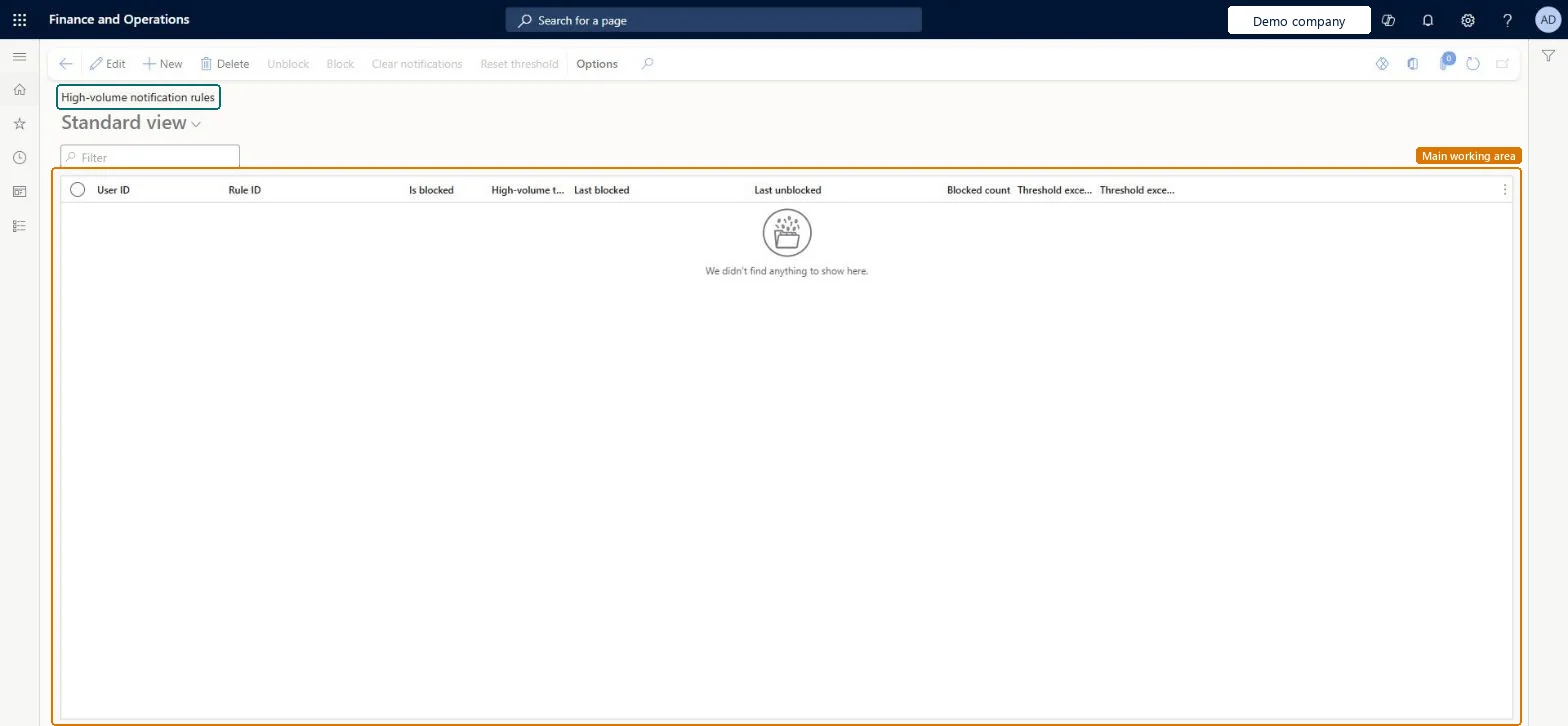
Use this page to see which users receive these notifications, block the processes that create them, and clear notifications that were already created.
Screen 1
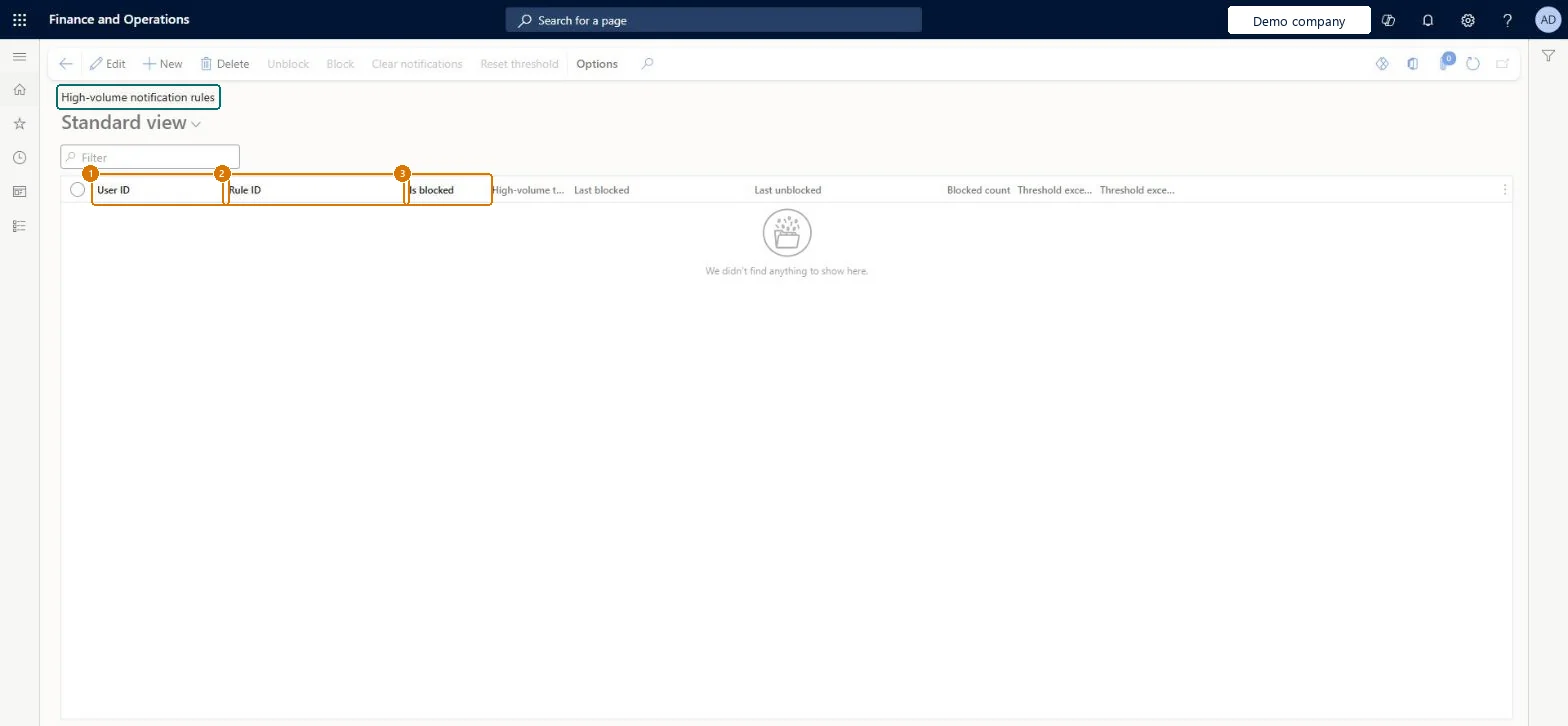
Review the high-volume notification rules
Go to System administration > Setup > High-volume notification rules
Review which users receive high-volume notifications and which rule is behind them
Select a line, then select Block to stop the process that creates the notifications, or Unblock to allow it again
Select Clear notifications to remove notifications that were already created
Show the full screen page title tab to open what to set or check
Steps from Microsoft
Go to System administration > Setup > High-volume notification rules.
Select New to add a rule, or select a rule and choose Edit.
Select a rule, then use Block, Unblock, Clear notifications or Reset threshold as needed.
Removes the notifications that a high-volume process has already created.Microsoft Learn
Common errors and fixes
Message
What to do
Users receive hundreds of notifications from one process
Open High-volume notification rules, review the users who receive the flagged rule, select Block, and then select Clear notifications to remove the notifications already created. Microsoft Learn
Test checklist
Check the threshold on the System notifications tab of System parameters (by default more than 100 notifications per hour).
Check the High-volume notifications tile in the System administration workspace.
Open High-volume notification rules, review the users who receive a flagged rule, and block the process.
Select Clear notifications for that rule and check that the users' notifications are gone.
Keep the threshold on the System notifications tab of System parameters (by default more than 100 notifications per hour), turn on Auto-blocking of high-volume notification rules, and clear the notifications of a blocked processA batch process or a user-created alert can create a storm of notifications that slows the system down; auto-blocking stops such a process as soon as it reaches the threshold and tells the users concerned.
Enable system notification management (Must be on)Auto-blocking of high-volume notification rules (Optional)
Licence or add-in
On this system the page opens for System notification administrator. Turn on Enable system notification management; Auto-blocking of high-volume notification rules is optional.
Hard to reverse: Clear notifications purges notifications that were already created, and Learn doesn't describe a way to restore them.
If you change it later
With the Auto-blocking of high-volume notification rules feature, processes that reach the threshold are blocked automatically and the users concerned are told. Microsoft Learn
Technical architect
6Technical
Menu item
SystemNotificationBlockingActivityChecked in Dynamics 365
Form
SystemNotificationBlockingActivityChecked in Dynamics 365
Table
SystemNotificationBlockingActivityChecked in Dynamics 365
Who can open it
PrivilegesSystemNotificationBlockingActivityMaintainDutiesMaintain system notification blocks SystemNotificationBlockingActivityMaintain1 security roleSystem notification administrator SystemNotificationAdministratorChecked in Dynamics 365
Roles to set it up and use it
To set it up or change itSystem notification administrator SystemNotificationAdministratorGive people one of these roles. On this system, 1 role can open this page.Checked in Dynamics 365
Actions on the page
Options: Personalize, Page options, ShareChecked in Dynamics 365
Load order: High-volume notification rules has no data entity in Data management, so it can't be loaded from a file or a configuration template. Add or block rules by hand in each environment, and set the threshold on the System notifications tab of System parameters there.Checked in Dynamics 365
Checked in a working Dynamics 365 system, version 10.0.49: the menu item, form, table and security, the page, the demo records and the values in the screenshots.
To cite this step: SA-SETUP-210, Set up High-volume notification rules. Beyond ERP Atlas Hub, 2026-11-11. https://www.beyonderp.cloud/atlas/step/SA-SETUP-210