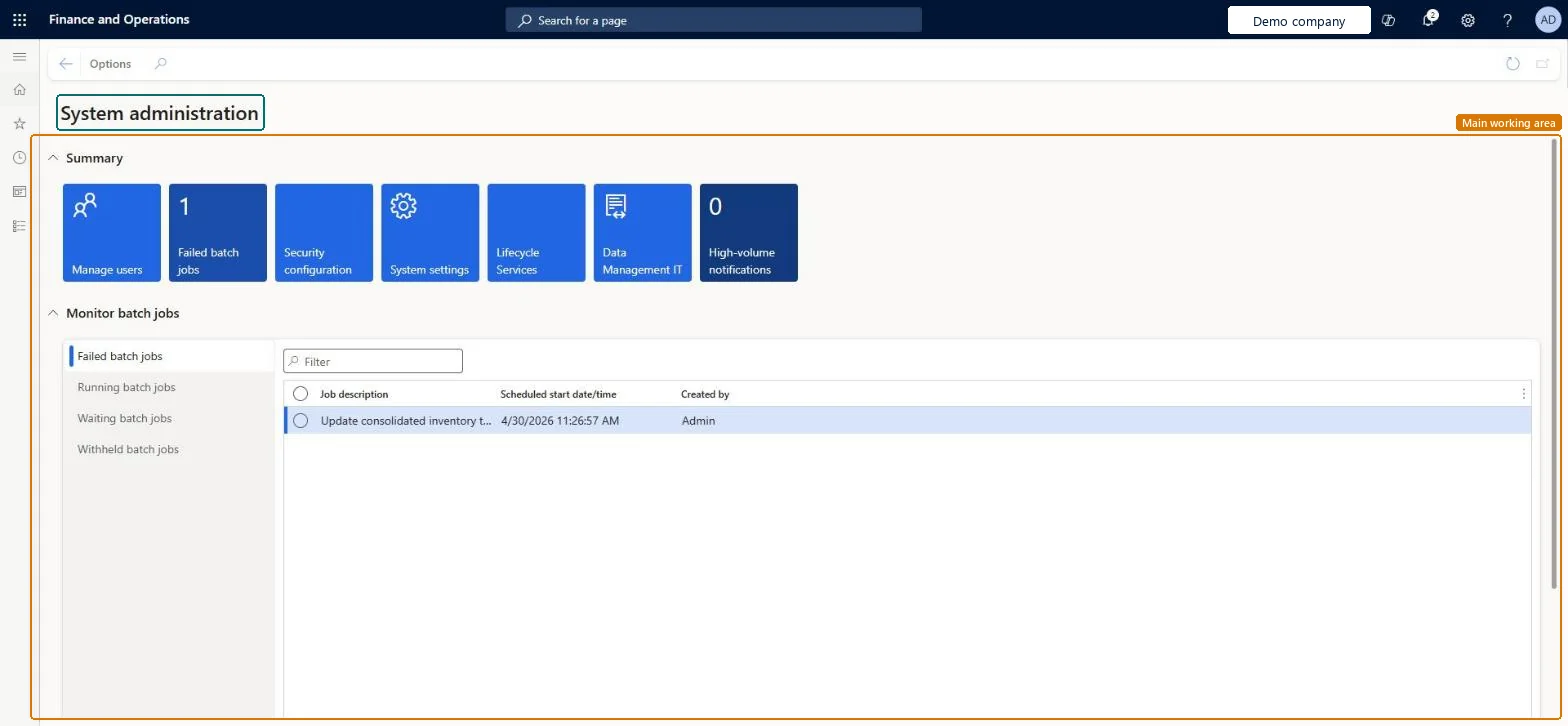
A workspace that gives system administrators a summary of tiles for managing users, failed batch jobs, security configuration, system settings, Lifecycle Services, Data Management IT and high-volume notifications, with lists of batch jobs below them.
Security administrator, Information technology manager
Business process
Administer system features
Menu item
SystemAdministrationWorkspace
Setup steps
1 on this page
Show what matters for
PAGE GUIDEWhat the page does and how to use it8 sections. Choose a role to highlight what matters to you.
Everyone
1What it is and why
What it is
A workspace that gives system administrators a summary of tiles for managing users, failed batch jobs, security configuration, system settings, Lifecycle Services, Data Management IT and high-volume notifications, with lists of batch jobs below them.
What you do here
Use this page to reach the main system administration areas from one place and to monitor batch jobs that have failed, are running, are waiting or are withheld.
Example
For example, on Monday morning the BEAT administrator opens the workspace, sees 2 jobs under Failed batch jobs, opens the job history of each, fixes the cause and sets the jobs back to Waiting.
The page in Dynamics 365. page title tab to open what to set or check
About the examples: Examples and screenshots in this guide use BEAT, a demo company in a Dynamics 365 test environment. Use your own company's codes and values instead of copying them.
Setup steps on this page
Monitor batch jobs from the System administration workspace
Use the workspace each working day to find failed, waiting and withheld batch jobs before users notice.
Steps from Microsoft
Go to System administration > Workspaces > System administration.
Select a tile under Summary, such as Manage users, Failed batch jobs, Security configuration or System settings.
Select Lifecycle Services, Data Management IT or High-volume notifications to open those areas.
Under Monitor batch jobs, select Failed batch jobs, Running batch jobs, Waiting batch jobs or Withheld batch jobs.
Batch jobs that ended in error; open one to see its history and log.Checked in Dynamics 365
2 failed jobs on a Monday morning
Running batch jobs
Batch jobs that are executing now.Checked in Dynamics 365
Waiting batch jobs
Batch jobs that are scheduled and wait for their start time or a free batch thread.Checked in Dynamics 365
Withheld batch jobs
Batch jobs that an administrator set to Withhold, so they don't run until set back to Waiting.Checked in Dynamics 365
Common errors and fixes
Message
What to do
The batch job stays in Waiting and never starts
Check that the job's active period doesn't hold it outside its hours, and that its batch group's Max concurrency isn't -1, which pauses every job in the group. (With priority-based scheduling, required from version 10.0.38, batch groups no longer tie jobs to batch servers.) Microsoft Learn
Test checklist
Open the workspace and note the count on the Failed batch jobs list.
Open Inquiries > Batch jobs, filter Status = Error and check the same number of jobs is listed.
Select a job from the workspace and check it opens the same job on the Batch jobs page.
Check Failed batch jobs and Withheld batch jobs every working day, and open the job history of each failed job before rerunning itA failed job keeps its history and log on the Batch jobs page, which tells you why it failed. Rerunning it without reading the log often fails again for the same reason.
On this system the page opens for Information technology manager and Security administrator. It is the starting page for IT administrators and security administrators. No Feature management feature needs to be turned on for this page.
Shared: the tiles and batch job lists show the whole environment, not one legal entity. Microsoft Learn
Can it be undone
Reversible: Opening the workspace changes nothing; a batch job status changed from its lists can be set back on the Batch jobs page. Microsoft Learn
If you change it later
The workspace only reads data. Actions taken from its lists, such as changing a batch job's status, act on the batch job itself and apply to every company. Microsoft Learn
Technical architect
6Technical
Menu item
SystemAdministrationWorkspaceChecked in Dynamics 365
Form
SystemAdministrationWorkspaceFormChecked in Dynamics 365
Who can open it
PrivilegesView system administration workspace SystemAdministrationWorkspaceViewDutiesMaintain security settings SysSecSecurityMaintainMaintain system settings SysServerSettingsMaintain2 security rolesSecurity administrator SysSecSecurityAdministratorInformation technology manager SysServerITManagerChecked in Dynamics 365
Roles to set it up and use it
To use itInformation technology manager SysServerITManagerSecurity administrator SysSecSecurityAdministratorGive people one of these roles. On this system, 2 roles can open this page.Checked in Dynamics 365
Actions on the page
Options: Personalize, Page options, ShareChecked in Dynamics 365
Load order: The System administration workspace has no data entity in Data management, so it can't be loaded from a file or a configuration template. It only shows tiles and lists over batch jobs and users; their data lives on the Batch jobs and Users pages, where the entities Batch job and User information apply.Checked in Dynamics 365