About the examples: Examples and screenshots in this guide use BEAT, a demo company in a Dynamics 365 test environment. Use your own company's codes and values instead of copying them.
Step by step, with screenshots
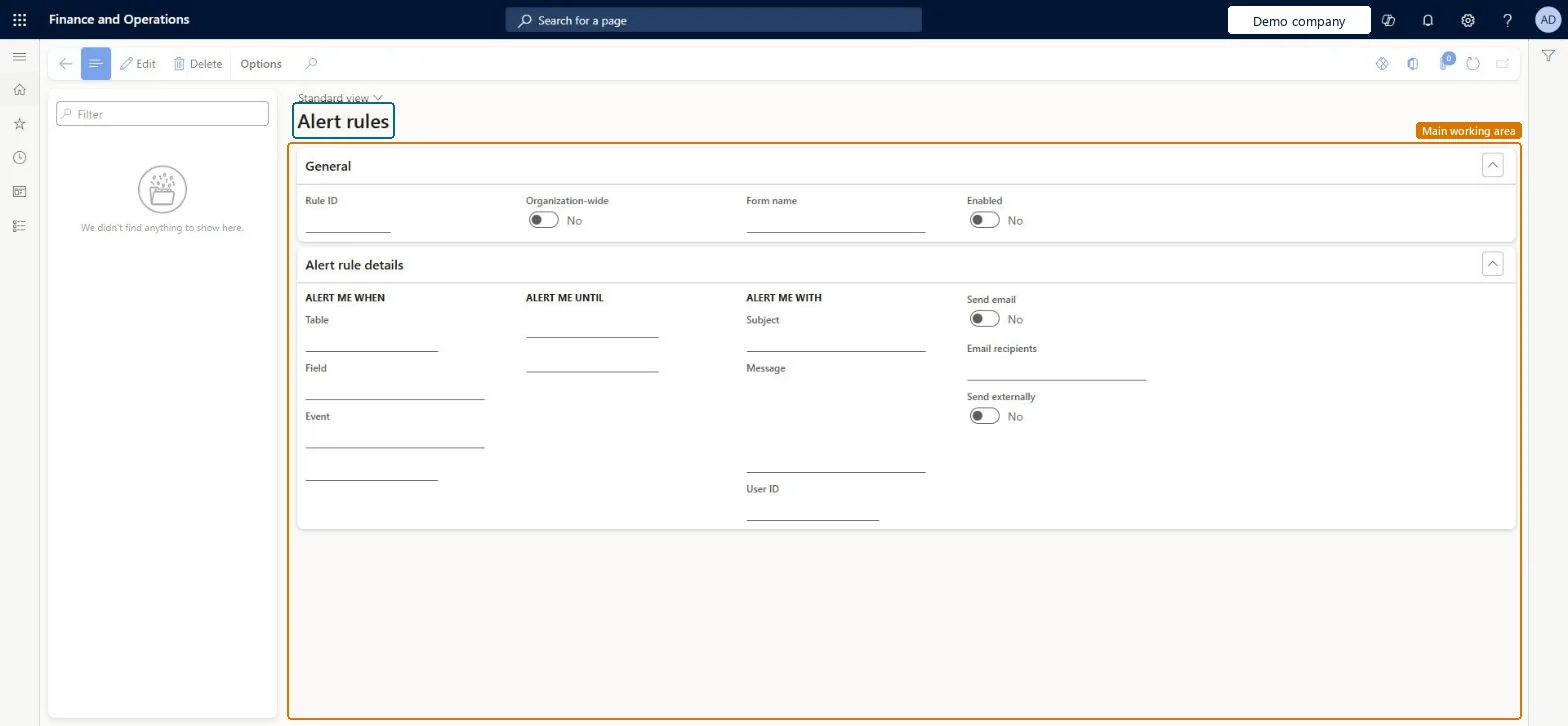
Set up Alert rules1 screen
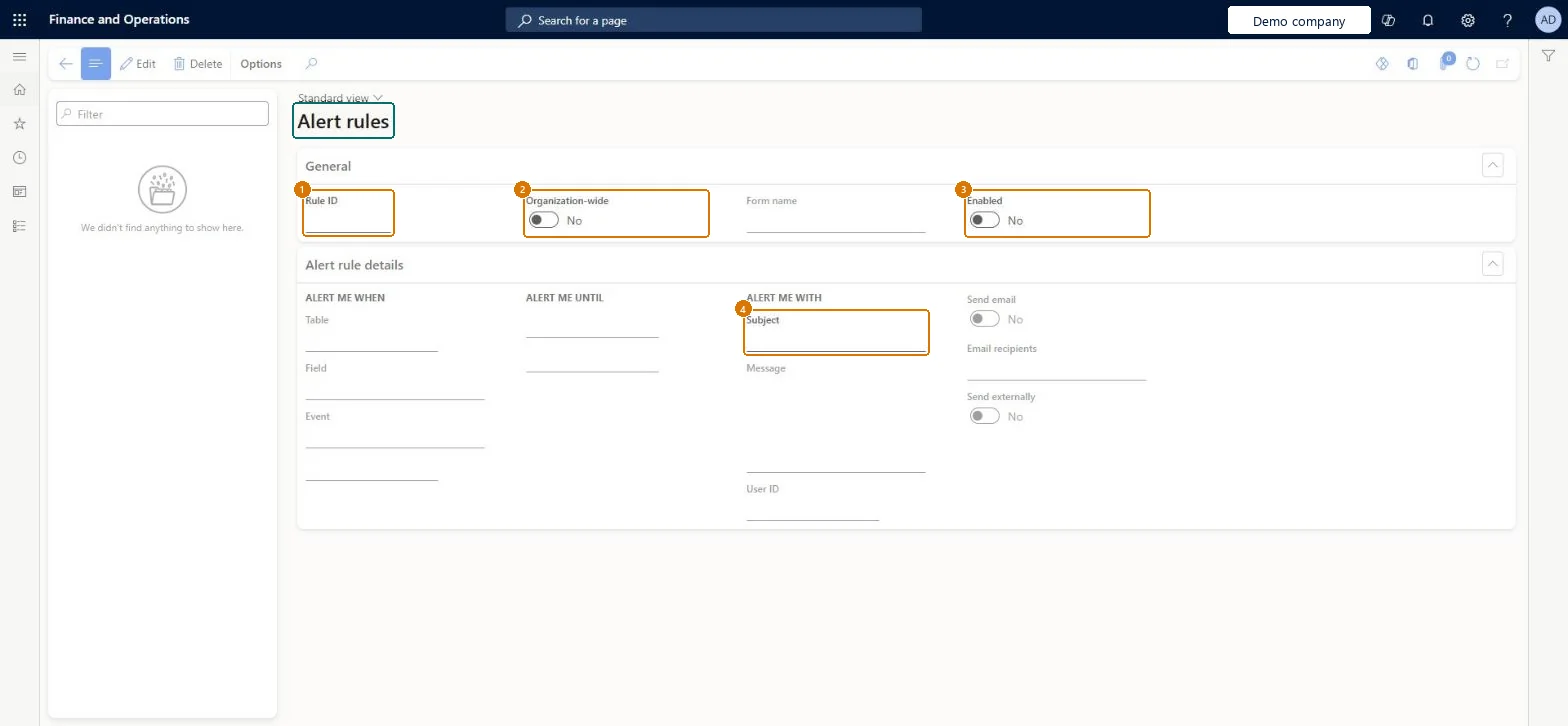
Use this page to turn rules on or off, change their end date, change the alert subject and message, and delete rules.
Screen 1
Manage alert rules
Go to System administration > Setup > Alert rules
Select a rule in the list on the left
Select Edit to turn the rule on or off, or to change its end date
Change the subject and message of the alert if needed
Select Delete to remove a rule
Show the full screen page title tab to open what to set or check
Steps from Microsoft
Open the Alert rules page and select the rule.
To stop the rule, clear the Enabled check box.
To change when the rule ends, change the Alert me until setting.
To change the alert email, edit the Subject and Message fields.
To delete the rule, delete it and choose whether to delete the alerts it created.
Alert rules are evaluated only by the Change based alerts and Due date alerts batch jobs. Check that both run as recurring batch jobs, and that the rule is Enabled and its Alert me until date hasn't passed. Microsoft Learn
Test checklist
In System administration > Periodic tasks > Alerts, schedule Change based alerts and Due date alerts as recurring batch jobs.
On All sales orders, select Create alert rule with the event Record has been created.
Create a sales order and wait for the next batch run.
Check that the alert arrives, then turn the rule off on Alert rules and check no further alerts arrive.
Run Change based alerts and Due date alerts as recurring batch jobs; due date alerts at least once a dayAlert rules are evaluated only by these batch jobs, and Learn recommends running the due date job at least once a day.
On this system the page opens for Information technology manager. Users create their own alert rules from the pages they work on; this page lets an administrator review them. No Feature management feature needs to be turned on for this page.
Stored in one shared table (Microsoft's table reference shows no company column); each rule belongs to the user who created it and watches the records named in its condition. Microsoft data model
Can it be undone
Reversible: Rules can be turned off, changed or deleted at any time. Changing a rule's due date after it has alerted asks whether to be alerted again.
If you change it later
If you change the due date in a rule after it has already alerted you, you're asked whether to be alerted again about the same records. Microsoft Learn
Technical architect
6Technical
Menu item
EventRuleAdminChecked in Dynamics 365
Form
EventRuleChecked in Dynamics 365
Table
EventRuleShown as “Alerts - rule” in Record infoKey field: RuleId, Subject, UserIdChecked in Dynamics 365
Who can open it
PrivilegesHandle alerts EventHandleAlertsDutiesMaintain workflow and alerts settings WorkflowAlertsSettingsMaintain1 security roleInformation technology manager SysServerITManagerChecked in Dynamics 365
Roles to set it up and use it
To set it up or change itInformation technology manager SysServerITManagerGive people one of these roles. On this system, 1 role can open this page.Checked in Dynamics 365
Actions on the page
Options: Personalize, Page options, ShareChecked in Dynamics 365
Developer
7Developer
Open it by URL
https://<your-environment>/?mi=EventRuleAdmin
Data migration
Load order: Alert rules has no data entity in Data management, so it can't be loaded from a file or a configuration template. Users create alert rules in each environment from the page that holds the data (Options > Create alert rule).Checked in Dynamics 365
Checked in a working Dynamics 365 system, version 10.0.49: the menu item, form, table and security, the page, the demo records and the values in the screenshots.
To cite this step: SA-SETUP-200, Set up Alert rules. Beyond ERP Atlas Hub, 2026-11-11. https://www.beyonderp.cloud/atlas/step/SA-SETUP-200