PAGE GUIDEWhat the page does and how to use it8 sections. Choose a role to highlight what matters to you.
Everyone
1What it is and why
What it is
A periodic job that deletes old notification records from the EventInbox and EventInboxData tables.
What you do here
Use this task to periodically delete notification records, for example as a recurring batch job. Run it only after the business has confirmed that the data is no longer required.
Example
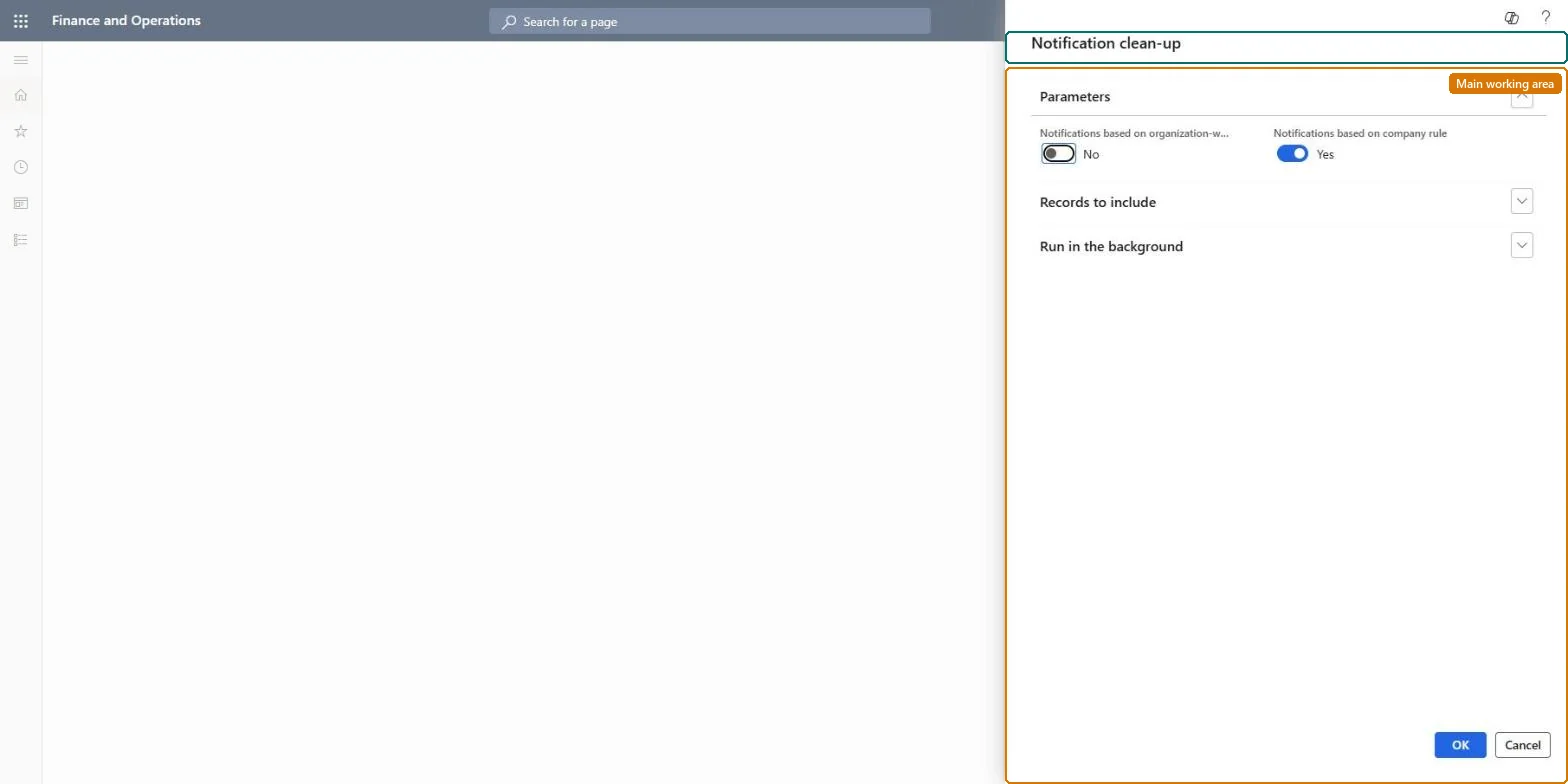
For example, BEAT schedules Notification clean up as a recurring batch job at night after the business confirms that notifications from both company and organization-wide alert rules older than the review period are no longer needed.
The page in Dynamics 365. page title tab to open what to set or check
About the examples: Examples and screenshots in this guide use BEAT, a demo company in a Dynamics 365 test environment. Use your own company's codes and values instead of copying them.
When to run it
When to run it
After the business has confirmed that old notification records are no longer needed.
How often
As a recurring batch job; choose the interval by how many notifications your alert rules produce.
Batch settings
Schedule it as a recurring batch job outside business hours.
What the output shows
Old records removed from EventInbox and EventInboxData. If recent notifications disappear too, the job's selection was wider than intended.
Keep the notification tables small by deleting notifications the business no longer needs.
Steps from Microsoft
Go to System administration > Periodic tasks > Notification clean up.
Agree with the business which notifications can go. Microsoft advises running a cleanup routine only after the business confirms the data is no longer needed, and testing it in a test environment first.
Set the job up as a recurring batch job, so the EventInbox and EventInboxData tables don't keep growing.
If your company doesn't use alert rules at all, turn off the alert processing batch job too, instead of only cleaning up after it.
After the first run, confirm that users no longer see the old notifications and that recent ones are still there.
A recurring night batch job, set up only after the business confirms which notifications can go; if alerts aren't used at all, turn off the alert batch jobs insteadLearn says cleanup routines run only after the business confirms the data isn't needed, tested in a test environment first, and recommends turning off the alert batch job when alerts aren't used.
Shared: EventInbox and EventInboxData have no company key. The two dialog options choose notifications from company rules, organization-wide rules or both. Microsoft data model
Can it be undone
No: Deleted notifications can't be restored. Run it only after the business confirms they are no longer needed. Microsoft Learn
If you change it later
Deletes notification records from the EventInbox and EventInboxData tables, so users no longer see those notifications. Microsoft Learn
Technical architect
6Technical
Menu item
action:EventAlertCleanupChecked in Dynamics 365
Roles to set it up and use it
To use itInformation technology manager SysServerITManagerGive people one of these roles. On this system, 1 role can run this page.Checked in Dynamics 365
Load order: Notification clean up has no data entity in Data management, so it can't be loaded from a file or a configuration template. It is a periodic job; set it up again as a recurring batch job in each environment.Checked in Dynamics 365