SETUP GUIDEHow to set it up8 sections. Choose a role to highlight what matters to you.
Everyone
1What it is and why
What it is
A setup page where you register external applications by their Microsoft Entra client ID and link each one to a user account.
What you do here
Use this page to let external systems connect securely to the system's services, running under the user account you choose.
Example
For example, to let an external contract lifecycle management system use the data entities, an administrator adds its client ID and maps it to a service account that has the CLM integration role.
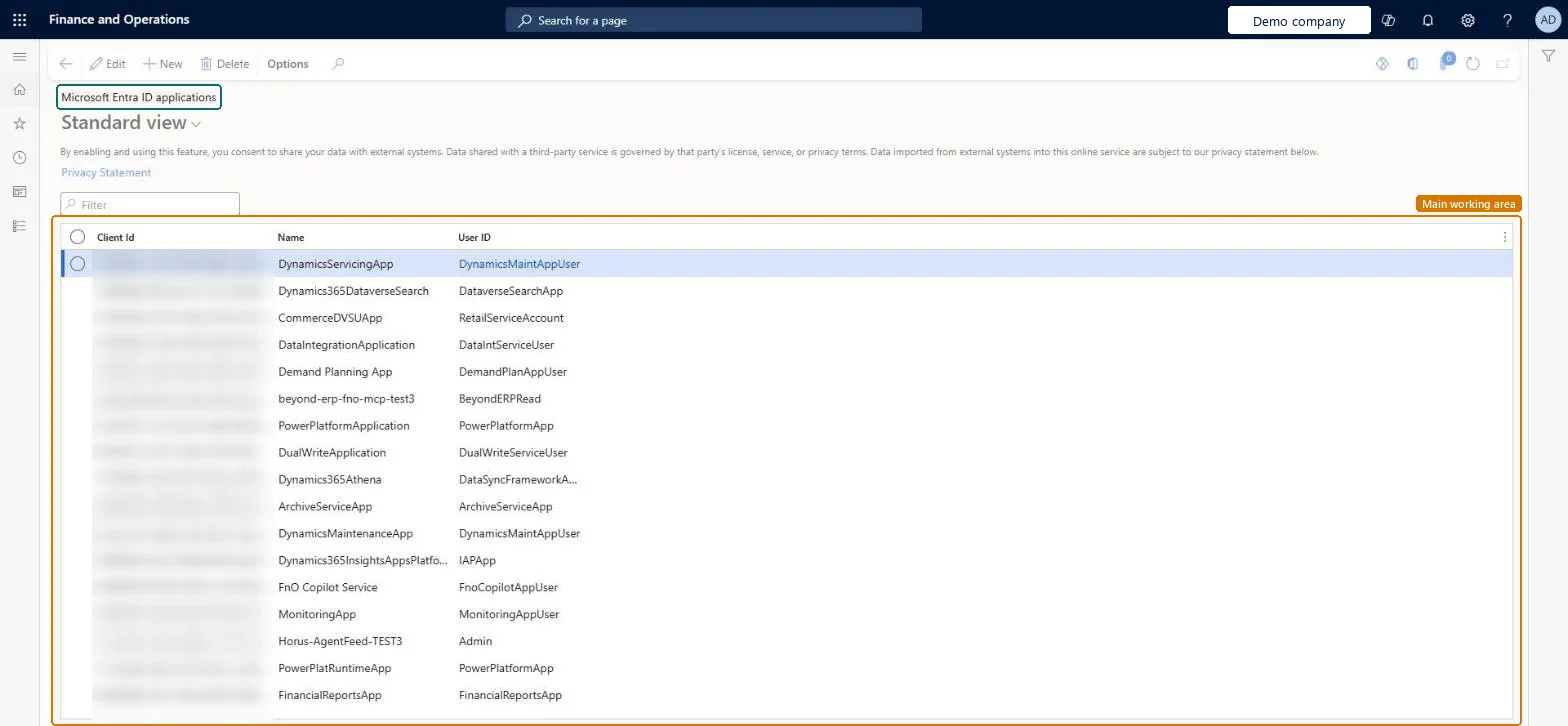
The page in Dynamics 365. page title tab to open what to set or check
About the examples: Examples and screenshots in this guide use BEAT, a demo company in a Dynamics 365 test environment. Use your own company's codes and values instead of copying them.
Setup steps on this page
Set up Microsoft Entra ID applications
Use this page to let external systems connect securely to the system's services, running under the user account you choose.
Steps from Microsoft
Go to System administration > Setup > Microsoft Entra ID applications.
Select New.
In the Client Id field, enter the application ID registered in Microsoft Entra ID.
In the Name field, enter a name for the application.
In the User ID field, select the service account the application runs as.
One record per external application, linked to a dedicated service account user that has only the roles the integration needsService calls run as the user selected in User ID. Learn uses Admin only as an example and says that, as a better practice, you should provision a dedicated service account with the correct permissions.
On this system the page opens for Information technology manager. IT administrators register applications. No Feature management feature needs to be turned on for this page.
Reversible: The User ID can be changed or the record removed at any time; the external app then runs as the new user or can't connect.
If you change it later
Calls from the application run with the security of the user in User ID, so that user's roles decide what the integration can read and change. Microsoft Learn
Technical architect
6Technical
Menu item
SysAADClientTableChecked in Dynamics 365
Form
SysAADClientTableChecked in Dynamics 365
Table
SysAADClientTableShown as “Microsoft Entra ID applications” in Record infoChecked in Dynamics 365
Data entities
SysAADClientTableEntityAzure active directory applications Checked in Dynamics 365
Who can open it
PrivilegesMicrosoft Entra ID applications SysAADClientTableMaintainDutiesMaintain system settings SysServerSettingsMaintain1 security roleInformation technology manager SysServerITManagerChecked in Dynamics 365
Roles to set it up and use it
To set it up or change itInformation technology manager SysServerITManagerGive people one of these roles. On this system, 1 role can open this page.Checked in Dynamics 365
Actions on the page
Options: Personalize, Page options, ShareChecked in Dynamics 365
Developer
7Developer
Open it by URL
https://<your-environment>/?mi=SysAADClientTable
Integrate with
SysAADClientTableEntity data entity Checked in Dynamics 365
Data migration
SysAADClientTableEntity (Azure active directory applications): shared by all companies, in Microsoft's default template 400 - Warehouse management.Load order: Microsoft's default template 400 - Warehouse management loads Azure active directory applications at execution unit 1, level 30, sequence 10. Load the users first, because each record names a user.Load first: Users (User information)Checked in Dynamics 365
Checked in a working Dynamics 365 system, version 10.0.49: the menu item, form, table and security, the page.
To cite this step: SA-SETUP-140, Set up Microsoft Entra ID applications. Beyond ERP Atlas Hub, 2026-11-11. https://www.beyonderp.cloud/atlas/step/SA-SETUP-140