PAGE GUIDEWhat the page does and how to use it8 sections. Choose a role to highlight what matters to you.
Everyone
1What it is and why
What it is
A setup page where administrators give users security roles, either by hand or through automatic assignment rules.
What you do here
Use this page to assign users to security roles, exclude users from automatic assignment, or remove users from roles.
Example
For example, an administrator selects the Accounting supervisor role, adds a rule based on a query of business data, and then runs automatic role assignment.
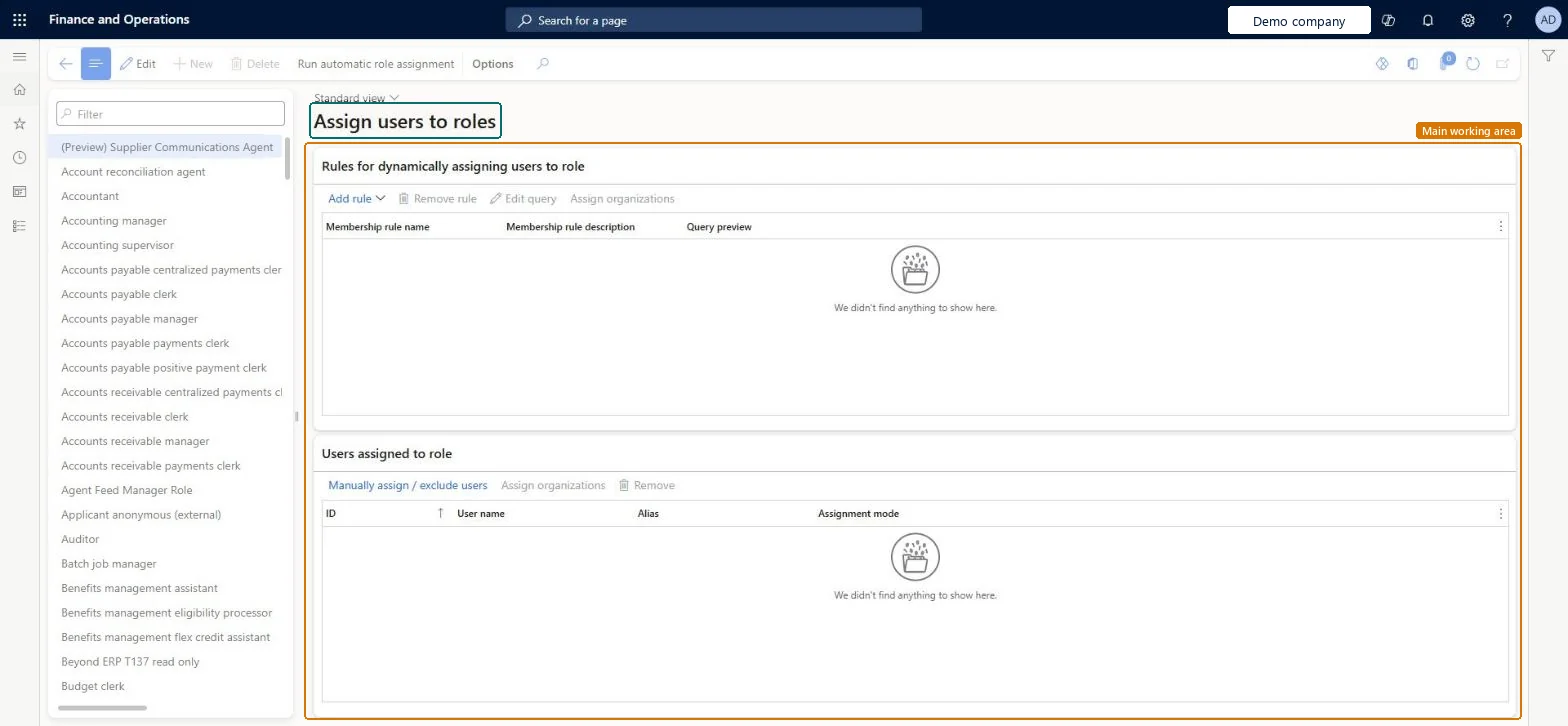
The page in Dynamics 365. page title tab to open what to set or check
About the examples: Examples and screenshots in this guide use BEAT, a demo company in a Dynamics 365 test environment. Use your own company's codes and values instead of copying them.
Step by step, with screenshots
Assign users to roles1 screen
Use this page to assign users to security roles, exclude users from automatic assignment, or remove users from roles.
Screen 1
Assign users to roles
Go to System administration > Security > Assign users to roles
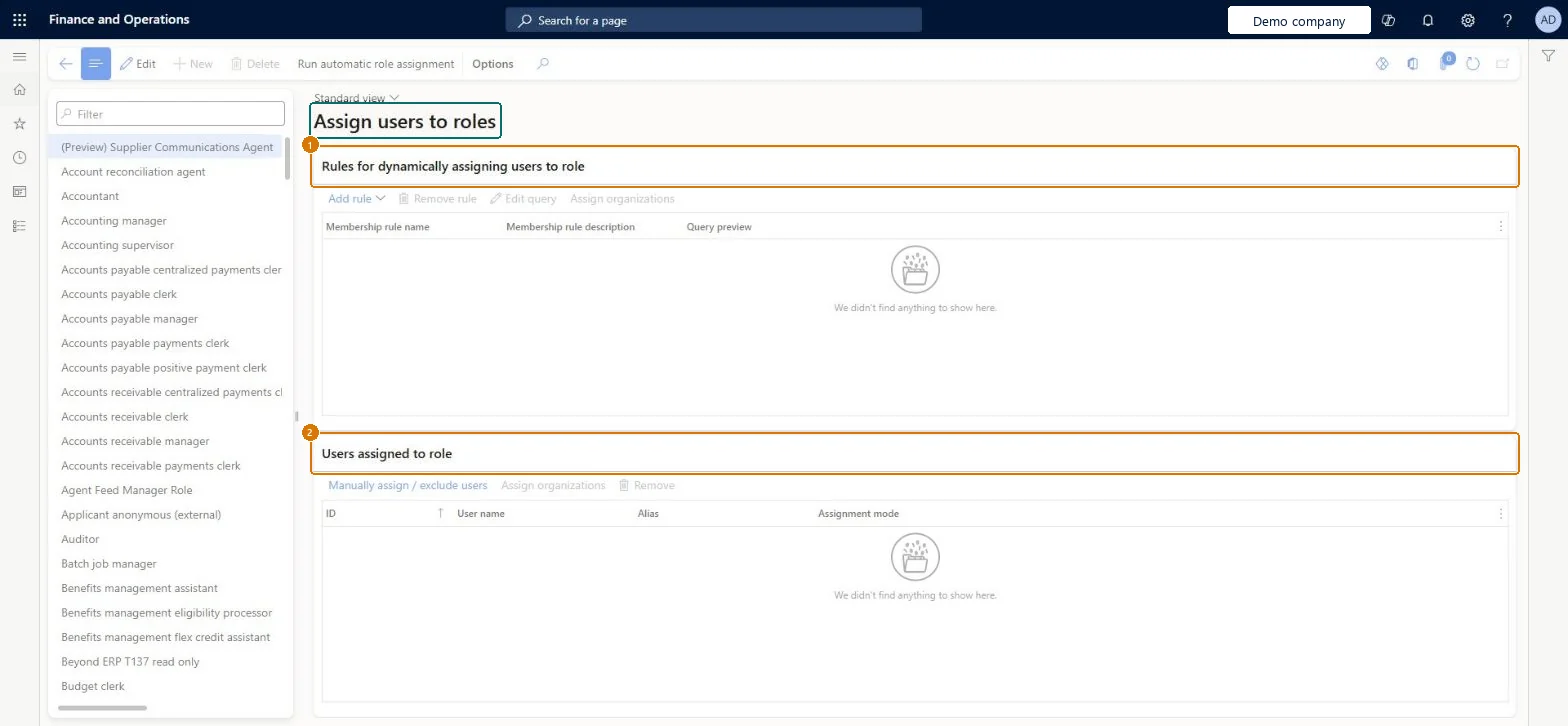
Select a role in the list on the left
Under Users assigned to role, select Manually assign / exclude users to add or remove users
Under Rules for dynamically assigning users to role, select Add rule to assign users automatically
Show the full screen page title tab to open what to set or check
Steps from Microsoft
Go to System administration > Security > Assign users to roles.
In the tree, select the role that you want to set up a rule for.
Select Add rule.
In the Select a query list, select the query to use for the rule.
Select Edit query, change the query as needed, and then select OK.
Select Run automatic role assignment.
On the Users page, check the roles that users now have, and adjust the rule if needed.
Shows how a user is linked to the role: None when the user isn't assigned, or Manual when an administrator assigned or excluded the user by hand.Microsoft Learn
Automatic
AssignmentMode
Common errors and fixes
Message
What to do
A user who changed job keeps the old role
Manual assignments aren't removed by the rules. Remove the user from the role by hand, or move the role to a rule. Microsoft Learn
Assigning a role is refused because of a segregation of duties conflict
Deny or allow the assignment on Segregation of duties unresolved conflicts; an allowed assignment needs a reason. Microsoft Learn
Test checklist
Select a role, add a rule with a query and select Run automatic role assignment.
Open Users in another tab and check that the expected users now have the role.
Exclude one user from the role and run the assignment again; check that the user doesn't have the role.
Assign a different user by hand and check that Assignment mode shows Manual.
Automatic role assignment rules for roles that follow business data, Exclude from role for exceptions, and manual assignment only where no rule fitsRules assign roles from business data when you run automatic role assignment. Users added by hand aren't managed by the rules, so every manual assignment is one more user an administrator must remember to remove.
On this system the page opens for Security administrator. Security administrators assign roles. No Feature management feature needs to be turned on for this page.
Shared: role assignments are made once for the environment; a role can be limited to organizations when assigned. Microsoft Learn
Can it be undone
Reversible: Remove users from a role at any time. Manual assignments must be removed by hand; rule-based assignments change the next time Run automatic role assignment runs. Microsoft Learn
If you change it later
Users who were added to a role by hand stay in it until an administrator removes them, because automatic assignment rules don't remove them. Microsoft Learn
Technical architect
6Technical
Menu item
SysSecRolesEditUsersChecked in Dynamics 365
Form
SysSecRolesEditUsersChecked in Dynamics 365
Table
UserInfoShown as “User Information” in Record infoChecked in Dynamics 365
Data entities
SystemSecurityUserRoleAssociationEntitySecurity user role association (only the user-to-role assignments, not the automatic assignment rules) SystemSecurityUserRoleOrganizationEntitySystem security user role organization assignment (only the organizations a user's role is limited to)
Who can open it
PrivilegesMaintain role assignments for user SysSecRoleAssignmentMaintainDutiesMaintain security settings SysSecSecurityMaintain1 security roleSecurity administrator SysSecSecurityAdministratorChecked in Dynamics 365
Roles to set it up and use it
To set it up or change itSecurity administrator SysSecSecurityAdministratorGive people one of these roles. On this system, 1 role can open this page.Checked in Dynamics 365
Actions on the page
Options: Personalize, Page options, ShareChecked in Dynamics 365
SystemSecurityUserRoleAssociationEntity (Security user role association): shared by all companies, in Microsoft's default template 010 - System Setup.SystemSecurityUserRoleOrganizationEntity (System security user role organization assignment): shared by all companies; not in Microsoft's default templates.Load order: Microsoft's default template 010 - System Setup loads Security user role association at level 10, sequence 250, after User information (230). Load organization limits after the assignments. Set up automatic assignment rules again by hand.Load first: User information, Custom roles from Security configurationChecked in Dynamics 365
Checked in a working Dynamics 365 system, version 10.0.49: the menu item, form, table and security, the page, the demo records and the values in the screenshots.