SETUP GUIDEHow to set it up8 sections. Choose a role to highlight what matters to you.
Everyone
1What it is and why
What it is
A report that groups role assignments by role and lists the users assigned to each role.
What you do here
Use this report to see who holds each role and any restrictions that apply to each user's assignment.
Example
For example, for a quarterly audit of who can approve vendor payments, the administrator runs this report, expands the approver role and checks every user and restriction listed under it.
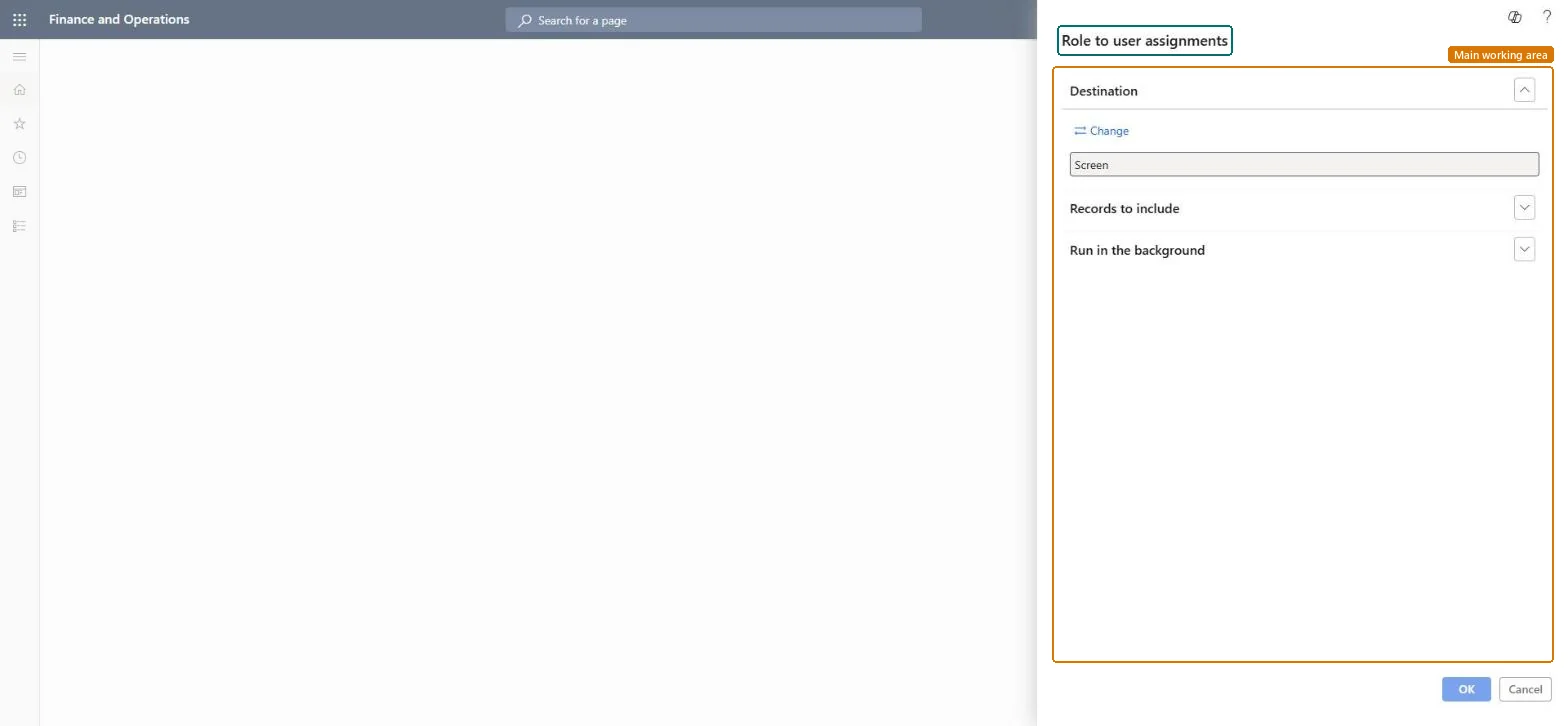
The page in Dynamics 365. page title tab to open what to set or check
About the examples: Examples and screenshots in this guide use BEAT, a demo company in a Dynamics 365 test environment. Use your own company's codes and values instead of copying them.
When to run it
When to run it
When you review who holds a given role, for example during an audit of administrator or approval roles.
How often
On demand, at each role review or audit request.
Batch settings
Run it in the background when you report on all roles and users.
What the output shows
Roles at the top level with the users of each role underneath, and the restrictions of each assignment under the user. It holds the same assignments as User role assignments but grouped by role. A role with far more users than expected usually points to a broad automatic assignment or a role that was copied too widely.
Limits the report to the users or roles you add as filters; by default all are included.Microsoft Learn
Batch processing
Under Run in the background, Yes runs the report as a batch task with a job name and batch group; the task creates the report when it runs.Microsoft Learn
Yes
Common errors and fixes
Message
What to do
The report runs for a long time or blocks the session
Limit the report under Records to include, or set Batch processing to Yes so a batch task creates it. Microsoft Learn
Run it for sensitive roles (System administrator and approval roles) at each audit and compare the users with the approved listThe report groups assignments by role, so the users of one sensitive role can be checked in one place, with their restrictions.
On this system the page opens for Security administrator. Security administrators run it for access reviews. No Feature management feature needs to be turned on for this page.
System-wide: the report covers users and roles of the whole system, with any restriction of a role to a legal entity or organization shown under it. Microsoft Learn
Can it be undone
Reversible: The report only reads security data.
If you change it later
The report reads assignments as they are when it runs; a batch run creates the report when the batch task runs. Microsoft Learn
Technical architect
6Technical
Menu item
output:SysUserRoleInfoReportChecked in Dynamics 365
Form
SysOperationTemplateFormChecked in Dynamics 365
Roles to set it up and use it
To use itSecurity administrator SysSecSecurityAdministratorGive people one of these roles. On this system, 1 role can run this page.Checked in Dynamics 365
Load order: Role to user assignments has no data entity in Data management, so it can't be loaded from a file or a configuration template. The report reads security data live, so there is nothing to move.Checked in Dynamics 365
Checked in a working Dynamics 365 system, version 10.0.49: the menu item, form, table and security, the page.
To cite this step: SA-RPT-630, Review who holds each sensitive role. Beyond ERP Atlas Hub, 2026-11-11. https://www.beyonderp.cloud/atlas/step/SA-RPT-630