PAGE GUIDEWhat the page does and how to use it8 sections. Choose a role to highlight what matters to you.
Everyone
1What it is and why
What it is
A report that shows the effective permissions of each security role, grouped by type across its sub-roles, duties and privileges.
What you do here
Use this report to see exactly which objects a role gives access to.
Example
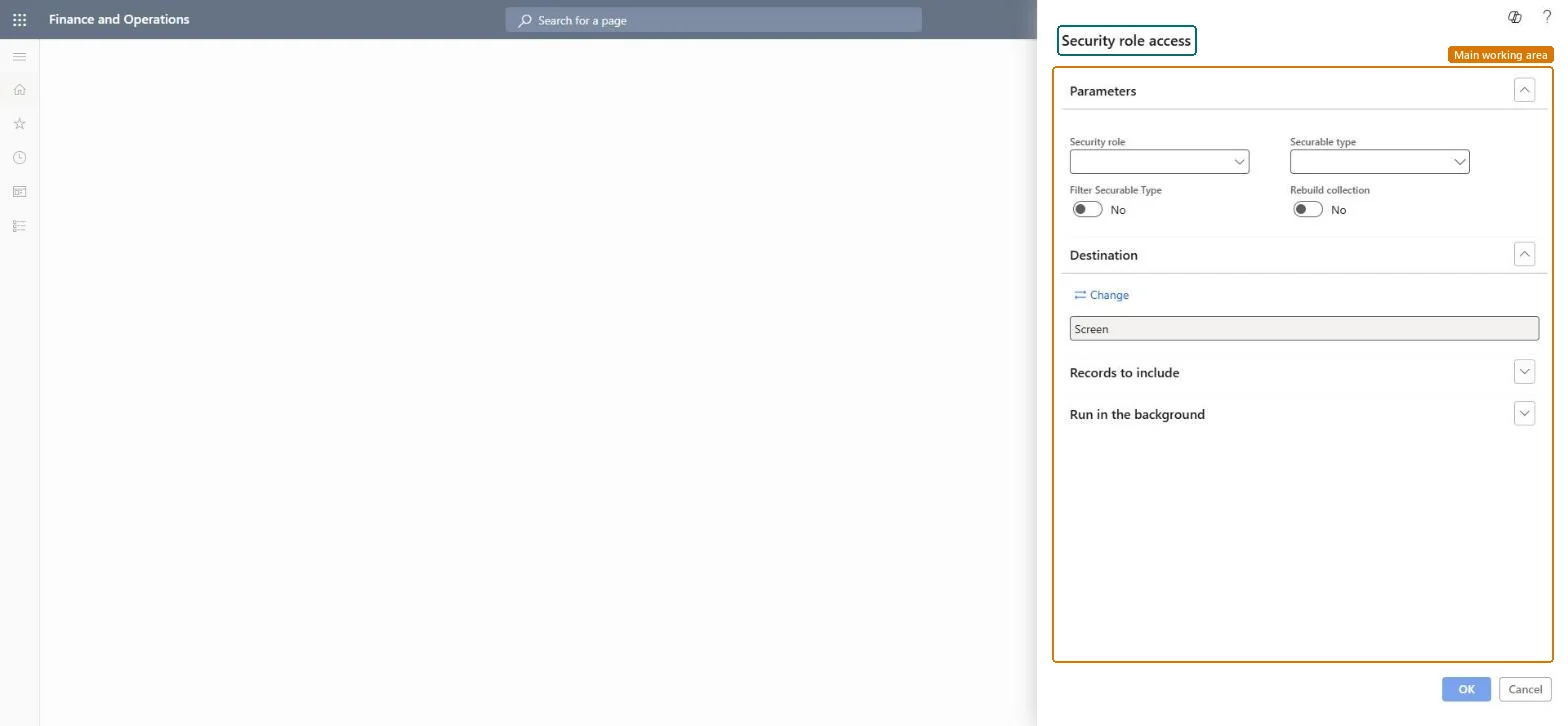
For example, before giving a warehouse supervisor a role copied from another site, an administrator runs this report for that role only, with Rebuild collection = Yes, and reads which menu items and tables it opens.
The page in Dynamics 365. page title tab to open what to set or check
About the examples: Examples and screenshots in this guide use BEAT, a demo company in a Dynamics 365 test environment. Use your own company's codes and values instead of copying them.
When to run it
When to run it
When you need to know exactly which objects a role opens, for example before you assign a powerful role or after a role was changed.
How often
On demand, before role assignments and after role changes.
Batch settings
Run it in the background for many roles or when Rebuild collection is Yes, because building the data set can take some time.
What the output shows
A flattened list of the effective permissions of each role, grouped by object type across all its sub-roles, duties and privileges. If a role change you just made doesn't show, the report was run with Rebuild collection set to No.
Use this report to review security assignments for an access review or audit.
Steps from Microsoft
Go to System administration > Inquiries > Security > Security role access.
Set Rebuild collection to Yes the first time you run the report or when role definitions might have changed. Set it to No to reuse the existing data set and finish faster.
Limit the report to the roles you need under Records to include, because the full data set can be very large.
Expand a role to see the categories of objects it gives access to, then expand a category to list each object of that type.
Compare the objects with what the role is meant to allow, and note any object that should move to another role.
Whether to rebuild the report data; No reuses the existing data and runs faster.Microsoft Learn
Records to include > Filter
Limits the report to the users or roles you add as filters; by default all are included.Microsoft Learn
Batch processing
Under Run in the background, Yes runs the report as a batch task with a job name and batch group; the task creates the report when it runs.Microsoft Learn
Yes
Common errors and fixes
Message
What to do
The report runs for a long time or blocks the session
Limit the report under Records to include, or set Batch processing to Yes so a batch task creates it. Microsoft Learn
Test checklist
Change a privilege in a test role.
Run Security role access for that role with Rebuild collection = No, then with Yes.
Run it for the roles you review with Rebuild collection = Yes after any role change, and No when nothing changedThe data set can be very large; Rebuild collection = No reuses the last data set and finishes faster, but then misses role changes made since.
System-wide: the report covers users and roles of the whole system, with any restriction of a role to a legal entity or organization shown under it. Microsoft Learn
Can it be undone
Nothing to undo: The report only reads security data. Rebuild collection refreshes the report data set, not the roles. Microsoft Learn
If you change it later
Running the report changes no roles. Rebuild collection = Yes rebuilds the report's data set, which can take some time for many roles. Microsoft Learn
Technical architect
6Technical
Menu item
output:SysRoleEffectiveAccessReportChecked in Dynamics 365
Load order: Security role access has no data entity in Data management, so it can't be loaded from a file or a configuration template. The report reads security data live, so there is nothing to move.Checked in Dynamics 365