About the examples: Examples and screenshots in this guide use BEAT, a demo company in a Dynamics 365 test environment. Use your own company's codes and values instead of copying them.
When to run it
When to run it
When you start using Optimization advisor, and when a rule produces opportunities that aren't relevant to your company.
How often
On demand, when rule settings must change.
What the output shows
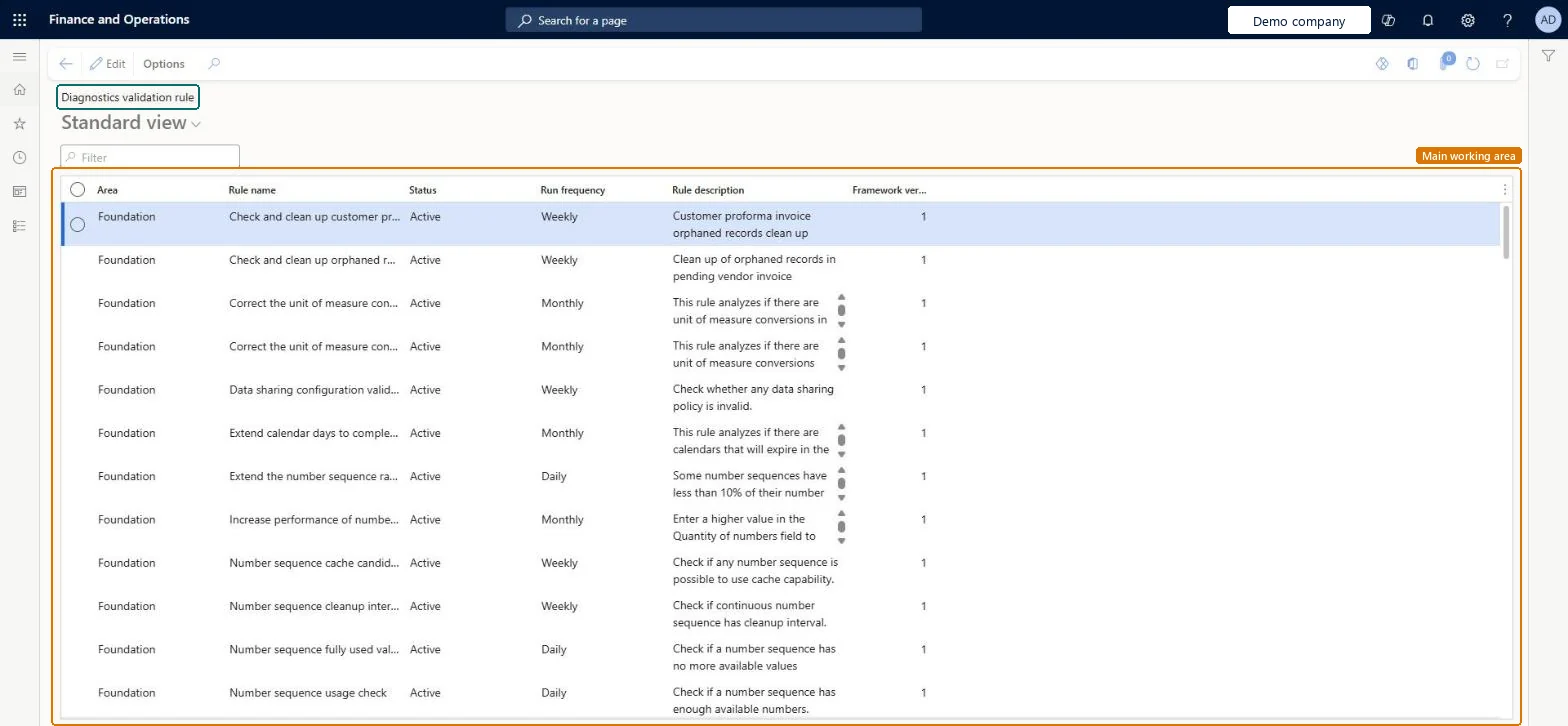
The full list of Optimization advisor rules with their status and run frequency. A rule that never produces opportunities may simply be Inactive or Unscheduled.
It is Inactive or Unscheduled. Set it to Active with a run frequency, or run Unscheduled rules from Schedule diagnostics validation rule. Microsoft Learn
Test checklist
Find the rule Check for aged processed or canceled messages.
Set Status to Active and Run frequency to Daily.
Run Schedule diagnostics validation rule for Daily.
Open Optimization advisor and check the opportunity.
Keep cleanup and configuration rules Active, and set rules that don't apply to your company to InactiveOnly Active rules are evaluated; inactive rules stop producing opportunities in the workspace.
PrivilegesDiagnosticsValidationRuleMaintainDutiesMaintain system settings SysServerSettingsMaintain1 security roleInformation technology manager SysServerITManagerChecked in Dynamics 365
Roles to set it up and use it
To set it up or change itInformation technology manager SysServerITManagerGive people one of these roles. On this system, 1 role can open this page.Checked in Dynamics 365
Actions on the page
Options: Personalize, Page options, ShareChecked in Dynamics 365
DiagnosticsValidationRuleEntity (DiagnosticsValidationRuleEntity): shared by all companies; not in Microsoft's default templates in this system.Load order: Not part of Microsoft's default configuration templates; add it to its own data project after the system setup templates if you move rule settings.Checked in Dynamics 365