BeyondERP.Newsletter
Menu

Job page · System administration

Maintain diagnostics validation rule

A page that lists all Optimization advisor rules and how often each is evaluated.

Used by
Information technology manager
Business process
Administer system features
Menu item
DiagnosticsValidationRuleMaintain
Main table
DiagnosticsValidationRule
Data entity
DiagnosticsValidationRuleEntity
Setup steps
1 on this page
Show what matters for
PAGE GUIDEWhat the page does and how to use it8 sections. Choose a role to highlight what matters to you.
Everyone

1What it is and why

What it isA page that lists all Optimization advisor rules and how often each is evaluated.
What you do hereUse this page to turn rules on or off and to set how often each one runs.
ExampleFor example, the Check for aged processed or canceled messages rule finds message processor messages older than 30 days.
Maintain diagnostics validation rule page in Dynamics 365
The page in Dynamics 365. page title tab to open what to set or check
Functional consultant · Solution architect

2Where it fits

Business processAdminister system features
Menu pathSystem administration › Periodic tasks › Maintain diagnostics validation rule
Set up firstMessage queue setup (cleanup days) Microsoft Learn
Used next byOptimization advisor Microsoft Learn
Related pagesSchedule diagnostics validation rule Microsoft Learn
End user · Functional consultant

3How to do it

About the examples: Examples and screenshots in this guide use BEAT, a demo company in a Dynamics 365 test environment. Use your own company's codes and values instead of copying them.

When to run it

When to run itWhen you start using Optimization advisor, and when a rule produces opportunities that aren't relevant to your company.
How oftenOn demand, when rule settings must change.
What the output showsThe full list of Optimization advisor rules with their status and run frequency. A rule that never produces opportunities may simply be Inactive or Unscheduled.

Source: Microsoft Learn

Setup steps on this page

Choose which Optimization advisor rules run

Turn rules on or off and set how often each is evaluated.

Steps from Microsoft

  1. Go to System administration > Periodic tasks > Maintain diagnostics validation rule.
  2. Find the rule by its Rule name.
  3. Set Status to Active for rules that should be evaluated, or Inactive to stop them; only Active rules are evaluated.
  4. Set Run frequency to Daily, Weekly, Monthly or Unscheduled.
  5. After the next evaluation, open the Optimization advisor workspace to see the opportunities the rule produced.

Source: Microsoft Learn

Fields on the page

FieldWhat it meansExampleTable column
StatusOnly Active rules are evaluated.Microsoft Learn ActiveStatus
Run frequencyHow often the rule is evaluated.Microsoft Learn MonthlyRunFrequency

Common errors and fixes

MessageWhat to do
A rule never produces opportunitiesIt is Inactive or Unscheduled. Set it to Active with a run frequency, or run Unscheduled rules from Schedule diagnostics validation rule. Microsoft Learn

Test checklist

  1. Find the rule Check for aged processed or canceled messages.
  2. Set Status to Active and Run frequency to Daily.
  3. Run Schedule diagnostics validation rule for Daily.
  4. Open Optimization advisor and check the opportunity.

Source: Microsoft Learn

Functional consultant

4Setup decisions

Setup stepRecommended value and whyDecision, common mistake and test
Choose which Optimization advisor rules runKeep cleanup and configuration rules Active, and set rules that don't apply to your company to InactiveOnly Active rules are evaluated; inactive rules stop producing opportunities in the workspace.How is an irrelevant opportunity removed?Deactivating a rule to hide one opportunity; use Hide from my list instead if only one user doesn't need it.Test: An inactive rule stops producing opportunities

Feature management and licence

Licence or add-inOn this system the page opens for Information technology manager. No Feature management feature needs to be turned on for this page.

Microsoft Learn

Solution architect

5Design impact

Shared or per companyShared: the same records are used by every legal entity. Microsoft data model
Can it be undoneYes: Set Status or Run frequency back to the earlier value. Microsoft Learn
If you change it laterAn Inactive rule is no longer evaluated, so its opportunities stop appearing in the Optimization advisor workspace. Microsoft Learn
Technical architect

6Technical

Menu itemDiagnosticsValidationRuleMaintain Checked in Dynamics 365
FormDiagnosticsValidationRule Checked in Dynamics 365
TableDiagnosticsValidationRuleChecked in Dynamics 365
Data entitiesDiagnosticsValidationRuleEntityDiagnosticsValidationRuleEntity
Who can open itPrivileges DiagnosticsValidationRuleMaintainDutiesMaintain system settings SysServerSettingsMaintain
1 security roleInformation technology manager SysServerITManager
Checked in Dynamics 365
Roles to set it up and use itTo set it up or change itInformation technology manager SysServerITManagerGive people one of these roles. On this system, 1 role can open this page.Checked in Dynamics 365
Actions on the pageOptions: Personalize, Page options, ShareChecked in Dynamics 365
Developer

7Developer

Open it by URLhttps://<your-environment>/?mi=DiagnosticsValidationRuleMaintain
Integrate withDiagnosticsValidationRuleEntity data entity
Data migrationDiagnosticsValidationRuleEntity (DiagnosticsValidationRuleEntity): shared by all companies; not in Microsoft's default templates in this system.Load order: Not part of Microsoft's default configuration templates; add it to its own data project after the system setup templates if you move rule settings.Checked in Dynamics 365
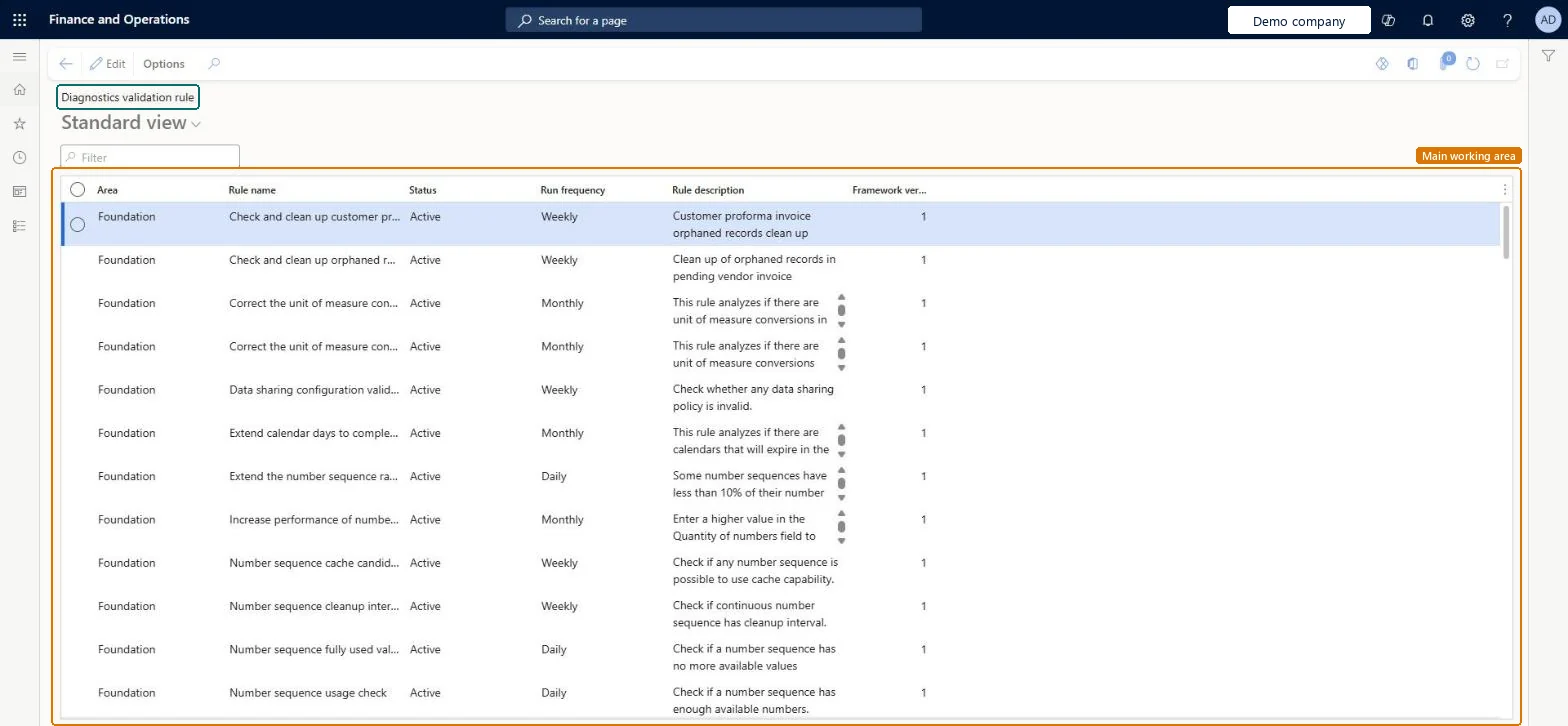
Table definitionDiagnosticsValidationRule columns and relations Microsoft data model
Everyone

8Sources