About the examples: Examples and screenshots in this guide use BEAT, a demo company in a Dynamics 365 test environment. Use your own company's codes and values instead of copying them.
When to run it
When to run it
When you start using alert rules for created, updated or deleted records; after that the recurring job runs on its own.
How often
Recurring with no end date, for example every minute, balanced against system load.
Batch settings
Run it as a recurring batch job with no end date; lower the frequency if it adds too much load as more users create rules.
What the output shows
Alert messages for every change since the last run that matches an alert rule. A missing message usually means the data changed again before the job ran, so the event no longer matched the rule's condition.
Turn logged changes into alerts for the users whose rules match them.
Steps from Microsoft
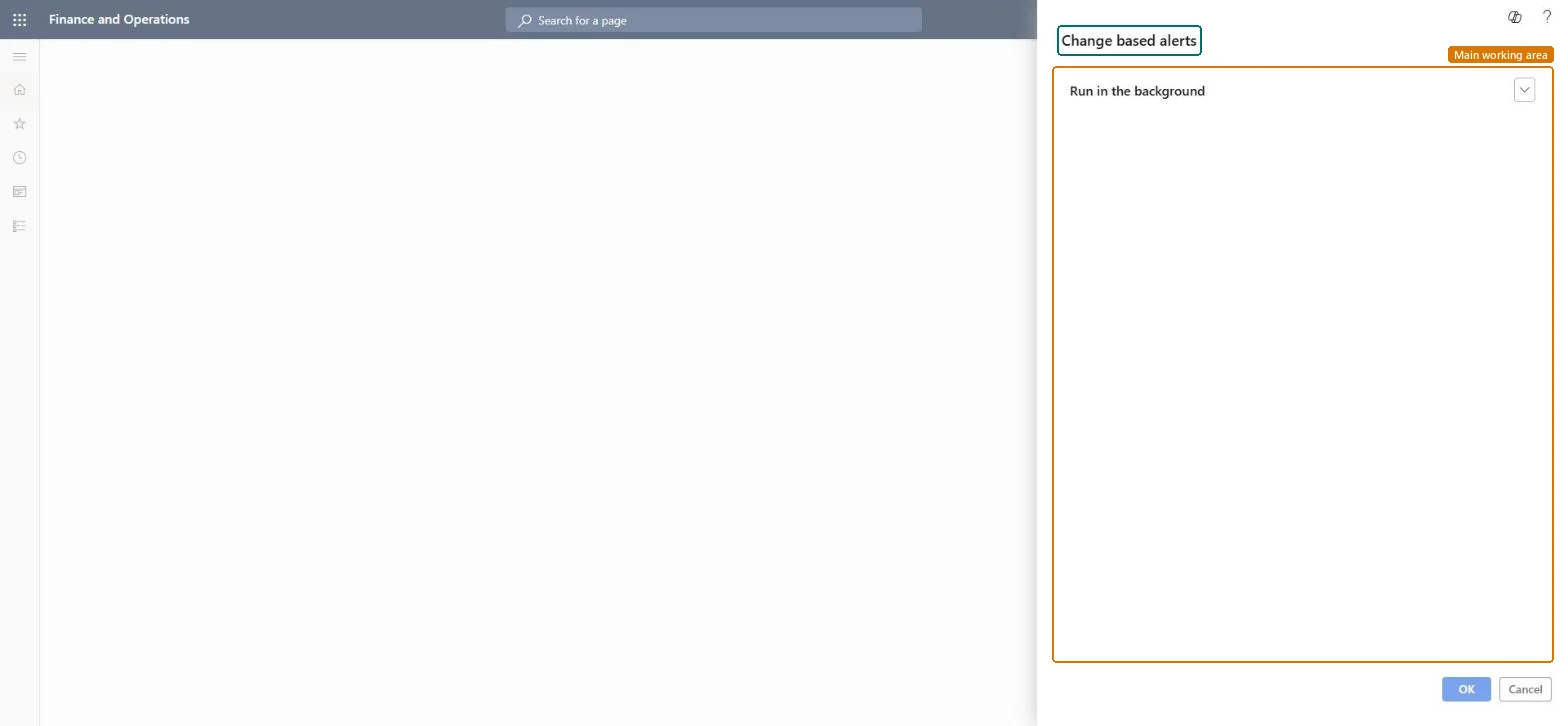
Go to System administration > Periodic tasks > Alerts > Change based alerts.
Turn on batch processing, select Recurrence and set No end date with a pattern of Minutes and a Count of 1 when users need messages soon after a record changes.
Weigh the interval: frequent runs deliver messages sooner but add system load, while rare runs can miss an event when the data changes again before it is processed.
Make sure users have created alert rules for change events such as field updates, new records or deleted records; the job only compares logged changes with those rules.
After it runs, change a record that an alert rule covers and confirm that the user receives the message.
Turn on batch processing and set Recurrence with No end date, a pattern of Minutes and a Count of 1 when users need alerts soon after a change.Microsoft Learn
Common errors and fixes
Message
What to do
No alert arrived although the record changed
The data changed again before the job ran, so the event no longer matched the rule's condition. Run the job more often. Microsoft Learn
The system slows down as more users create alert rules
Each run checks more rules. Run the job less often, at times of low load. Microsoft Learn
One recurring batch job with no end date, every minute where users need fast alerts, less often if load becomes a problemLearn: frequent runs give alerts sooner but add load; rare runs can lose alerts when data changes again before processing.
Rules apply in the company where they were created, unless a rule is set to Organization-wide, which applies across legal entities. Microsoft Learn
Can it be undone
No: Sent alerts can't be recalled; stop the job or change the rules to stop new ones.
If you change it later
Running the job often gives faster alerts but can slow the system; running it rarely can miss alerts. Microsoft Learn
Technical architect
6Technical
Menu item
action:EventCUDChecked in Dynamics 365
Form
DialogChecked in Dynamics 365
Roles to set it up and use it
To use itInformation technology manager SysServerITManagerGive people one of these roles. On this system, 1 role can run this page.Checked in Dynamics 365
Developer
7Developer
Open it by URL
https://<your-environment>/?mi=action:EventCUD
Data migration
Load order: Change based alerts has no data entity in Data management, so it can't be loaded from a file or a configuration template. It is a recurring batch job; set it up again in each environment.Checked in Dynamics 365