SETUP GUIDEHow to set it up8 sections. Choose a role to highlight what matters to you.
Everyone
1What it is and why
What it is
An inquiry page that keeps an audit log of the users who have signed in.
What you do here
Use this page to review user sign-ins and to clean up old log records.
Example
For example, during an access review an auditor asks who signed in last month; the administrator filters the User log on the user IDs in question, then cleans up entries older than the agreed History limit (days).
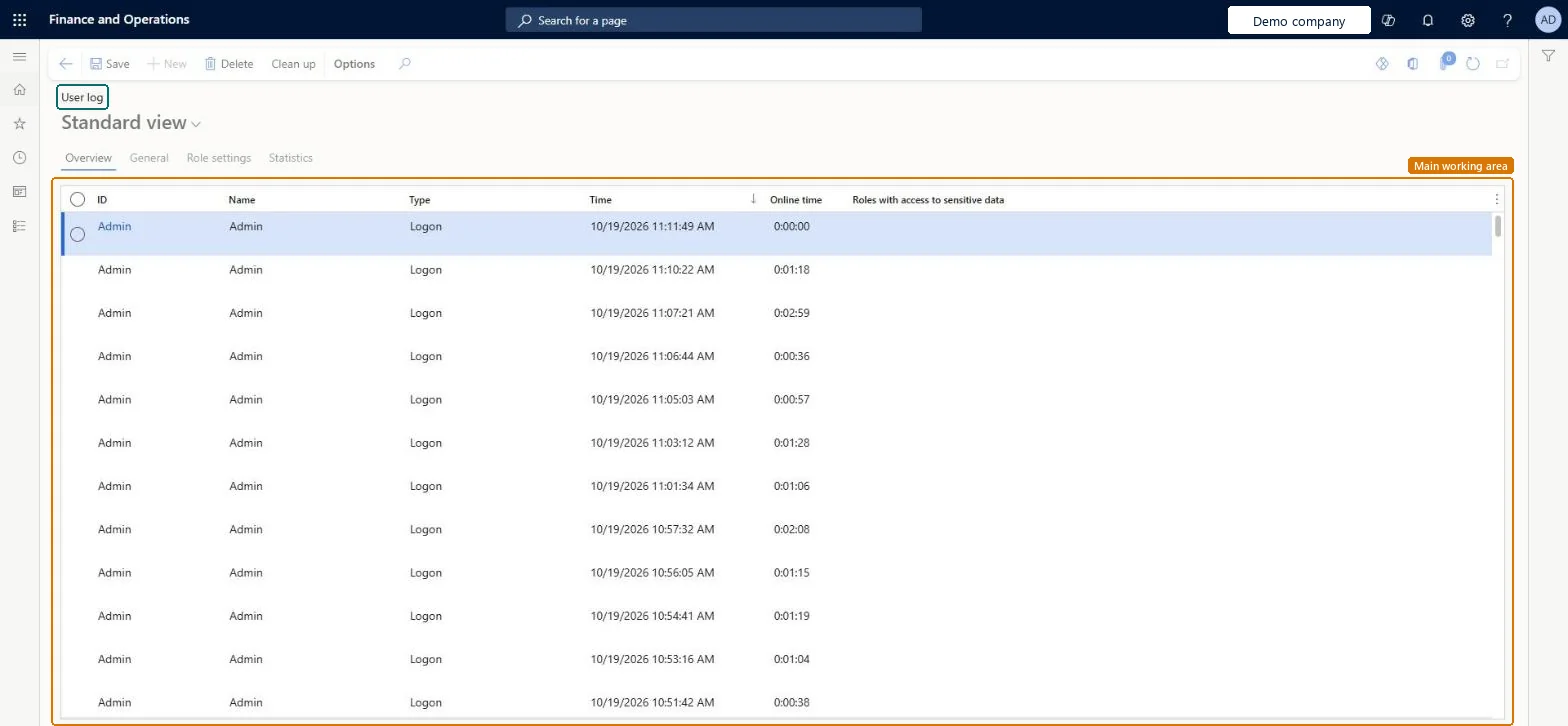
The page in Dynamics 365. page title tab to open what to set or check
About the examples: Examples and screenshots in this guide use BEAT, a demo company in a Dynamics 365 test environment. Use your own company's codes and values instead of copying them.
Setup steps on this page
Agree how long sign-in records are kept
Use this page to review user sign-ins and to clean up log records older than an agreed limit.
Steps from Microsoft
Go to System administration > Inquiries > User log.
Select Clean up.
In the History limit (days) field, enter how old records must be before they're deleted.
Select Select and choose the users, and optionally dates and times, to clean up.
Select OK to run the cleanup once, or use the Batch tab to run it regularly.
Only log records older than this number of days are deleted when you clean up.Microsoft Learn
90
Common errors and fixes
Message
What to do
An audit asks for sign-ins that are no longer in the log
A cleanup with a short History limit (days) removed them. Agree a retention with audit before you clean up, and run the cleanup as a batch job with that limit. Microsoft Learn
Test checklist
Sign in as a test user, then open User log and check that a row for that user and time is listed.
Select Clean up, set History limit (days) to the agreed retention and choose a test user.
Run the cleanup and check that only that user's rows older than the limit are gone.
Set History limit (days) to the retention your auditors require and run User log cleanup as a recurring batch job with that limitCleanup deletes only records older than History limit (days); a fixed limit in a recurring job keeps the log to the retention audit needs.
On this system the page opens for Security administrator. Security administrators use it for sign-in audits. No Feature management feature needs to be turned on for this page.
One-way: Deleted user log records can't be restored.
If you change it later
Cleaning up the user log permanently deletes the selected sign-in records. The User log cleanup page can keep log entries of users with access to sensitive data separately from the rest. Microsoft Learn
Technical architect
6Technical
Menu item
SysUserLogChecked in Dynamics 365
Form
SysUserLogChecked in Dynamics 365
Table
SysUserLogShown as “User log” in Record infoKey field: Type, UserId, Computername, ClientType, BuildNum, SessionId, TerminatedOkChecked in Dynamics 365
Who can open it
PrivilegesView user log SysUserLogViewDutiesMaintain security settings SysSecSecurityMaintain1 security roleSecurity administrator SysSecSecurityAdministratorChecked in Dynamics 365
Roles to set it up and use it
To use itSecurity administrator SysSecSecurityAdministratorGive people one of these roles. On this system, 1 role can open this page.Checked in Dynamics 365
Actions on the page
Options: Personalize, Page options, Edit, ShareChecked in Dynamics 365
Developer
7Developer
Open it by URL
https://<your-environment>/?mi=SysUserLog
Data migration
Load order: User log has no data entity in Data management, so it can't be loaded from a file or a configuration template. The log is written by the system as users sign in, so it starts empty in each environment.Checked in Dynamics 365
Checked in a working Dynamics 365 system, version 10.0.49: the menu item, form, table and security, the page.
To cite this step: SA-INQ-650, Agree how long sign-in records are kept. Beyond ERP Atlas Hub, 2026-11-11. https://www.beyonderp.cloud/atlas/step/SA-INQ-650