SETUP GUIDEHow to set it up8 sections. Choose a role to highlight what matters to you.
Everyone
1What it is and why
What it is
An inquiry page that shows the status of the automatic metadata synchronization of virtual entities to Dataverse.
What you do here
Use this page to check when each entity was last synchronized and to troubleshoot failed synchronizations.
Example
For example, 30 minutes after a package deployment the CDSVirtualEntityRefreshBatch job refreshes virtual entities in Dataverse; an administrator opens this page, sorts on Last refresh time and finds one entity with a Failure message to fix.
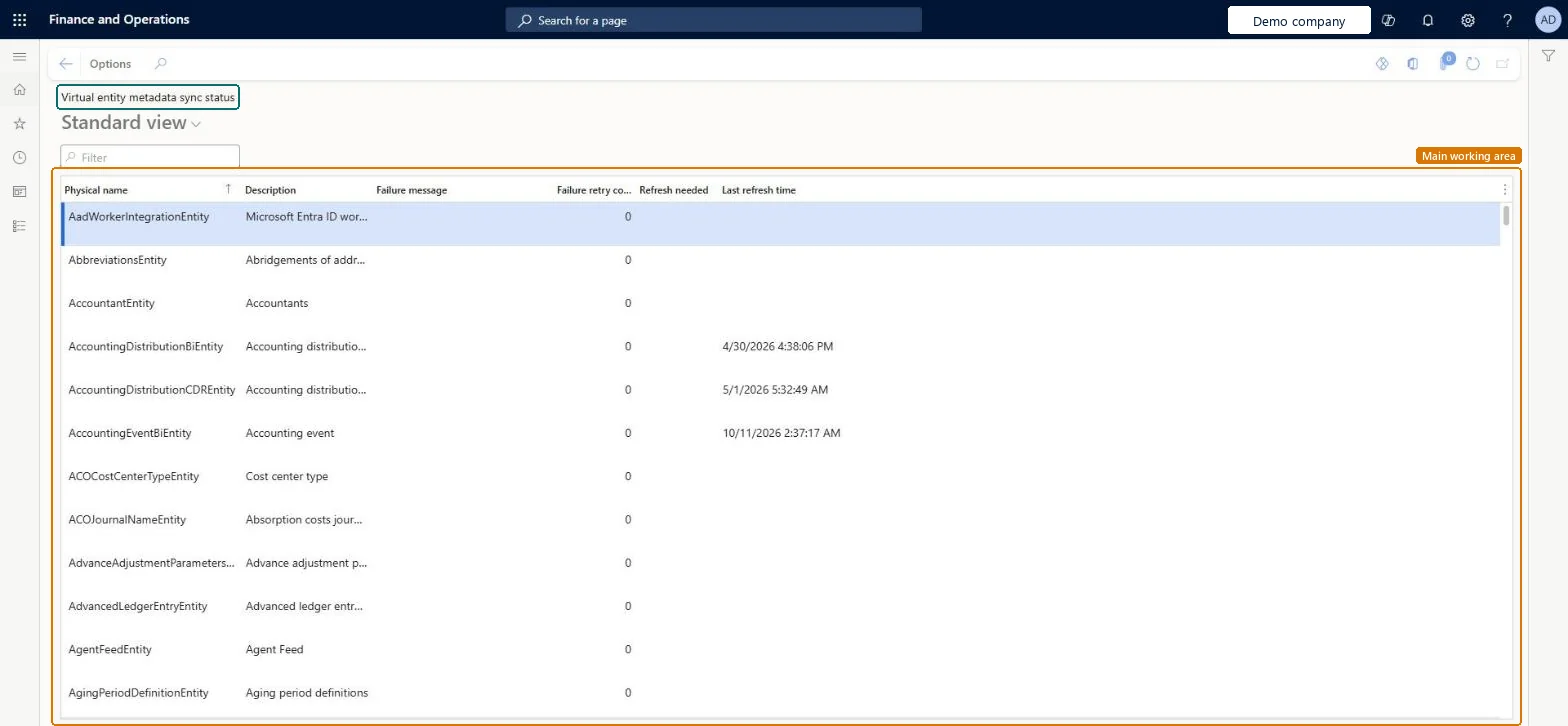
The page in Dynamics 365. page title tab to open what to set or check
About the examples: Examples and screenshots in this guide use BEAT, a demo company in a Dynamics 365 test environment. Use your own company's codes and values instead of copying them.
Setup steps on this page
Monitor virtual entity sync after each deployment
Use this page to check that virtual entities synchronized to Dataverse and to find the ones that need a fix.
Steps from Microsoft
Go to System administration > Inquiries > Virtual Entity > Virtual entity metadata sync status.
Use the list to see whether the metadata of each virtual entity synchronized to Dataverse; search on Physical name or Description to find one entity.
Read Last refresh time to see when the entity last synchronized successfully.
For a failed entity, read Failure message for the error and Failure retry count for how many times the synchronization was tried.
Add IsTransientFailure to the grid to tell temporary failures, which are retried, from failures that need a fix.
If Refresh needed is cleared for a failed entity, fix the cause and then refresh the entity by hand from Dataverse.
Whether a failure is temporary and will be retried; can be added to the grid.Microsoft Learn
Refresh needed
When cleared for a failed entity, the entity must be refreshed by hand from Dataverse after the fix.Microsoft Learn
NeedsCdsMetadataRefresh
Common errors and fixes
Message
What to do
A virtual table is missing in Dataverse after a new data entity was deployed
Auto Create needs the entity's Dataverse.AutoCreate property set to Yes; the CDSVirtualEntityAutoCreateBatch job runs 90 minutes after deployment. Check the entity's row here for a Failure message. Microsoft Learn
A deleted data entity still shows as a virtual table in Dataverse
There is no Auto Delete. Delete the virtual table in Dataverse by hand. Microsoft Learn
Test checklist
After a package deployment, wait 30 minutes and check on Batch jobs that CDSVirtualEntityRefreshBatch ran.
Open this page and check that Last refresh time is after the deployment for the entities you use in Dataverse.
Add IsTransientFailure to the grid and list failed entities that aren't transient.
For each, fix the cause and refresh the entity in Dataverse; check that it no longer shows as failed.
After each package deployment, check this page once the refresh job has run, with IsTransientFailure added to the gridAuto Refresh runs 30 minutes and Auto Create 90 minutes after deployment and retry three times; failures that aren't transient need a fix and, with Refresh needed cleared, a manual refresh from Dataverse.
Auto Refresh needs platform update 62 or later and Auto Create platform update 63 or later; both are activated by deploying the package, not in Feature management. No Feature management feature needs to be turned on for this page.
Environment-wide: the page lists the data entities of this finance and operations environment and their sync to the linked Dataverse environment. Microsoft Learn
Can it be undone
Reversible: The inquiry changes no data.
If you change it later
After a failure the Auto Create and Auto Refresh batch jobs retry three times, and the retry setting can't be changed. Entities marked failed with Refresh needed cleared must be refreshed by hand from Dataverse after the fix. Microsoft Learn
Technical architect
6Technical
Menu item
CDSVirtualEntityRefreshChecked in Dynamics 365
Form
CDSVirtualEntityRefreshChecked in Dynamics 365
Table
CDSVirtualEntityListShown as “Dataverse virtual entity” in Record infoChecked in Dynamics 365
Actions on the page
Options: Personalize, Page options, ShareChecked in Dynamics 365
Load order: Virtual entity metadata sync status has no data entity in Data management, so it can't be loaded from a file or a configuration template. The status is written by the Auto Create and Auto Refresh batch jobs in each environment.Checked in Dynamics 365
Checked in a working Dynamics 365 system, version 10.0.49: the menu item, form, table and security, the page.
To cite this step: SA-INQ-660, Monitor virtual entity sync after each deployment. Beyond ERP Atlas Hub, 2026-11-11. https://www.beyonderp.cloud/atlas/step/SA-INQ-660