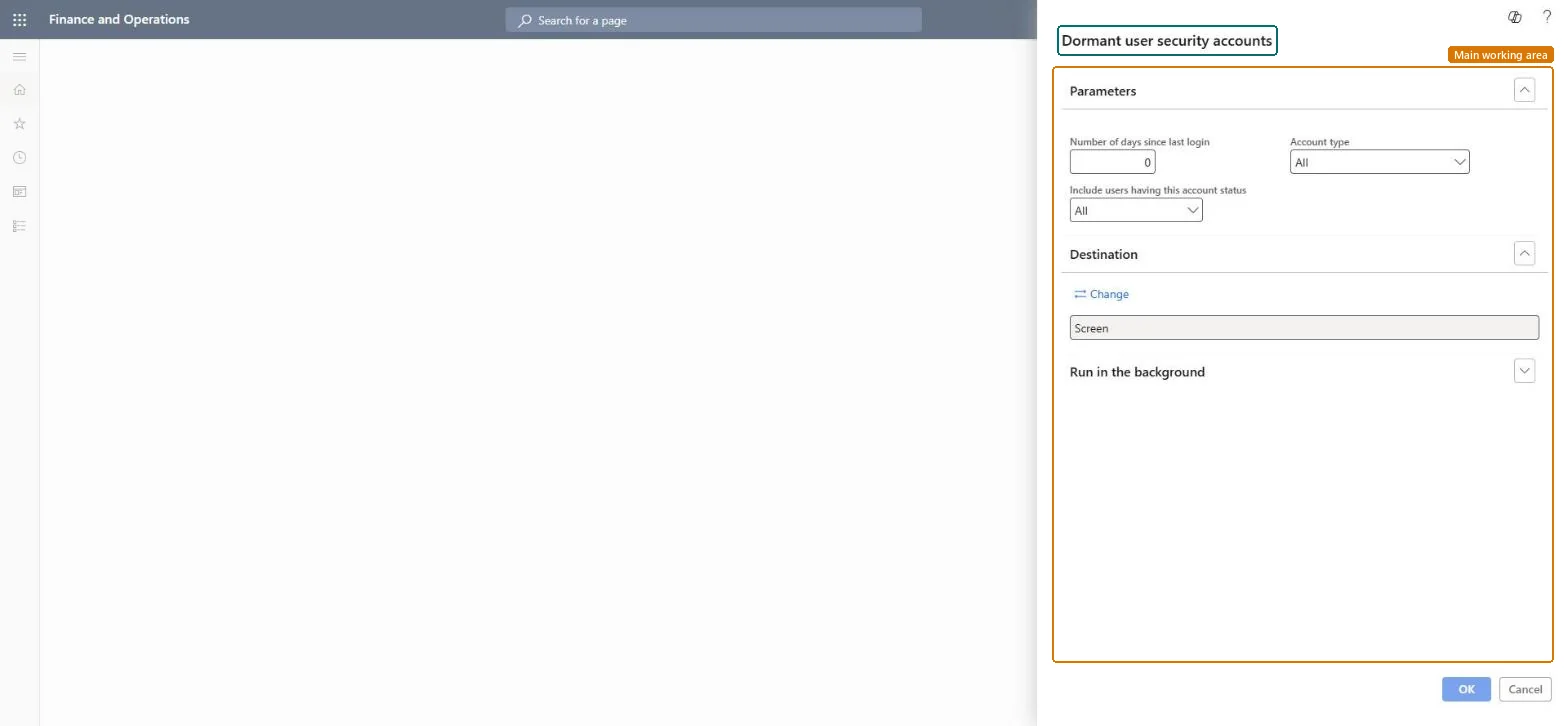
A report dialog that sets up the Dormant user security accounts report, filtered by the number of days since the last login, the account type and the account status.
PAGE GUIDEWhat the page does and how to use it8 sections. Choose a role to highlight what matters to you.
Everyone
1What it is and why
What it is
A report dialog that sets up the Dormant user security accounts report, filtered by the number of days since the last login, the account type and the account status.
What you do here
Use this report to list user accounts that have not signed in for a chosen number of days, optionally narrowed by account type and account status.
Example
For example, at the quarterly access review BEAT runs the report with 90 days since last login and Account status Enabled, and disables the 6 accounts that the managers confirm are no longer needed.
The page in Dynamics 365. page title tab to open what to set or check
About the examples: Examples and screenshots in this guide use BEAT, a demo company in a Dynamics 365 test environment. Use your own company's codes and values instead of copying them.
When to run it
When to run it
During periodic user access reviews, and when people leave the company or change jobs.
How often
On demand, at each user access review.
What the output shows
A list of user accounts whose last sign-in is older than the number of days you entered, narrowed by account type and status. A user you know is active appearing on the list usually means the number of days is too low. If the User log and dormant user report V2 feature is on, its Dormant user report tab covers sign-ins after the feature was turned on; this older report keeps the earlier history.
Run it every quarter with 90 days since last login and Account status Enabled, then disable the confirmed accounts on UsersInactive accounts count in license reports and are a security risk; disabling them shrinks both.
On this system the page opens for Security administrator. A newer dormant user report is part of the (Preview) User log and dormant user report V2 feature in Security governance; this report needs no feature.
Shared: users are listed for the whole environment. Microsoft Learn
Can it be undone
Nothing to undo: The report only reads sign-in data; disabling an account is a separate step on the Users page. Microsoft Learn
If you change it later
Disabling the dormant accounts it lists lowers the license requirement in the license reports, about 24 hours later. Microsoft Learn
Technical architect
6Technical
Menu item
output:PSNSysUserLogReportChecked in Dynamics 365
Form
SysOperationTemplateFormChecked in Dynamics 365
Roles to set it up and use it
To use itSecurity administrator SysSecSecurityAdministratorGive people one of these roles. On this system, 1 role can run this page.Checked in Dynamics 365
Load order: Dormant user security accounts has no data entity in Data management, so it can't be loaded from a file or a configuration template. It reads sign-in data in each environment and stores nothing to move.Checked in Dynamics 365