BeyondERP.Newsletter
Menu

Inquiry page · System administration

Online users

A legacy page, built for the earlier client/server architecture, that shows the client sessions of users.

Used by
Security administrator, Information technology manager
Business process
Administer system features
Menu item
SysUsersOnline
Main table
SysClientSessions
Setup steps
1 on this page
Show what matters for
PAGE GUIDEWhat the page does and how to use it8 sections. Choose a role to highlight what matters to you.
Everyone

1What it is and why

What it isA legacy page, built for the earlier client/server architecture, that shows the client sessions of users.
What you do hereUse this page to see which users have client sessions, keeping in mind that its information isn't always accurate.
ExampleFor example, before a maintenance window the BEAT administrator opens Client sessions, sees 4 users still signed in, warns them, and ends the remaining sessions.
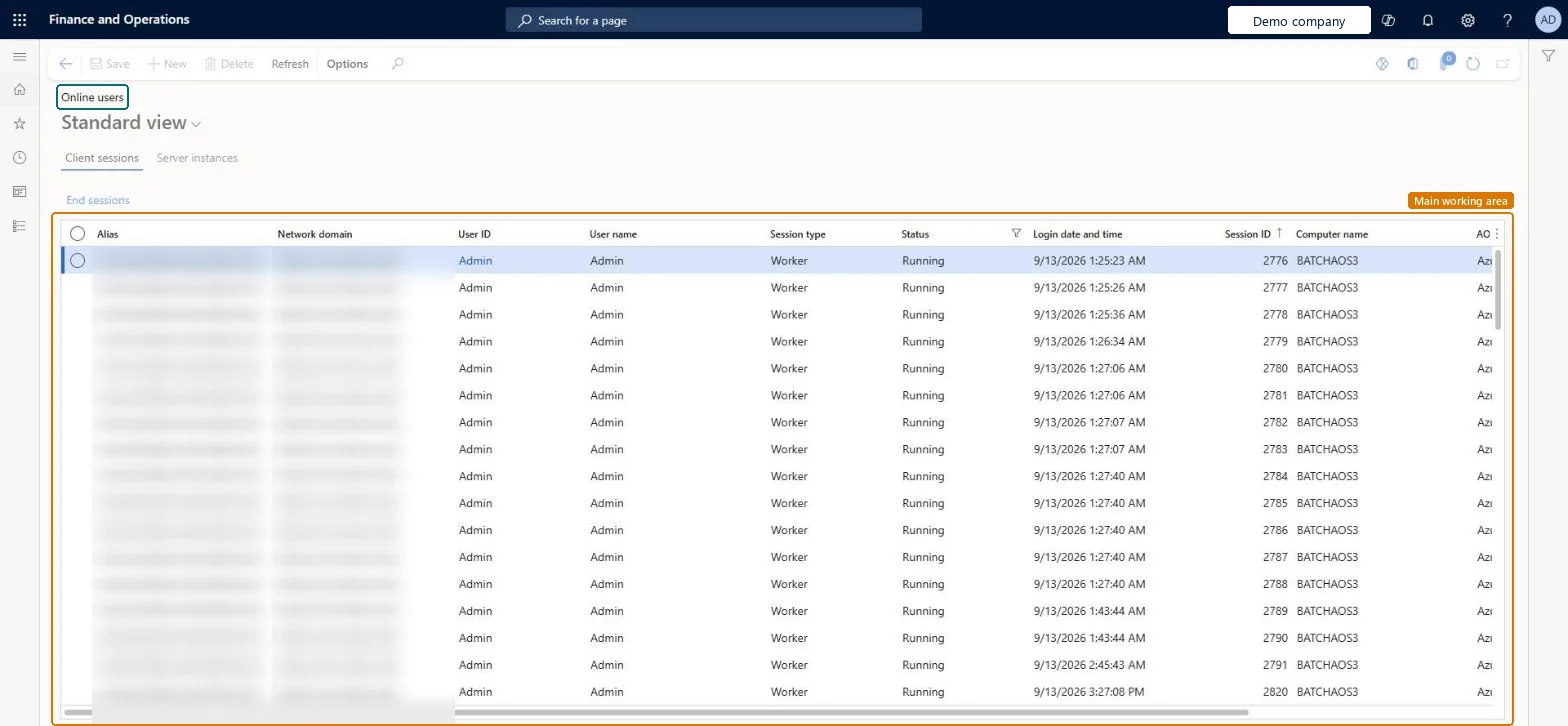
Online users page in Dynamics 365
The page in Dynamics 365. page title tab to open what to set or check
Functional consultant · Solution architect

2Where it fits

Business processAdminister system features
Menu pathSystem administration › Users › Online users
Set up firstUsers Microsoft Learn
Used next byUsers Microsoft Learn
End user · Functional consultant

3How to do it

About the examples: Examples and screenshots in this guide use BEAT, a demo company in a Dynamics 365 test environment. Use your own company's codes and values instead of copying them.

Setup steps on this page

Check who is signed in before maintenance

Use Online users to see open sessions, knowing the page is deprecated and not always accurate.

Steps from Microsoft

  1. Go to System administration > Users > Online users.
  2. Select the Client sessions or Server instances tab.
  3. Check columns such as User ID, User name, Session type, Status, Login date and time and Session ID.
  4. Select a session, then select End sessions.
  5. Select Refresh on the Action Pane to reload the list.

Source: Microsoft Learn

Fields on the page

FieldWhat it meansExample
User IDThe user who holds the session.Checked in Dynamics 365
Session typeThe kind of session, such as a client session.Checked in Dynamics 365
StatusWhether the session is active.Checked in Dynamics 365
Login date and timeWhen the session started.Checked in Dynamics 365Today, 08:12

Common errors and fixes

MessageWhat to do
A user shows as online but has closed the browserThe page isn't always accurate. Check the SysClientSessions table in the table browser (administrators only). Microsoft Learn

Test checklist

  1. Sign in as a test user in another browser.
  2. Open Online users and find the test user's client session.
  3. Compare with the SysClientSessions table in the table browser, which Learn names as the reliable source.

Source: Microsoft Learn

Functional consultant

4Setup decisions

Setup stepRecommended value and whyDecision, common mistake and test
Check who is signed in before maintenanceUse the Client sessions tab as a first check, and confirm with the SysClientSessions table in the table browserLearn marks the page as deprecated and not always accurate, and names the table as the reliable source.How are open sessions checked before maintenance?Ending sessions from the list and assuming nobody is signed in afterwards; the list can be out of date.Test: A test session appears

Feature management and licence

Licence or add-inOn this system the page opens for Information technology manager and Security administrator. No Feature management feature needs to be turned on for this page.

Microsoft Learn

Solution architect

5Design impact

Shared or per companyShared: the sessions of the whole environment are listed. Microsoft Learn
Can it be undoneCan't be undone: End sessions closes the selected sessions; it can't be reversed. Checked in Dynamics 365
If you change it laterThe page is deprecated and will be removed in a future release; client sessions can be checked in the SysClientSessions table instead. Microsoft Learn
Technical architect

6Technical

Menu itemSysUsersOnline Checked in Dynamics 365
FormSysUsersOnline Checked in Dynamics 365
TableSysClientSessionsShown as “Current client sessions” in Record infoChecked in Dynamics 365
Who can open itPrivilegesMaintain online users SysUsersOnlineMaintainView online users SysUsersOnlineViewDutiesMaintain security settings SysSecSecurityMaintainMaintain system settings SysServerSettingsMaintain
2 security rolesSecurity administrator SysSecSecurityAdministratorInformation technology manager SysServerITManager
Checked in Dynamics 365
Roles to set it up and use itTo use itInformation technology manager SysServerITManagerSecurity administrator SysSecSecurityAdministratorGive people one of these roles. On this system, 2 roles can open this page.Checked in Dynamics 365
Actions on the pageOptions: Personalize, Page options, Edit, ShareChecked in Dynamics 365
Developer

7Developer

Open it by URLhttps://<your-environment>/?mi=SysUsersOnline
Data migrationLoad order: Online users has no data entity in Data management, so it can't be loaded from a file or a configuration template. It lists live sessions, which are never moved between environments.Checked in Dynamics 365
Everyone

8Sources