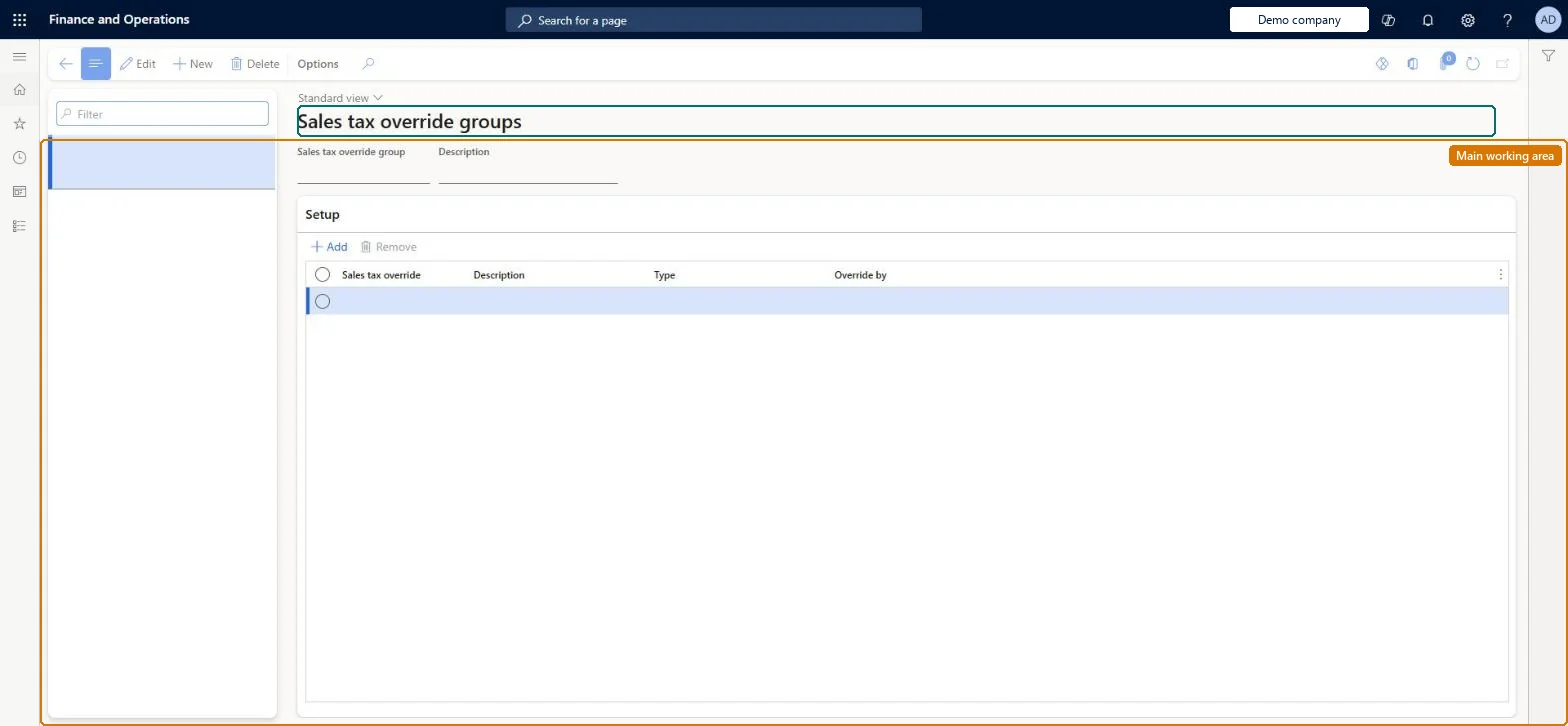
Setup step on the Sales tax override groups page · Retail and Commerce
Set up Sales tax override groups
Use this page to add the sales tax overrides you have created to a group (for example the Default group) that is assigned to stores; after the distribution schedule runs, cashiers can pick those overrides from the Tax overrides operation in POS.
SETUP GUIDEHow to set it up8 sections. Choose a role to highlight what matters to you.
Everyone
1What it is and why
What it is
A setup page where individual sales tax overrides are collected into a group, so that the whole set of overrides can be made available to a store and applied by cashiers at the POS.
What you do here
Use this page to add the sales tax overrides you have created to a group (for example the Default group) that is assigned to stores; after the distribution schedule runs, cashiers can pick those overrides from the Tax overrides operation in POS.
Example
For example, certain customers such as charitable organizations are subject to different tax rates, so an override that swaps the tax group is put in the group used by the store.
The page in Dynamics 365. page title tab to open what to set or check
About the examples: Examples and screenshots in this guide use BEAT, a demo company in a Dynamics 365 test environment. Use your own company's codes and values instead of copying them.
Setup steps on this page
Set up Sales tax override groups
Use this page to add the sales tax overrides you have created to a group (for example the Default group) that is assigned to stores; after the distribution schedule runs, cashiers can pick those overrides from the Tax overrides operation in POS.
Steps from Microsoft
Go to Retail and Commerce > Channel setup > Sales taxes > Sales tax override groups.
Select the group (for example Default) and select Edit, or create a new group.
Select Add, then select the sales tax override to include.
Select Save.
On the Distribution schedules page, run job 9999 (or the relevant channel job) to send the change to the channel.
Add each approved sales tax override to the group assigned to the stores that may use it (for example the Default group)Cashiers can only pick overrides that are in a group available to their store, through the Tax overrides operation in POS.
Checking POS straight after the sync. Tax details can be cached, so close and relaunch POS before concluding the override is missing.
Solution architect
5Design impact
Can it be undone
Reversible: Overrides can be added or removed from a group; POS sees the change after synchronisation and a relaunch.
If you change it later
Changes take effect at the POS only after the channel is synchronised, and the POS may need to be restarted because tax details are cached. Microsoft Learn
Technical architect
6Technical
Menu item
RetailTaxOverrideGroupChecked in Dynamics 365
Form
RetailTaxOverrideGroupChecked in Dynamics 365
Table
RetailSalesTaxOverrideGrShown as “SALES TAX OVERRIDE GROUP” in Record infoKey field: CodeChecked in Dynamics 365
Data entities
RetailSalesTaxOverrideGroupEntitySales tax override group Checked in Dynamics 365
Who can open it
PrivilegesMaintain retail tax overrides RetailTaxOverridesMaintainDutiesMaintain retail tax reference data RetailTaxReferenceDataMaintain2 security rolesRetail operations manager RetailOperationsManagerRetail service RetailServiceChecked in Dynamics 365
Roles to set it up and use it
To set it up or change itRetail service RetailServiceRetail operations manager RetailOperationsManagerGive people one of these roles. On this system, 2 roles can open this page.Checked in Dynamics 365