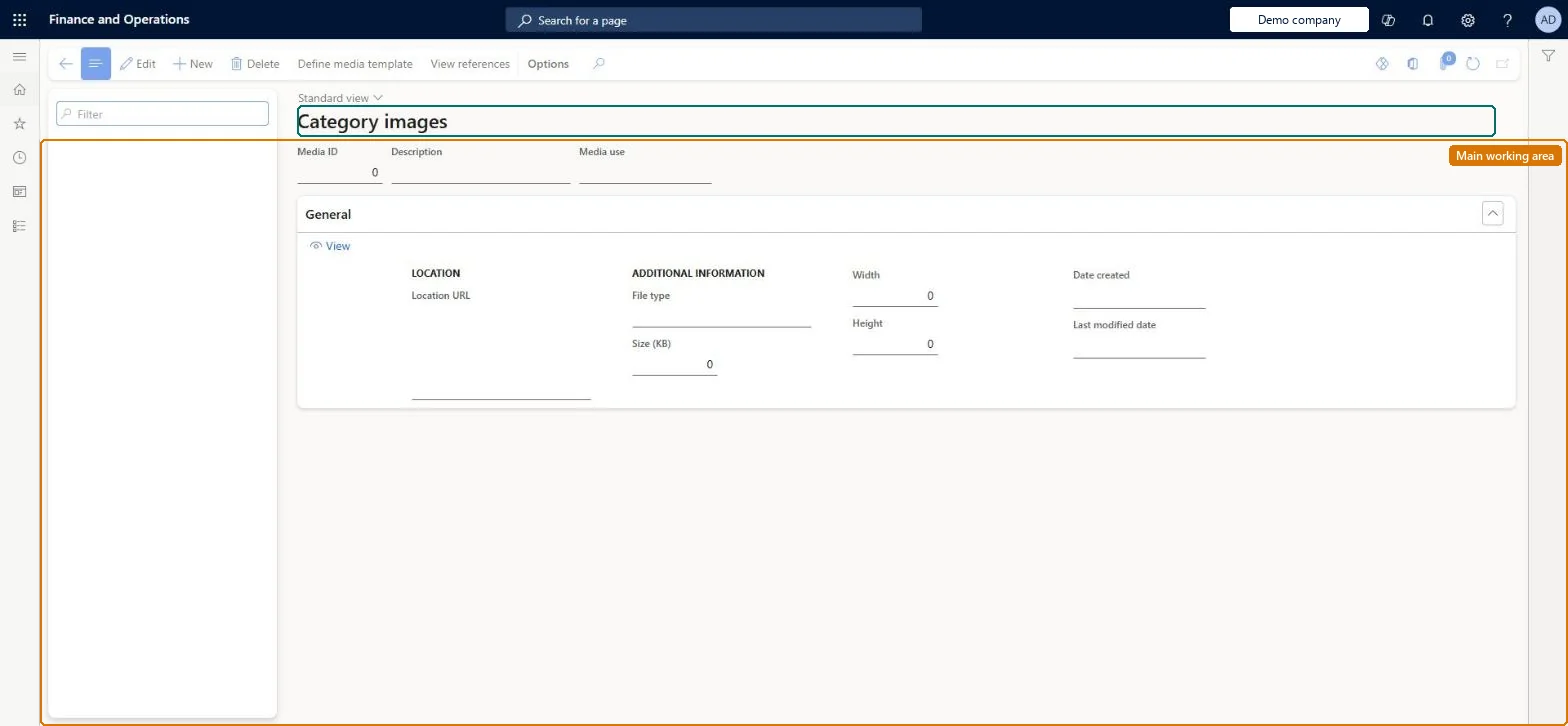
Setup step on the Category images page · Retail and Commerce
Set up Category images
Use this page to define the media template for the Category entity (media path and file extension), generate and check the derived image URLs, and overwrite the URL or set the default image for individual categories.
Retail catalog manager, Retail merchandising manager, Retail store manager
Business process
Manage sales channels
Menu item
RetailCategoryImage
Main table
RetailImageResource
Setup steps
1 on this page
Show what matters for
SETUP GUIDEHow to set it up8 sections. Choose a role to highlight what matters to you.
Everyone
1What it is and why
What it is
A gallery page for category image references, where the media template that builds the URLs of externally hosted category images for Store Commerce is defined and overridden.
What you do here
Use this page to define the media template for the Category entity (media path and file extension), generate and check the derived image URLs, and overwrite the URL or set the default image for individual categories.
Example
For example, host one image per category named after the category under a Categories folder on your media server, and set it as the default image shown in POS.
The page in Dynamics 365. page title tab to open what to set or check
About the examples: Examples and screenshots in this guide use BEAT, a demo company in a Dynamics 365 test environment. Use your own company's codes and values instead of copying them.
Setup steps on this page
Set up Category images
Use this page to define the media template for the Category entity (media path and file extension), generate and check the derived image URLs, and overwrite the URL or set the default image for individual categories.
Steps from Microsoft
Go to Retail and Commerce > Products and categories > Category images.
On the Action Pane, select Define media template; the Entity field shows Category.
On the Media path FastTab, enter the remaining path of the image location below the media base URL.
In the File Extension field, select the expected file name extension.
Select OK.
Run the Catalog job (1150) from Retail and Commerce IT > Distribution schedule.
Publish the channel so that the category image template reaches the channel database.
One media template for the Category entity (media path and file extension), with a default image marked for any category whose URL you overwriteStore Commerce shows only one image per category. If you provide explicit URLs and don't mark a default, the system chooses which one to send.
Changing a category image and not publishing the channel or running the Channel and Catalog (1150) jobs. Stores and sites keep showing the old image.
Solution architect
5Design impact
Can it be undone
Reversible: The template and overwrites can be changed at any time; the change reaches stores after the channel is published and the jobs run.
If you change it later
After changing a category image association or template, the channel must be published and the channel and catalog jobs run before stores and sites see the change. Microsoft Learn
Technical architect
6Technical
Menu item
RetailCategoryImageChecked in Dynamics 365
Form
RetailMediaGalleryChecked in Dynamics 365
Table
RetailImageResourceShown as “RETAILIMAGERESOURCE” in Record infoChecked in Dynamics 365
Who can open it
PrivilegesMaintain media management security. RetailMediaMaintainDutiesMaintain media management security. RetailMediaMaintain3 security rolesRetail catalog manager RetailCatalogManagerRetail merchandising manager RetailMerchandisingManagerRetail store manager RetailStoreManagerChecked in Dynamics 365
Roles to set it up and use it
To set it up or change itRetail store manager RetailStoreManagerRetail merchandising manager RetailMerchandisingManagerRetail catalog manager RetailCatalogManagerGive people one of these roles. On this system, 3 roles can open this page.Checked in Dynamics 365
Actions on the page
(Action Pane without tabs): Define media template, View referencesChecked in Dynamics 365