BeyondERP.Newsletter
Menu

Setup step on the Rounding method group page · Retail and Commerce

Set up Rounding method group

A setup page where you define rounding method groups for prices imported from vendor catalogs.

Used by
Retail merchandising manager, Retail operations manager, Retail service
Business process
Manage sales channels
Menu item
RetailRoundingMethodGroup
Main table
RetailRoundingMethodGrou
Data entity
RetailRoundingMethodGroupEntity
Setup steps
1 on this page
Show what matters for
SETUP GUIDEHow to set it up6 sections. Choose a role to highlight what matters to you.
Everyone

1What it is and why

What it isA setup page where you define rounding method groups for prices imported from vendor catalogs.
What you do hereUse this page to set rounding rows that say how an imported price is rounded up, down or to the nearest value.
ExampleFor example, you round imported prices up so that every price ends in 0.99.
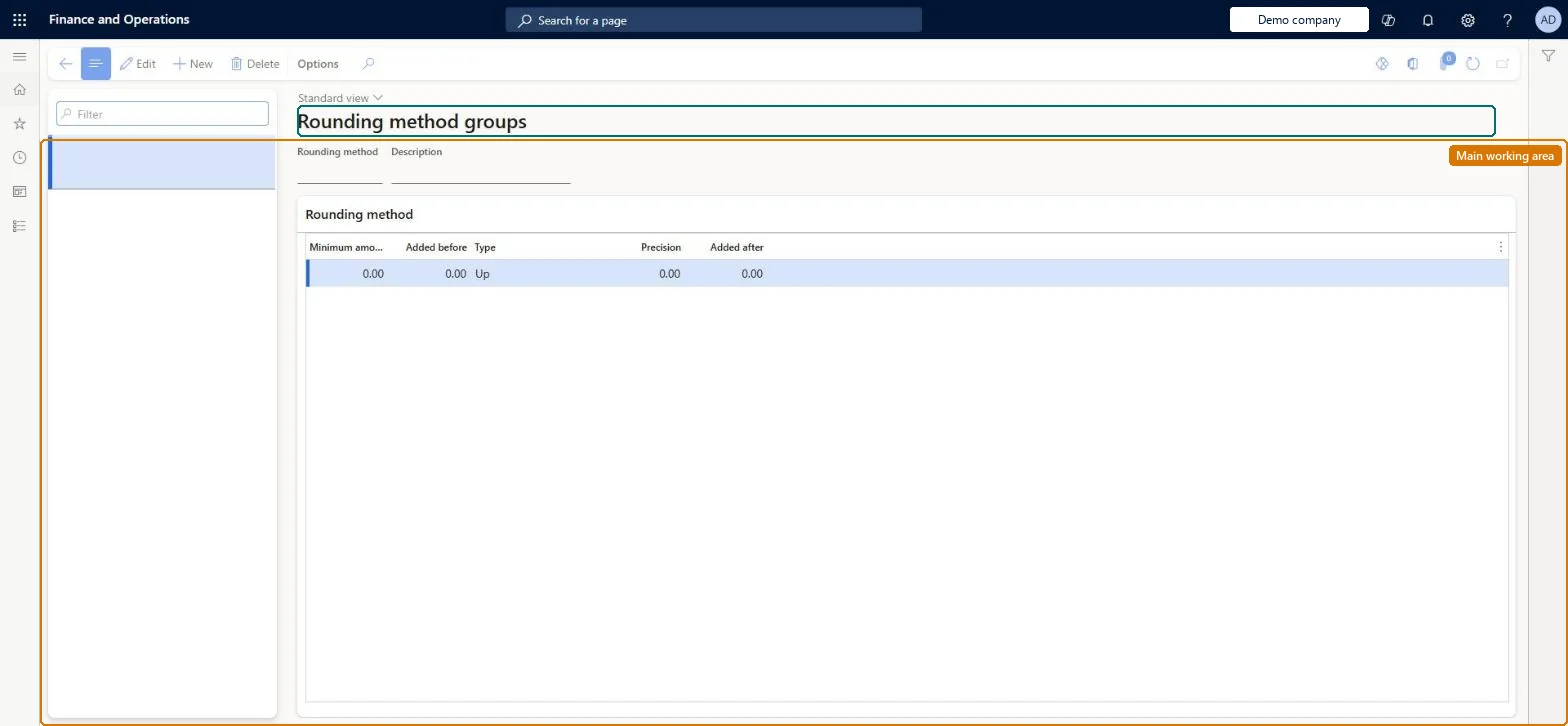
Rounding method group page in Dynamics 365
The page in Dynamics 365. page title tab to open what to set or check
Functional consultant · Solution architect

2Where it fits

Business processDevelop sales policies › Manage sales channels
Menu pathRetail and Commerce › Products and categories › Vendor catalog import › Rounding method group
Related pagesImport vendor catalogs Microsoft Learn Vendor sales price point setup (AX 2012) Microsoft Learn
In this process Set up Category images · Set up Scripts
End user · Functional consultant

3How to do it

About the examples: Examples and screenshots in this guide use BEAT, a demo company in a Dynamics 365 test environment. Use your own company's codes and values instead of copying them.

Setup steps on this page

Set up Rounding method group

How to use it

  1. Go to Retail and Commerce > Products and categories > Vendor catalog import > Rounding method group.
  2. Use the Filter box to find a group.
  3. Select New and enter the Rounding method and its Description.
  4. Under Rounding method, enter the rows: the Minimum amount from which the row applies, the Added before amount, the Type (Up, Down or Nearest), the Precision and the Added after amount.
  5. Select Save; select Delete to remove a selected group.

Source: Checked in Dynamics 365

Technical architect

4Technical

Menu itemRetailRoundingMethodGroup Checked in Dynamics 365
FormRetailRoundingMethodGroup Checked in Dynamics 365
TableRetailRoundingMethodGrouShown as “ROUNDING METHOD GROUP” in Record infoChecked in Dynamics 365
Data entitiesRetailRoundingMethodGroupEntityRounding method group Microsoft data model
Who can open itPrivilegesMaintain retail pricing RetailPricingMaintainMaintain retail rounding method RetailRoundingMethodMaintainDutiesMaintain retail product pricing RetailProductPricingMaintainMaintain retail rounding RetailRoundingMaintain
3 security rolesRetail merchandising manager RetailMerchandisingManagerRetail operations manager RetailOperationsManagerRetail service RetailService
Checked in Dynamics 365
Roles to set it up and use itTo set it up or change itRetail service RetailServiceRetail operations manager RetailOperationsManagerRetail merchandising manager RetailMerchandisingManagerGive people one of these roles. On this system, 3 roles can open this page.Checked in Dynamics 365
Developer

5Developer

Open it by URLhttps://<your-environment>/?mi=RetailRoundingMethodGroup
Integrate withRetailRoundingMethodGroupEntity data entity Microsoft data model
Data migrationRetailRoundingMethodGroupEntity (Rounding method group): loaded for each company.Microsoft Learn
Everyone

6Sources

To cite this step: RC-VENDCAT-040, Set up Rounding method group. Beyond ERP Atlas Hub, 2026-11-11. https://www.beyonderp.cloud/atlas/step/RC-VENDCAT-040