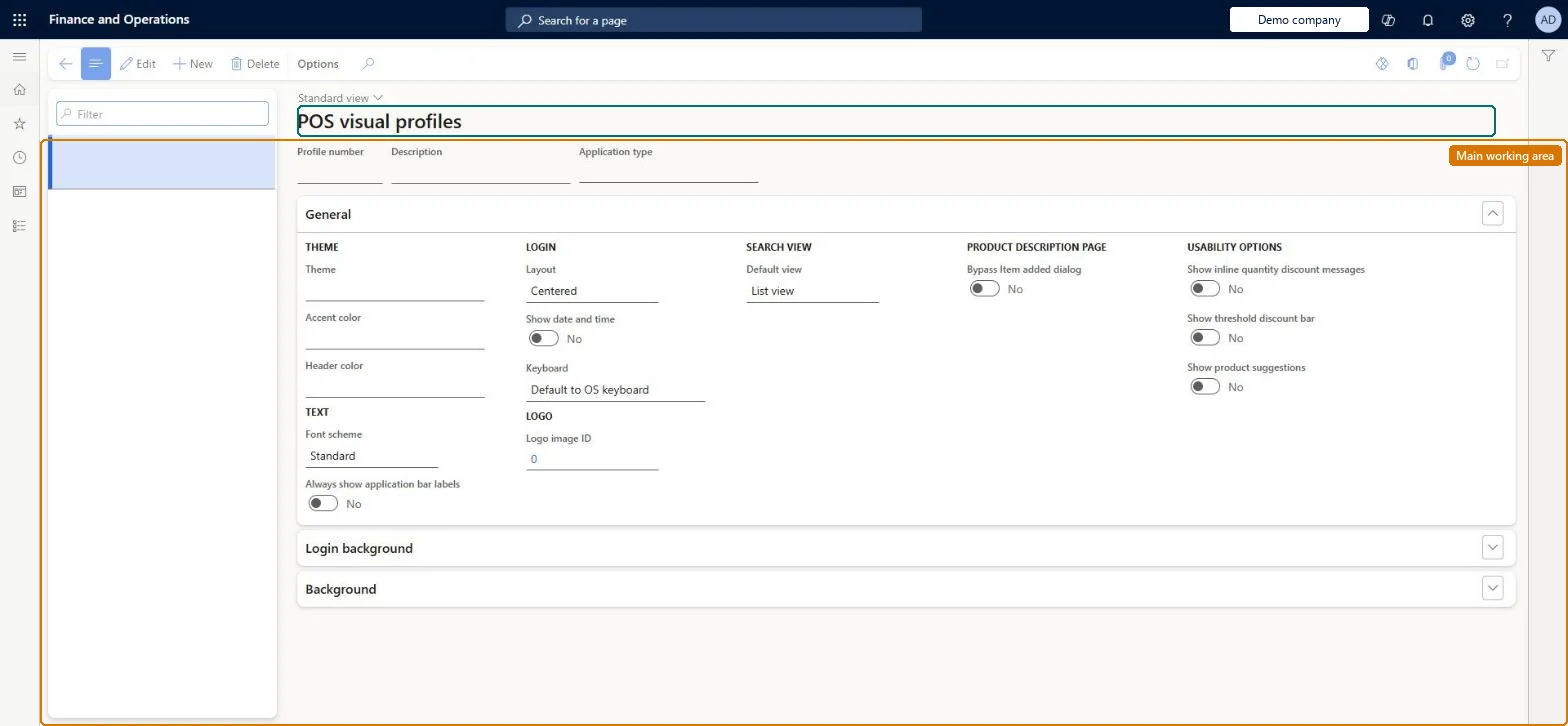
A setup page where a visual profile sets the look of a register: application type, theme, accent and header colour, font scheme, sign-in layout, default keyboard, logo and background images.
Retail and CommerceChannel setupPOS setupPOS profiles
RetailVisualProfile
Used by
Retail operations manager, Retail service, Information technology manager
Business process
Manage sales channels
Menu item
RetailVisualProfile
Main table
RetailVisualProfile
Data entity
RetailVisualProfileEntity
Setup steps
1 on this page
Show what matters for
PAGE GUIDEWhat the page does and how to use it8 sections. Choose a role to highlight what matters to you.
Everyone
1What it is and why
What it is
A setup page where a visual profile sets the look of a register: application type, theme, accent and header colour, font scheme, sign-in layout, default keyboard, logo and background images.
What you do here
Use this page to create visual profiles and assign them to registers so every user on that register sees the same theme, colours and images; run the Registers (1090) job after each change.
Example
For example, from release 10.0.42 you can set Modern transaction grid to Yes on a profile to roll out modern POS workflows to selected registers only.
The page in Dynamics 365. page title tab to open what to set or check
About the examples: Examples and screenshots in this guide use BEAT, a demo company in a Dynamics 365 test environment. Use your own company's codes and values instead of copying them.
Setup steps on this page
Set up Visual profiles
Use this page to create visual profiles and assign them to registers so every user on that register sees the same theme, colours and images; run the Registers (1090) job after each change.
Steps from Microsoft
Go to Retail and Commerce > Channel setup > POS setup > POS profiles > Visual profiles.
Click New.
Enter a Profile number and a Description.
Select the Application type, Theme and Accent color from their lookups.
Under Login background, select the Landscape and Portrait image IDs.
Font scheme Standard, Layout Centered and Keyboard Default to OS keyboard (the defaults) unless the till needs otherwise; Show number pad for touch-only devices; small imagesThese are the default selections Learn lists. The number pad is meant for touch devices, and large images affect POS performance.
Expecting the Right layout or date/time to show on a compact sign-in screen; they don't apply in compact view.
Solution architect
5Design impact
Can it be undone
Reversible: All settings can be changed at any time; they reach the register after the Registers (1090) job. Microsoft Learn
If you change it later
Every change made in headquarters reaches the POS only after the Registers (1090) job runs. Microsoft Learn
Technical architect
6Technical
Menu item
RetailVisualProfileChecked in Dynamics 365
Form
RetailVisualProfileChecked in Dynamics 365
Table
RetailVisualProfileShown as “POS VISUAL PROFILES” in Record infoKey field: profileIdChecked in Dynamics 365
PrivilegesMaintain retail POS visual profile RetailPOSVisualProfileMaintainDutiesMaintain retail register profiles RetailTerminalProfilesMaintainMaintain retail register reference data RetailTerminalReferenceDataMaintain3 security rolesRetail operations manager RetailOperationsManagerRetail service RetailServiceInformation technology manager SysServerITManagerChecked in Dynamics 365
Roles to set it up and use it
To set it up or change itRetail service RetailServiceRetail operations manager RetailOperationsManagerInformation technology manager SysServerITManagerGive people one of these roles. On this system, 3 roles can open this page.Checked in Dynamics 365
RetailVisualProfileEntity (POS visual profiles): shared by all companies, in Microsoft's default template 500 - Retail.Load order: Microsoft's default template 500 - Retail loads POS visual profiles at execution unit 1, level 30, sequence 30. Lower levels load first, and entities at the same level load in sequence order.Load first: the default templates at lower levels (System setup to General ledger)Microsoft Learn