BeyondERP.Newsletter
Menu

Setup step on the Card types page · Retail and Commerce

Set up Card types

Use this page to define each card type and then set its mapping (card numbers or processor mapping) so that card payments are tied to the right card type and payment method for financial reporting.

Used by
Retail operations manager, Retail service
Business process
Manage sales channels
Menu item
RetailTenderTypeCardTable
Main table
RetailTenderTypeCardTable
Data entity
RetailTenderTypeCardEntity
Setup steps
1 on this page
Show what matters for
SETUP GUIDEHow to set it up8 sections. Choose a role to highlight what matters to you.
Everyone

1What it is and why

What it isA setup page where you create an electronic payment (card) type record, with ID, name, type and issuer, for each kind of card the organization accepts, and map it to card number ranges or processor results.
What you do hereUse this page to define each card type and then set its mapping (card numbers or processor mapping) so that card payments are tied to the right card type and payment method for financial reporting.
ExampleFor example, an EXTGC card type of type Gift card is created for external gift cards before its number range and payment method are set up.
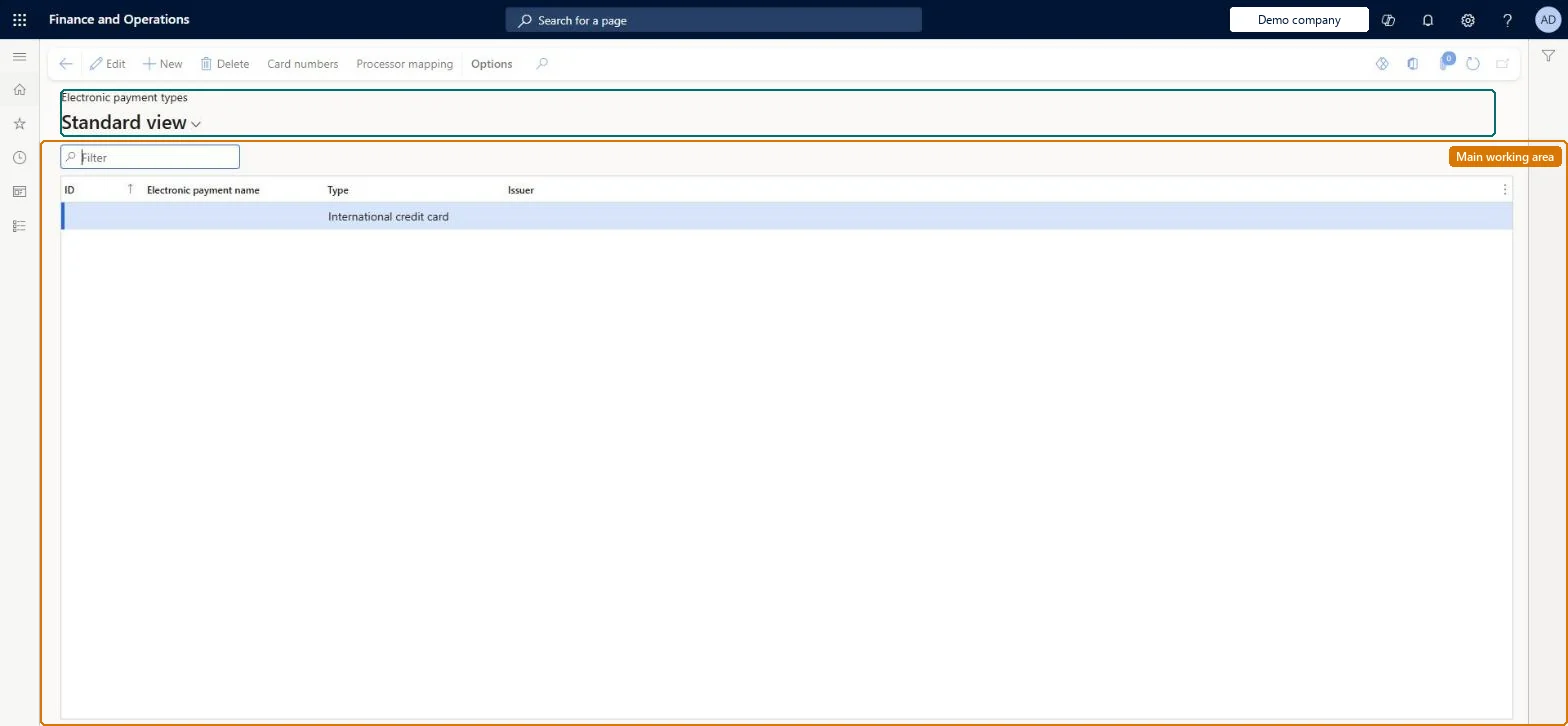
Card types page in Dynamics 365
The page in Dynamics 365. page title tab to open what to set or check
Functional consultant · Solution architect

2Where it fits

Business processDevelop sales policies › Manage sales channels
Menu pathRetail and Commerce › Channel setup › Payment methods › Card types
Set up firstPayment methods Microsoft Learn
Used next byCard numbers Microsoft Learn Store payment methods > Card setup / Electronic payment setup Microsoft Learn
Related pagesStore: Electronic Payments: Default for unmapped processor payments Microsoft Learn
In this process Set up Commerce scheduler parameters · Set up Devices
End user · Functional consultant

3How to do it

About the examples: Examples and screenshots in this guide use BEAT, a demo company in a Dynamics 365 test environment. Use your own company's codes and values instead of copying them.

Setup steps on this page

Set up Card types

Use this page to define each card type and then set its mapping (card numbers or processor mapping) so that card payments are tied to the right card type and payment method for financial reporting.

Steps from Microsoft

  1. Go to Retail and Commerce > Channel setup > Payment methods > Card types.
  2. In the Electronic payment types section, select New.
  3. Enter ID, Electronic payment name, Type and Issuer values.
  4. Select Save.
  5. Select Card numbers (or set processor mapping) to map card numbers to the type.
  6. On the Distribution schedule page, run the 1070 and 1110 jobs.

Source: Microsoft Learn

Fields on the page

FieldWhat it means
ID (Card ID)The identifier of the card type, used by stores as a payment type.Microsoft Learn
Electronic payment name (Card type name)The name of the card.Microsoft Learn
Type (Card types)The category of card, such as credit, debit, loyalty, corporate or gift card.Microsoft Learn
Issuer (Card issuer)The card-issuing authority.Microsoft Learn
Processor mappingMaps the card type from the issuer string returned by the payment connector (needs the Enhanced wallet support feature).Microsoft Learn

Test checklist

  1. Create a card type with ID, Electronic payment name, Type and Issuer, and add card number ranges.
  2. Set Electronic Payments: Default for unmapped processor payments on the store's General tab.
  3. Run jobs 1070 and 1110 and wait 15 minutes.
  4. Take card payments in POS and check each lands on the right card type in the transaction.

Source: Microsoft Learn

Functional consultant

4Setup decisions

Setup stepRecommended value and whyDecision, common mistake and test
Set up Card typesOne card type per brand or issuer you report on, mapped by Card numbers, plus Processor mapping when Enhanced wallet support and payment improvements is on, and a store default for unmapped processor paymentsProcessor mapping falls back to card numbers mapping, and the store default catches anything neither method matches.How should card types be matched to payments?Leaving both mappings incomplete with no store default. The system then protectively declines the authorization.

Feature management and licence

Feature to turn onEnhanced wallet support and payment improvements (Optional)

Microsoft Learn

Solution architect

5Design impact

Can it be undoneReversible: Card types and their mappings can be changed; changes apply after jobs 1070 and 1110 and the cache refresh.
If you change it laterA card that matches no card type mapping and no store default is declined, so removing or mis-mapping a card type can stop payments. Microsoft Learn
Technical architect

6Technical

Menu itemRetailTenderTypeCardTable Checked in Dynamics 365
FormRetailTenderTypeCardTable Checked in Dynamics 365
TableRetailTenderTypeCardTableShown as “CARD TYPES” in Record infoKey field: cardTypeIdChecked in Dynamics 365
Data entitiesRetailTenderTypeCardEntityPayment card types Microsoft data model
Who can open itPrivilegesMaintain retail card tender type RetailCardTenderTypeMaintainDutiesMaintain retail store tenders RetailStoreTendersMaintain
2 security rolesRetail operations manager RetailOperationsManagerRetail service RetailService
Checked in Dynamics 365
Roles to set it up and use itTo set it up or change itRetail service RetailServiceRetail operations manager RetailOperationsManagerGive people one of these roles. On this system, 2 roles can open this page.Checked in Dynamics 365
Actions on the page(Action Pane without tabs): Card numbers, Processor mappingChecked in Dynamics 365
Developer

7Developer

Open it by URLhttps://<your-environment>/?mi=RetailTenderTypeCardTable
Integrate withRetailTenderTypeCardEntity data entity Microsoft data model
Data migrationRetailTenderTypeCardEntity (Payment card types): shared by all companies.Microsoft Learn
Table definitionRetailTenderTypeCardTable columns and relations Microsoft data model
Everyone

8Sources

To cite this step: RC-PAY-020, Set up Card types. Beyond ERP Atlas Hub, 2026-11-11. https://www.beyonderp.cloud/atlas/step/RC-PAY-020