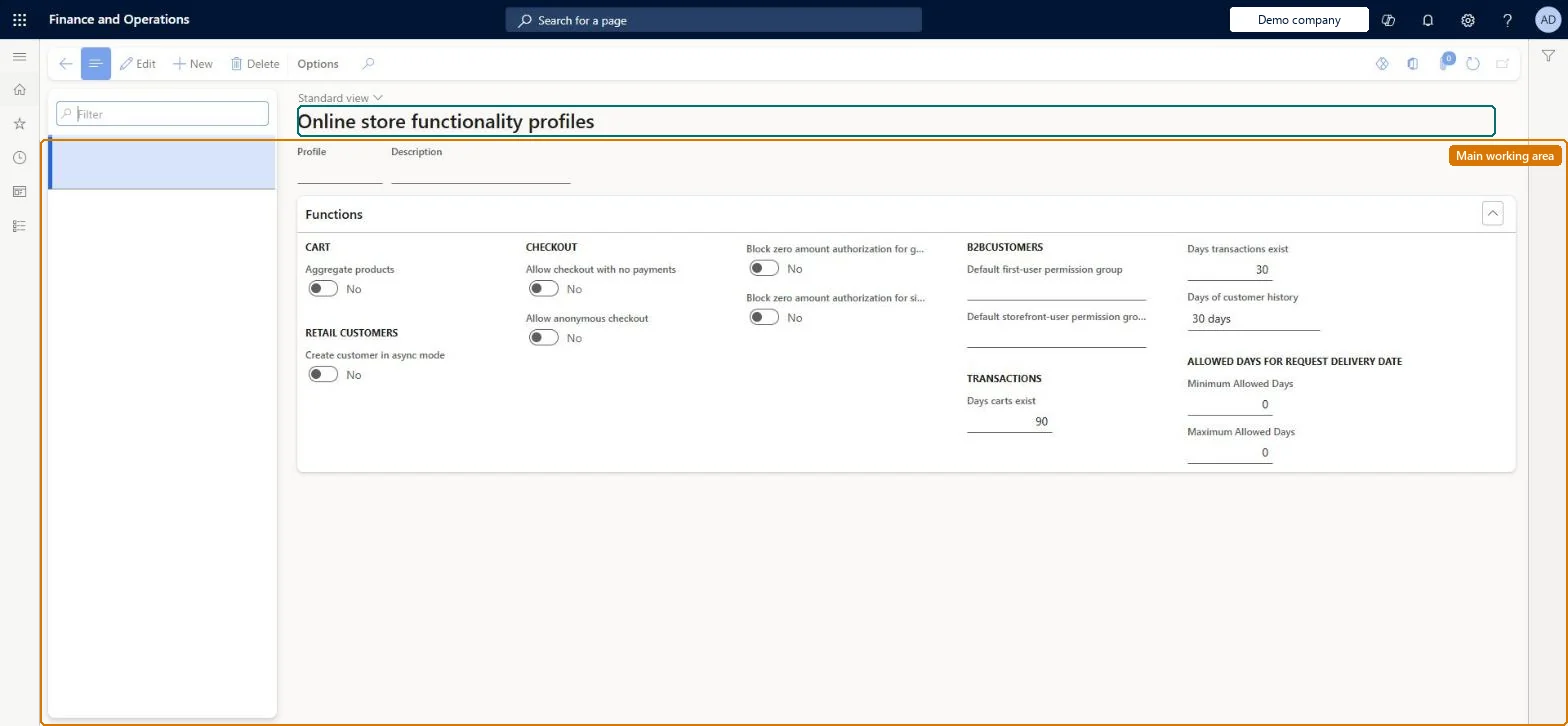
Setup step on the Functionality profiles page · Retail and Commerce
Set up Functionality profiles
Use this page to define a profile ID and description and switch on or off functions such as aggregating duplicate cart items or allowing checkout when the cart total is zero, then assign the profile to the online store channel.
Retail and CommerceChannel setupOnline store setup
RetailOnlineChannelFunctionalityProfileMenuItem
Used by
Retail operations manager, Retail store IT, Retail store manager
Business process
Manage sales channels
Menu item
RetailOnlineChannelFunctionalityProfileMenuItem
Main table
RetailOnlineChannelFunctionalityProfileTable
Setup steps
1 on this page
Show what matters for
SETUP GUIDEHow to set it up8 sections. Choose a role to highlight what matters to you.
Everyone
1What it is and why
What it is
A setup page where you create online functionality profiles that hold cart, retail customer and checkout settings for online channels; every online channel must be assigned one.
What you do here
Use this page to define a profile ID and description and switch on or off functions such as aggregating duplicate cart items or allowing checkout when the cart total is zero, then assign the profile to the online store channel.
Example
For example, enabling Aggregate products lets the cart increase the quantity when the same item is added more than once instead of adding a second line.
The page in Dynamics 365. page title tab to open what to set or check
About the examples: Examples and screenshots in this guide use BEAT, a demo company in a Dynamics 365 test environment. Use your own company's codes and values instead of copying them.
Setup steps on this page
Set up Functionality profiles
Use this page to define a profile ID and description and switch on or off functions such as aggregating duplicate cart items or allowing checkout when the cart total is zero, then assign the profile to the online store channel.
Steps from Microsoft
Go to Retail and Commerce > Channel setup > Online store setup > Functionality profiles.
On the Action Pane, select New.
In the Profile field, enter an ID for the profile.
In the Description field, enter a description.
In the Functions section, change the CART, RETAIL CUSTOMERS or CHECKOUT settings as needed.
Create the profile before the online channel; set Aggregate products and Allow checkout with no payments to suit your cart, and leave Create customer in async mode alone for a Dynamics 365 e-commerce siteEvery online channel must specify an online functionality profile. Create customer in async mode is a legacy setting for partner e-commerce channels and doesn't apply to the Dynamics 365 e-commerce site.
Turning on Create customer in async mode expecting it to change customer creation on a Dynamics 365 e-commerce site. Microsoft says it doesn't apply there.
Solution architect
5Design impact
Can it be undone
Reversible: The switches are settings on the profile and can be changed at any time; they affect cart and checkout behaviour of the channels that use the profile.
Technical architect
6Technical
Menu item
RetailOnlineChannelFunctionalityProfileMenuItemChecked in Dynamics 365
Form
RetailOnlineChannelFunctionalityProfileFormChecked in Dynamics 365
Table
RetailOnlineChannelFunctionalityProfileTableShown as “POS FUNCTIONALITY PROFILE” in Record infoKey field: profileIdChecked in Dynamics 365
Who can open it
PrivilegesRetailChannelWorkspaceMaintainDutiesRetailChannelWorkspaceMaintain3 security rolesRetail operations manager RetailOperationsManagerRetail store IT RetailStoreITRetail store manager RetailStoreManagerChecked in Dynamics 365
Roles to set it up and use it
To set it up or change itRetail operations manager RetailOperationsManagerRetail store manager RetailStoreManagerRetail store IT RetailStoreITGive people one of these roles. On this system, 3 roles can open this page.Checked in Dynamics 365
Checked in a working Dynamics 365 system, version 10.0.49: the menu item, form, table and security, the page.
To cite this step: RC-ONLINE-010, Set up Functionality profiles. Beyond ERP Atlas Hub, 2026-11-11. https://www.beyonderp.cloud/atlas/step/RC-ONLINE-010