Retail and CommercePricing and discountsMix and match discounts
RetailMixAndMatchLineGroups
Used by
Retail merchandising manager, Retail operations manager, Retail service and 1 more role
Business process
Manage sales channels
Menu item
RetailMixAndMatchLineGroups
Main table
RetailMixAndMatchLineGroups
Data entity
RetailMixAndMatchLineGroupsEntity
Setup steps
1 on this page
Show what matters for
PAGE GUIDEWhat the page does and how to use it8 sections. Choose a role to highlight what matters to you.
Everyone
1What it is and why
What it is
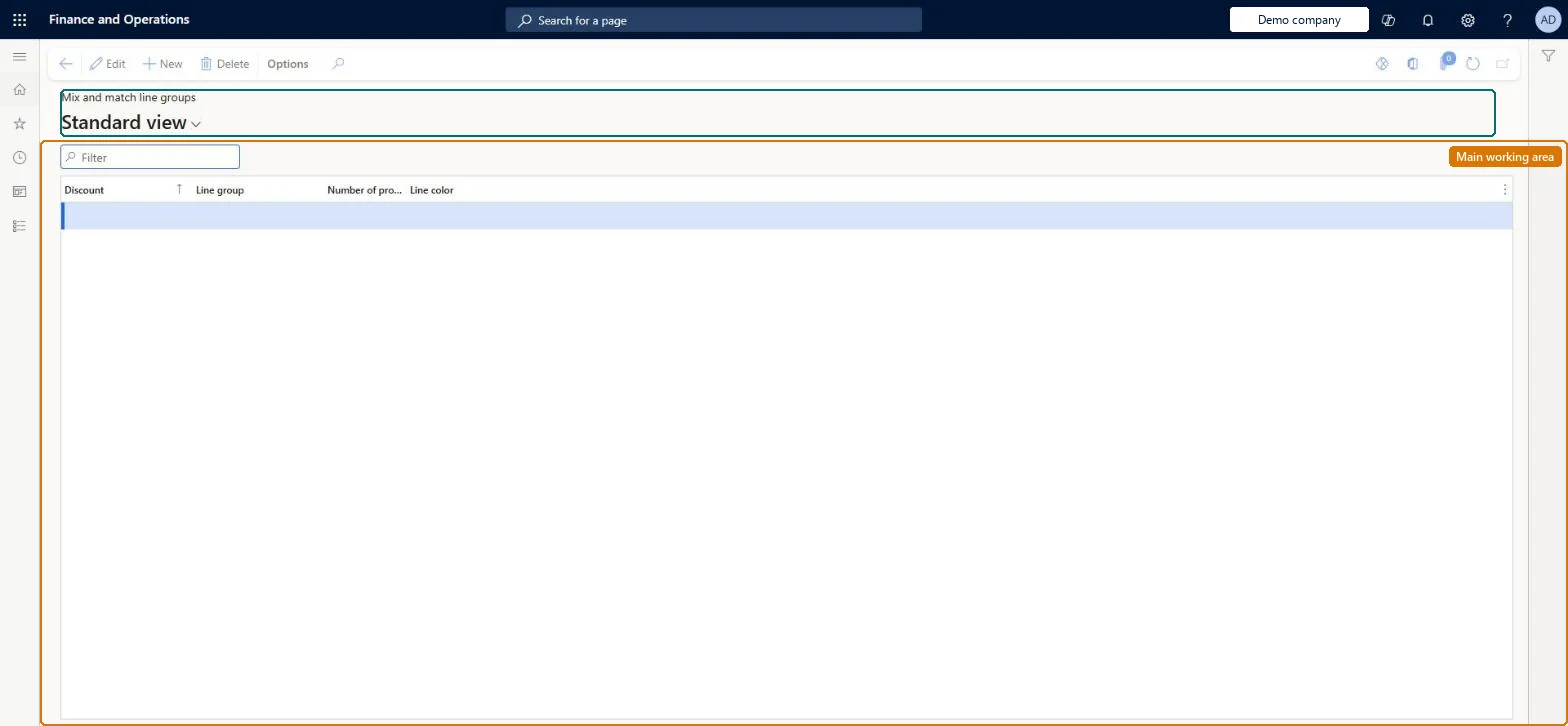
A page where you assign predefined line groups to a specific mix and match discount and set how many products from each group the customer must buy.
What you do here
Use this page to attach line groups to a mix and match discount and set the quantity required for each group, so the discount lines can then be mapped to those groups.
Example
For example, assign line group A (two products) and line group B (one product) to a 'buy two, get one free' discount.
The page in Dynamics 365. page title tab to open what to set or check
About the examples: Examples and screenshots in this guide use BEAT, a demo company in a Dynamics 365 test environment. Use your own company's codes and values instead of copying them.
Setup steps on this page
Set up Mix and match line groups
Use this page to attach line groups to a mix and match discount and set the quantity required for each group, so the discount lines can then be mapped to those groups.
Steps from Microsoft
Go to Retail and Commerce > Pricing and discounts > Mix and match discounts > Mix and match line groups.
Select the mix and match discount the line groups belong to.
Select a predefined line group.
Enter the Number of products needed for that group.
Check the Line color shown for the group.
Repeat for each line group the combination requires.
On the discount's Lines FastTab, set a Line group on every line.
Number of products needed of 20 or fewer per line group; use a larger unit of measure (pack or sleeve) for bigger quantitiesMicrosoft's best practice for pricing performance is not to exceed 20 products needed on a mix and match line group.
Setting a high number of products needed, such as 200 capsules, which slows price calculation for every transaction.
Solution architect
5Design impact
Can it be undone
Hard to reverse: You must disable the parent discount to change its line groups, and disabling takes it out of the channels until it is enabled and synced again. Microsoft Learn
If you change it later
Raising the number of products needed above 20 on a line group slows pricing; the parent discount must be disabled before its line groups can be changed. Microsoft Learn
Technical architect
6Technical
Menu item
RetailMixAndMatchLineGroupsChecked in Dynamics 365
Form
RetailMixAndMatchLineGroupsChecked in Dynamics 365
Table
RetailMixAndMatchLineGroupsShown as “MIX AND MATCH LINE GROUPS” in Record infoKey field: mixAndMatchId, mixAndMatchLineGroupChecked in Dynamics 365
Data entities
RetailMixAndMatchLineGroupsEntityMix and match line groups Checked in Dynamics 365
Who can open it
PrivilegesMaintain retail mix and match RetailMixAndMatchMaintainMaintain retail mix and match RetailMixAndMatchViewDutiesMaintain retail campaign discounts RetailDiscountOfferMaintainMaintain retail campaign discounts RetailDiscountOfferView4 security rolesRetail merchandising manager RetailMerchandisingManagerRetail operations manager RetailOperationsManagerRetail service RetailServiceRetail store manager RetailStoreManagerChecked in Dynamics 365
Roles to set it up and use it
To set it up or change itRetail service RetailServiceRetail merchandising manager RetailMerchandisingManagerTo use itRetail operations manager RetailOperationsManagerRetail store manager RetailStoreManagerGive people one of these roles. On this system, 4 roles can open this page.Checked in Dynamics 365