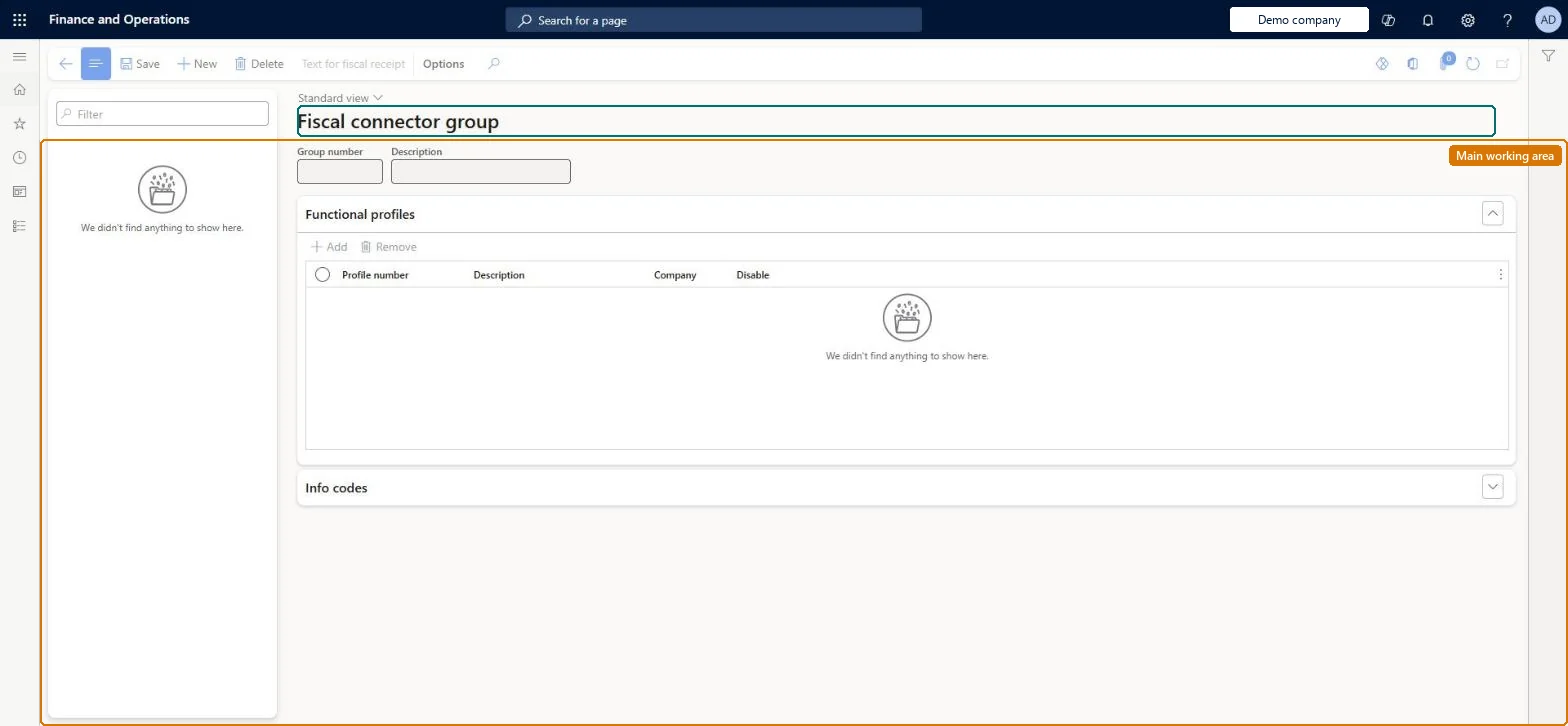
Setup step on the Fiscal connector groups page · Retail and Commerce
Set up Fiscal connector groups
Use this page to create a connector group, add the functional profiles it covers, temporarily disable a profile within the group, and define fiscal texts and info codes (Skip, Mark as registered, Postpone) that are printed on or captured for fiscal receipts.
SETUP GUIDEHow to set it up8 sections. Choose a role to highlight what matters to you.
Everyone
1What it is and why
What it is
A setup page where you group the connector functional profiles of fiscal connectors that do the same job and are used at the same step of a fiscal registration process.
What you do here
Use this page to create a connector group, add the functional profiles it covers, temporarily disable a profile within the group, and define fiscal texts and info codes (Skip, Mark as registered, Postpone) that are printed on or captured for fiscal receipts.
Example
For example, if several fiscal printer models can be used in a store, you can combine the fiscal connectors for those printers in one fiscal connector group.
The page in Dynamics 365. page title tab to open what to set or check
About the examples: Examples and screenshots in this guide use BEAT, a demo company in a Dynamics 365 test environment. Use your own company's codes and values instead of copying them.
Setup steps on this page
Set up Fiscal connector groups
Use this page to create a connector group, add the functional profiles it covers, temporarily disable a profile within the group, and define fiscal texts and info codes (Skip, Mark as registered, Postpone) that are printed on or captured for fiscal receipts.
Steps from Microsoft
Go to Retail and Commerce > Channel setup > Fiscal integration > Fiscal connector groups.
Create a new fiscal connector group.
On the Functional profiles tab, select Add, and select a profile number.
Repeat for each fiscal connector in the group; each connector can have only one functional profile in the group.
To suspend a profile in this group only, set Disable to Yes.
Optionally select Text for fiscal receipt to set fiscal texts for info codes or discounts.
Validate the fiscal registration process and run jobs 1070 and 1090.
The connector functional profile added to the group; one per fiscal connector.Microsoft Learn
Disable
Suspends use of that functional profile in this group only.Microsoft Learn
Disable
Text for fiscal receipt
The fiscal text printed on a fiscal receipt for an info code or a discount ID.Microsoft Learn
Print user input on fiscal receipt
Replaces the fiscal text with what the cashier typed for a Text-type info code.Microsoft Learn
Skip / Mark as registered / Postpone (Info codes tab)
Info codes or groups used to capture extra information when fiscal registration fails and the operator skips, marks as registered or postpones.Microsoft Learn
Test checklist
Create a group and add the functional profiles of each printer model used in the stores.
On Info codes, set the Skip, Mark as registered and Postpone info codes (not with the Product trigger function).
Add a Text for fiscal receipt for the manual Product discount info code.
Validate the process, run jobs 1070 and 1090, apply a manual discount in POS and check the fiscal text prints.
One group per registration step, holding the functional profiles of all device models that can do that step in a store (one functional profile per connector), with Skip, Mark as registered and Postpone info codes setA group combines connectors that do the same job at the same step, for example several fiscal printer models. Info codes on the group capture the operator's reason when registration fails.
Letting a hardware or functionality profile intersect a connector group more than once. Learn says each should have only one intersection with any connector group, otherwise connector selection is ambiguous.
Solution architect
5Design impact
Can it be undone
Reversible: Profiles can be added or disabled per group; re-validate the process and run jobs 1070 and 1090 after the change.
If you change it later
Enabling, disabling or adding a functional profile in a group can change which fiscal connector is selected at run time, so validate the fiscal registration process again and run jobs 1070 and 1090. Microsoft Learn
Technical architect
6Technical
Menu item
RetailFiscalIntegrationFunctionalityProfileGroupChecked in Dynamics 365
Form
RetailFiscalIntegrationFunctionalityProfileGroupChecked in Dynamics 365
Table
RetailFiscalIntegrationFunctionalityProfileGroupLineShown as “FISCAL INTEGRATION FUNCTIONAL PROFILE GROUP” in Record infoChecked in Dynamics 365
Data entities
RetailFiscalIntegrationFunctionalityProfileGroupV2EntityFiscal integration functional profile group V2 Checked in Dynamics 365
Who can open it
PrivilegesRetailFiscalIntegrationFunctionalityProfileGroupMaintainDutiesRetailFiscalIntegrationMaintain1 security roleRetail service RetailServiceChecked in Dynamics 365
Roles to set it up and use it
To set it up or change itRetail service RetailServiceGive people one of these roles. On this system, 1 role can open this page.Checked in Dynamics 365
Actions on the page
(Action Pane without tabs): Text for fiscal receiptChecked in Dynamics 365
Checked in a working Dynamics 365 system, version 10.0.49: the menu item, form, table and security, the page.
To cite this step: RC-FISCAL-050, Set up Fiscal connector groups. Beyond ERP Atlas Hub, 2026-11-11. https://www.beyonderp.cloud/atlas/step/RC-FISCAL-050