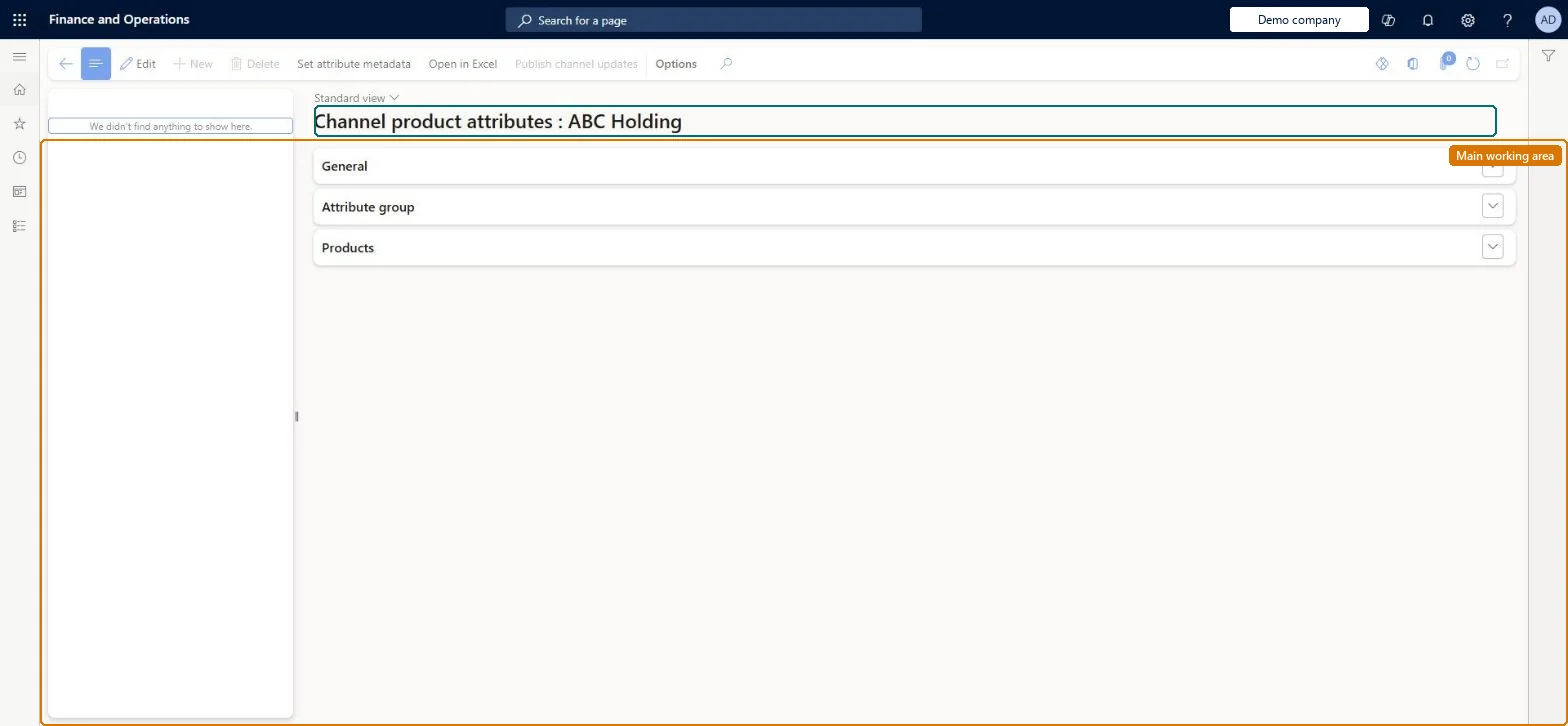
Setup step on the Channel categories and product attributes page · Retail and Commerce
Set up Channel categories and product attributes
Use this page to enrich a channel with the navigation hierarchy customers browse, the attribute groups shown in product details and filters, and channel-level product attribute values, and then select Publish channel updates.
Retail catalog manager, Retail merchandising manager, Retail operations manager and 4 more roles
Business process
Manage sales channels
Menu item
RetailInternalOrganization
Main table
RetailInternalOrganization
Data entity
RetailInternalOrganizationEntity
Setup steps
1 on this page
Show what matters for
SETUP GUIDEHow to set it up8 sections. Choose a role to highlight what matters to you.
Everyone
1What it is and why
What it is
A setup page where, for each channel in the organization hierarchy, you assign the category (navigation) hierarchy, attribute groups and channel-specific product attribute values and media, then publish the changes to the channel.
What you do here
Use this page to enrich a channel with the navigation hierarchy customers browse, the attribute groups shown in product details and filters, and channel-level product attribute values, and then select Publish channel updates.
Example
For example, you can set the Brand attribute and a default channel image for a product in the Houston store without changing the product master.
The page in Dynamics 365. page title tab to open what to set or check
About the examples: Examples and screenshots in this guide use BEAT, a demo company in a Dynamics 365 test environment. Use your own company's codes and values instead of copying them.
Setup steps on this page
Set up Channel categories and product attributes
Use this page to enrich a channel with the navigation hierarchy customers browse, the attribute groups shown in product details and filters, and channel-level product attribute values, and then select Publish channel updates.
Steps from Microsoft
Go to Retail and Commerce > Channel setup > Channel categories and product attributes.
In the tree, select the channel node and select Edit.
In the Category hierarchy field, select the navigation hierarchy for the channel.
Expand Attribute group, select Add and choose the attribute group; use View attributes to add attributes.
Expand Products, select Add, choose products, then select Attributes to set channel media and channel product attribute values.
Set the channel's navigation hierarchy in Category hierarchy, add the attribute groups shoppers filter on, then select Publish channel updatesLearn says the navigation hierarchy drives product navigation in the channel, attribute groups show in product details and filters, and only published changes are synced to the channel tables.
Saving changes without Publish channel updates. Unpublished data isn't synced to the channel tables, so POS and the online store don't show it.
Solution architect
5Design impact
Can it be undone
Reversible: Attributes and values can be changed and published again.
If you change it later
Changes made here reach the channel only after Publish channel updates is selected; unpublished changes are not synchronised to the channel tables. Microsoft Learn
Technical architect
6Technical
Menu item
RetailInternalOrganizationChecked in Dynamics 365
Form
RetailInternalOrganizationChecked in Dynamics 365
Table
RetailInternalOrganizationShown as “INTERNAL ORGANIZATION” in Record infoKey field: InternalOrganization_NameChecked in Dynamics 365
PrivilegesMaintain call center channels MCRChannelsMaintainView call center channel MCRChannelsViewChannel categories and product attributes RetailChannelCategoriesAndProductAttributesMaintainMaintain retail channels RetailChannelsMaintainView retail channels RetailChannelsViewRetail trial channels maintain privilege RetailTrialChannelsMaintainDutiesMaintain call center channels MCRChannelsMaintainView call center channel MCRChannelsViewChannel categories and product attributes RetailChannelCategoriesAndProductAttributesMaintainMaintain retail channels RetailChannelsMaintainView retail channels RetailChannelsViewRetail trial channels maintain privilege RetailTrialChannelsMaintain7 security rolesRetail catalog manager RetailCatalogManagerRetail merchandising manager RetailMerchandisingManagerRetail operations manager RetailOperationsManagerRetail service RetailServiceRetail store IT RetailStoreITRetail store manager RetailStoreManagerInformation technology manager SysServerITManagerChecked in Dynamics 365
Roles to set it up and use it
To set it up or change itRetail service RetailServiceRetail operations manager RetailOperationsManagerRetail store manager RetailStoreManagerRetail merchandising manager RetailMerchandisingManagerRetail store IT RetailStoreITTo use itInformation technology manager SysServerITManagerRetail catalog manager RetailCatalogManagerGive people one of these roles. On this system, 7 roles can open this page.Checked in Dynamics 365
Actions on the page
(Action Pane without tabs): Set attribute metadata, Open in Excel, Publish channel updatesChecked in Dynamics 365
Checked in a working Dynamics 365 system, version 10.0.49: the menu item, form, table and security, the page.
To cite this step: RC-CHANNEL-050, Set up Channel categories and product attributes. Beyond ERP Atlas Hub, 2026-11-11. https://www.beyonderp.cloud/atlas/step/RC-CHANNEL-050