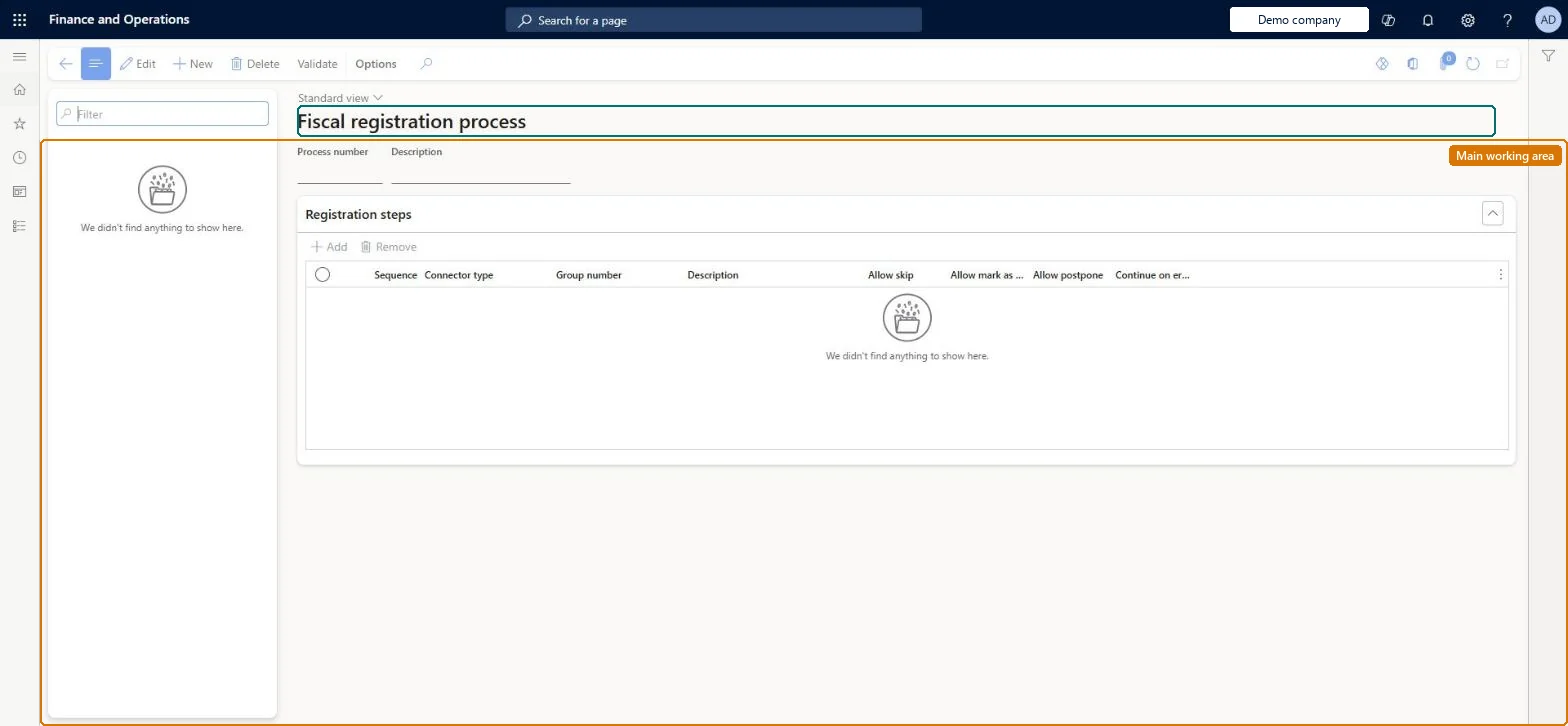
A setup page where you define a fiscal registration process as an ordered sequence of registration steps, each tied to a fiscal connector type and a fiscal connector group.
Retail and CommerceChannel setupFiscal integration
RetailFiscalIntegrationRegistrationProcess
Used by
Retail service
Business process
Manage sales channels
Menu item
RetailFiscalIntegrationRegistrationProcess
Main table
RetailFiscalIntegrationRegistrationProcessLine
Data entity
RetailFiscalIntegrationRegistrationProcessEntity
Setup steps
1 on this page
Show what matters for
PAGE GUIDEWhat the page does and how to use it8 sections. Choose a role to highlight what matters to you.
Everyone
1What it is and why
What it is
A setup page where you define a fiscal registration process as an ordered sequence of registration steps, each tied to a fiscal connector type and a fiscal connector group.
What you do here
Use this page to create each registration process, set the error-handling options for every step (Allow skip, Allow mark as registered, Allow postpone, Continue on error), list POS registers where fiscal registration is prohibited, and validate the process before running jobs 1070 and 1090.
Example
For example, you add registers that only need non-fiscal operations such as catalogue search or customer lookup to the 'POS registers with fiscal process restrictions' tab.
The page in Dynamics 365. page title tab to open what to set or check
About the examples: Examples and screenshots in this guide use BEAT, a demo company in a Dynamics 365 test environment. Use your own company's codes and values instead of copying them.
Setup steps on this page
Set up Fiscal registration processes
Use this page to create each registration process, set the error-handling options for every step (Allow skip, Allow mark as registered, Allow postpone, Continue on error), list POS registers where fiscal registration is prohibited, and validate the process before running jobs 1070 and 1090.
Steps from Microsoft
Go to Retail and Commerce > Channel setup > Fiscal integration > Fiscal registration processes.
Create a new record for each unique fiscal registration process.
Select Add to add a registration step, then select a fiscal connector type.
In the Group number field, select the fiscal connector group for the step.
Set the error handling options for each step (Allow skip, Allow mark as registered, Allow postpone, Continue on error).
If needed, add registers on the POS registers with fiscal process restrictions tab.
Select Validate.
On the Distribution schedule page, run the 1070 and 1090 jobs.
Continue on error off unless the country allows optional registration; Allow skip and Allow mark as registered only where the regulation permits, backed by the matching POS permissions; select Validate and run jobs 1070 and 1090 after every changeWith Continue on error off, the operator must retry, skip or mark the failed registration before the next one. Turning Continue on error on automatically disables Allow skip and Allow mark as registered.
Hard to reverse: The process can be edited, but any change to step groups, enabled profiles or hardware profile assignments needs Validate plus jobs 1070 and 1090 before it reaches stores, and must be re-tested against the fiscal device. Microsoft Learn
If you change it later
Changing a step's connector group may cause a different connector to be chosen at run time, so re-validate the process; enabling Continue on error automatically disables Allow skip and Allow mark as registered. Microsoft Learn
Technical architect
6Technical
Menu item
RetailFiscalIntegrationRegistrationProcessChecked in Dynamics 365
Form
RetailFiscalIntegrationRegistrationProcessChecked in Dynamics 365
Table
RetailFiscalIntegrationRegistrationProcessLineShown as “FISCAL INTEGRATION REGISTRATION PROCESS” in Record infoChecked in Dynamics 365
Data entities
RetailFiscalIntegrationRegistrationProcessEntityFiscal integration registration process Checked in Dynamics 365
Who can open it
PrivilegesRetailFiscalIntegrationRegistrationProcessMaintainDutiesRetailFiscalIntegrationMaintain1 security roleRetail service RetailServiceChecked in Dynamics 365
Roles to set it up and use it
To set it up or change itRetail service RetailServiceGive people one of these roles. On this system, 1 role can open this page.Checked in Dynamics 365
Actions on the page
(Action Pane without tabs): ValidateChecked in Dynamics 365