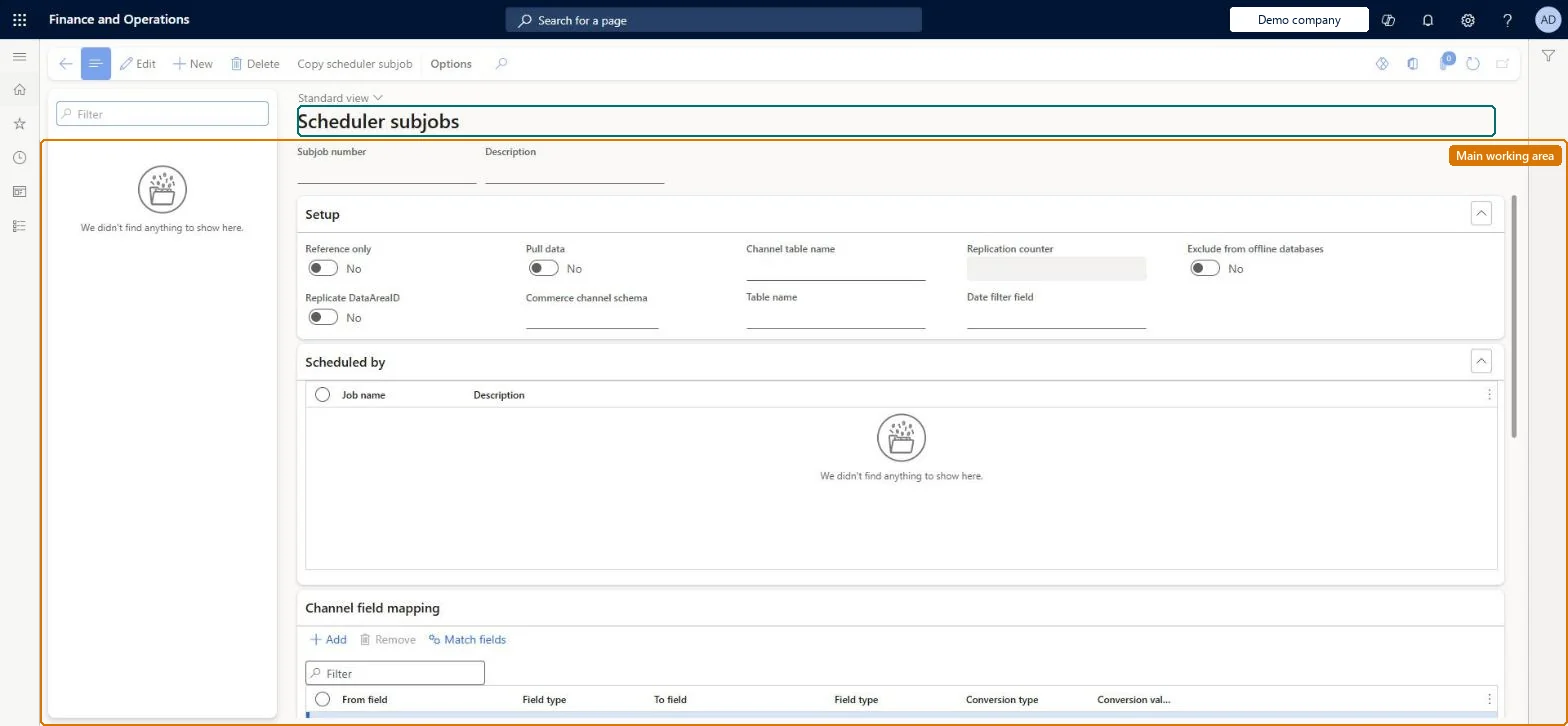
Setup step on the Scheduler subjobs page · Retail and Commerce
Set up Scheduler subjobs
Use this page to check which fields of a table are synchronized to channels, to verify that extension columns appear in the mapping, and to exclude a table from offline databases.
Retail and CommerceHeadquarters setupCommerce scheduler
RetailConnSchedulerSubJobTable
Used by
Retail operations manager, Retail service, Information technology manager
Business process
Manage sales channels
Menu item
RetailConnSchedulerSubJobTable
Main table
RetailConnSchedulerSubjobTable
Setup steps
1 on this page
Show what matters for
SETUP GUIDEHow to set it up8 sections. Choose a role to highlight what matters to you.
Everyone
1What it is and why
What it is
A setup page listing the Commerce Data Exchange subjobs; each subjob maps one headquarters table to its channel database table, shows the channel field mapping, and belongs to one or more scheduler jobs.
What you do here
Use this page to check which fields of a table are synchronized to channels, to verify that extension columns appear in the mapping, and to exclude a table from offline databases.
Example
For example, after enabling product ratings you check here that the RetailProductRating subjob exists before scheduling the ratings sync.
The page in Dynamics 365. page title tab to open what to set or check
About the examples: Examples and screenshots in this guide use BEAT, a demo company in a Dynamics 365 test environment. Use your own company's codes and values instead of copying them.
Setup steps on this page
Set up Scheduler subjobs
Use this page to check which fields of a table are synchronized to channels, to verify that extension columns appear in the mapping, and to exclude a table from offline databases.
Steps from Microsoft
Go to Retail and Commerce > Headquarters setup > Commerce scheduler > Scheduler subjobs.
In the subjob list, search for the subjob ID (the headquarters table name).
In the details area, open the Channel field mapping section and check the fields that are synchronized.
If needed, set Exclude from offline databases to Yes to keep the table out of offline databases.
Leave DIRPARTYTABLE included; exclude a subjob only when its table isn't needed in any job offlineExcluding a subjob stops its table from syncing to offline databases for every job that contains it. Microsoft says not to exclude DIRPARTYTABLE because it holds staff data needed offline.
Excluding DIRPARTYTABLE to drop customer data. It is shared by customers and employees and is synced by three jobs, so staff data is lost offline. Use Filter shared customer data tables on the channel schema instead.
Solution architect
5Design impact
Can it be undone
Hard to reverse: Excluded tables stop syncing to offline databases for all jobs that contain the subjob. Data already removed from offline databases must be resynchronized after the exclusion is lifted.
If you change it later
Excluding a subjob removes its table from offline synchronization for every job that contains it; Microsoft warns not to exclude DIRPARTYTABLE because offline sign-in depends on the staff data it holds. Microsoft Learn
Technical architect
6Technical
Menu item
RetailConnSchedulerSubJobTableChecked in Dynamics 365
Form
RetailConnSchedulerSubJobTableChecked in Dynamics 365
Table
RetailConnSchedulerSubjobTableShown as “SCHEDULER SUB JOBS” in Record infoChecked in Dynamics 365
Who can open it
PrivilegesMaintain Retail scheduler RetailSchedulerMaintainDutiesManage Commerce Data Exchange: Synch Service RetailSchedulerManage3 security rolesRetail operations manager RetailOperationsManagerRetail service RetailServiceInformation technology manager SysServerITManagerChecked in Dynamics 365
Roles to set it up and use it
To set it up or change itRetail service RetailServiceRetail operations manager RetailOperationsManagerInformation technology manager SysServerITManagerGive people one of these roles. On this system, 3 roles can open this page.Checked in Dynamics 365
Actions on the page
(Action Pane without tabs): Copy scheduler subjobChecked in Dynamics 365