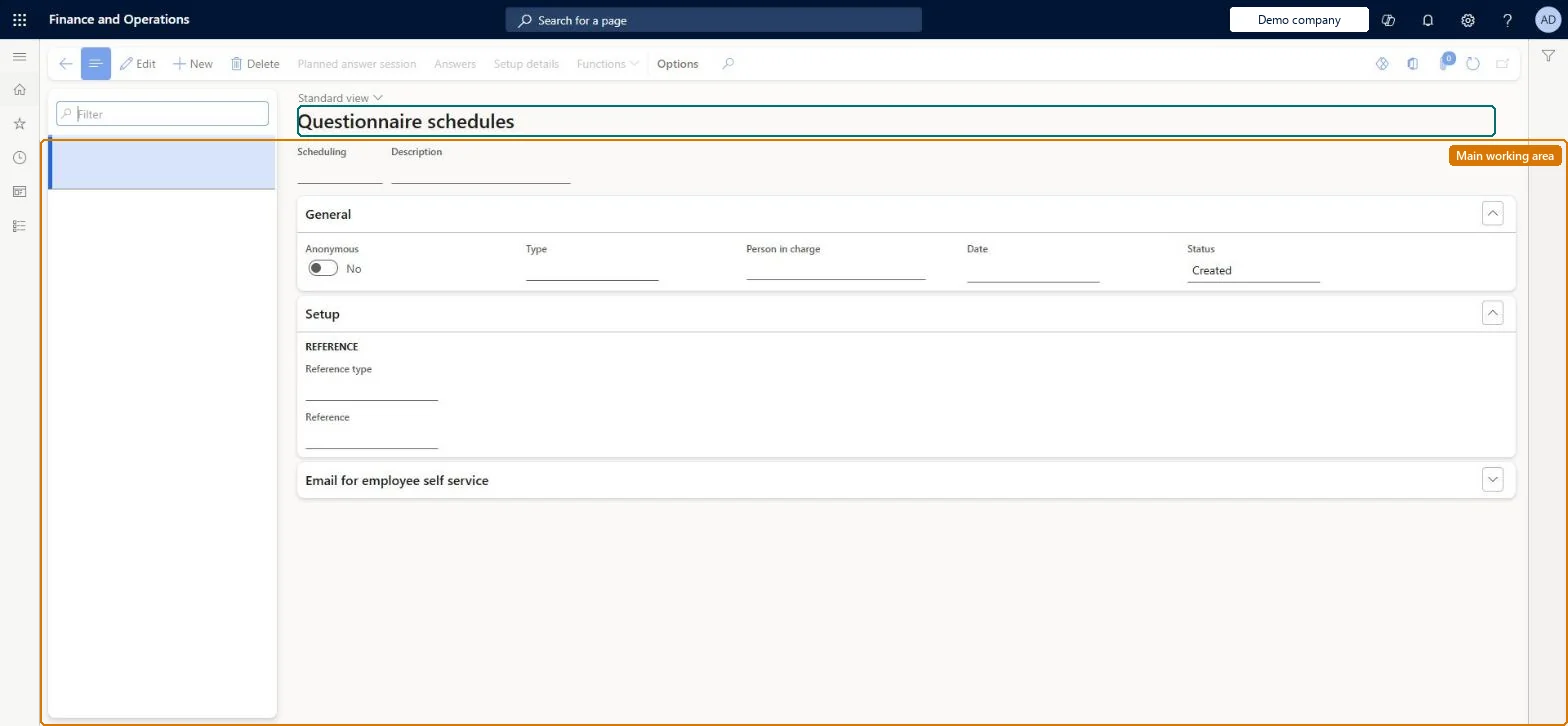
Setup step on the Questionnaire schedules page · Questionnaire
Schedule a questionnaire for many respondents
Use this page to plan a questionnaire for many respondents: select the planning type, reference and questionnaire, generate planned answer sessions, start the schedule, email respondents, and end the schedule when everyone has answered.
Purchasing agent, Purchasing Agent - Public Sector, Vendor account manager and 14 more roles
Business process
Configure and manage surveys
Menu item
KMKnowledgeCollectorPlanningTable
Main table
KMKnowledgeCollectorPlanningTable
Setup steps
1 on this page
Show what matters for
SETUP GUIDEHow to set it up8 sections. Choose a role to highlight what matters to you.
Everyone
1What it is and why
What it is
A page where you create questionnaire schedules that generate planned answer sessions for a group of respondents, based on a reference type.
What you do here
Use this page to plan a questionnaire for many respondents: select the planning type, reference and questionnaire, generate planned answer sessions, start the schedule, email respondents, and end the schedule when everyone has answered.
Example
For example, BEAT schedules the Workforce Health Assessment as a SURVEY for 180 workers, sends them an email with a link to Employee self-service, and ends the schedule after deleting the 6 sessions nobody answered.
The page in Dynamics 365. page title tab to open what to set or check
About the examples: Examples and screenshots in this guide use BEAT, a demo company in a Dynamics 365 test environment. Use your own company's codes and values instead of copying them.
Setup steps on this page
Schedule a questionnaire for many respondents
Use this page to plan a questionnaire for many respondents: select the planning type, reference and questionnaire, generate planned answer sessions, start the schedule, email respondents, and end the schedule when everyone has answered.
Steps from Microsoft
Go to Questionnaire > Distribute > Questionnaire schedules.
Select New, and enter the Scheduling and Description values.
In the Type field, select the planning type, and enter a date.
On the Email for employee self service section, enter the email subject and text, then save.
Select Setup details to choose the respondent query and the questionnaire, then select OK.
Select Functions > Start to make the questionnaire available.
Select Functions > Send email to notify respondents.
When all respondents have finished, select Functions > End.
The specific record, such as a course, that the schedule relates to, based on the reference type.Microsoft Learn
HR-101
connection
Subject
The subject line of the email sent to respondents.Microsoft Learn
Questionnaire available
Text
The body of the email to respondents, which can use variables to substitute values.Microsoft Learn
Dear %P%, please sign in to Employee self-service to complete the Workforce Health questionnaire.
Common errors and fixes
Message
What to do
Send email on a questionnaire schedule reaches nobody
Email must be set up on System administration > Setup > Email > Email parameters before Send email can be used; start the schedule first, then send. Microsoft Learn
A questionnaire schedule can't be ended
Some planned answer sessions are still unanswered. Delete them on Planned answer session, then select Functions > End. Microsoft Learn
A person selected in Setup details gets no planned answer session
All respondents of a schedule must also be users in the system. Create or link a user for the person and generate the sessions again. Microsoft Learn
A schedule can't record anonymous responses
Anonymity is controlled by Allow anonymous results on Questionnaire > Setup > Questionnaire parameters; set it there first. Microsoft Learn
Test checklist
Create a schedule with a planning Type, a reference, a Date, and the Subject and Text on Email for employee self service.
Select Setup details, choose the Workers query, filter to one person and select the questionnaire.
Select Planned answer session and check one session per selected user.
Select Functions > Start, then Functions > Send email.
After the respondent answers, delete any remaining sessions and select Functions > End.
One schedule per survey run, with a planning Type, a Setup details query that returns only users, Start before Send email, and End only after unanswered sessions are deleted.A schedule creates one planned answer session per respondent, email reaches respondents only after the schedule starts, and an ended schedule can't be copied.
No Feature management feature is needed for questionnaires; Microsoft Learn describes them without one. Questionnaires belong to the Human resources area, and in this system the same pages are also granted through procurement (vendor and RFQ questionnaires), sales and marketing (campaigns, telemarketing) and case management duties, as the Security section shows. The HR administrator runs schedules; in AX 2012 schedules and planned sessions sat under the Questionnaire II configuration key.
Reaches every person the Setup details query returns who is also a user; each gets one planned answer session for each questionnaire chosen. Microsoft Learn
Can it be undone
One-way: After you end a schedule you can no longer copy its settings to a new schedule.
If you change it later
Ending a schedule is final for copying: after you end it, its settings can no longer be copied to a new schedule, and unanswered sessions must be deleted first. Microsoft Learn
Technical architect
6Technical
Menu item
KMKnowledgeCollectorPlanningTableChecked in Dynamics 365
Form
KMKnowledgeCollectorPlanningTableChecked in Dynamics 365
Table
KMKnowledgeCollectorPlanningTableShown as “SCHEDULED QUESTIONNAIRES” in Record infoChecked in Dynamics 365
Who can open it
PrivilegesView scheduling KMKnowledgeCollectorPlanningTableViewMaintain questionnaire schedules KMKnowledgeCollectorPlanningTabMaintainDutiesEnable case management CaseCaseManagementEnableInquire into employee cases CaseEmployeeCaseInquireInquire into questionnaire transactions HcmQuestionnaireTransactionInquireMaintain questionnaire transactions HcmQuestionnaireTransactionMaintainInquire into campaigns smmCampaignInquireMaintain campaigns smmCampaignsMaintainInquire into telemarketing smmTelemarketingInquireMaintain telemarketing smmTelemarketingMaintainInquire into vendor questionnaire progress VendVendorQuestionnaireInquireMaintain vendor questionnaires VendVendorQuestionnaireMaintain17 security rolesProduct design manager BOMProductDesignManagerCollections manager CollectionLetterCollectionsManagerMarketing coordinator CRMMarketingCoordinatorMarketing manager CRMMarketingManagerHuman resource assistant HcmHumanResourceAssistantHuman resource manager HcmHumanResourceManagerProject manager ProjProjectManagerProcess engineering manager RouteProcessEngineeringManagerService delivery manager SMAServiceDeliveryManagerCustomer service manager TradeCustomerServiceManagerPurchasing manager TradePurchasingManagerSales manager TradeSalesManagerSales representative TradeSalesRepresentativePurchasing agent VendPurchasingAgentPurchasing Agent - Public Sector VendPurchasingAgent_PSNVendor account manager VendVendorAccountManagerand 1 moreChecked in Dynamics 365
Roles to set it up and use it
To set it up or change itHuman resource assistant HcmHumanResourceAssistantPurchasing manager TradePurchasingManagerMarketing coordinator CRMMarketingCoordinatorMarketing manager CRMMarketingManagerCustomer service manager TradeCustomerServiceManagerTo use itHuman resource manager HcmHumanResourceManagerVendor account manager VendVendorAccountManagerSales representative TradeSalesRepresentativeGive people one of these roles. On this system, 16 roles can open this page.Checked in Dynamics 365
Actions on the page
(Action Pane without tabs): Planned answer session, Answers, Setup details, FunctionsChecked in Dynamics 365
Load order: Questionnaire schedules has no data entity in Data management, so it can't be loaded from a file or a configuration template. Recreate open schedules by hand in the new environment; ended schedules and their answers stay in the old one.Checked in Dynamics 365
Checked in a working Dynamics 365 system, version 10.0.49: the menu item, form, table and security, the page.
To cite this step: QN-DIST-040, Schedule a questionnaire for many respondents. Beyond ERP Atlas Hub, 2026-11-11. https://www.beyonderp.cloud/atlas/step/QN-DIST-040