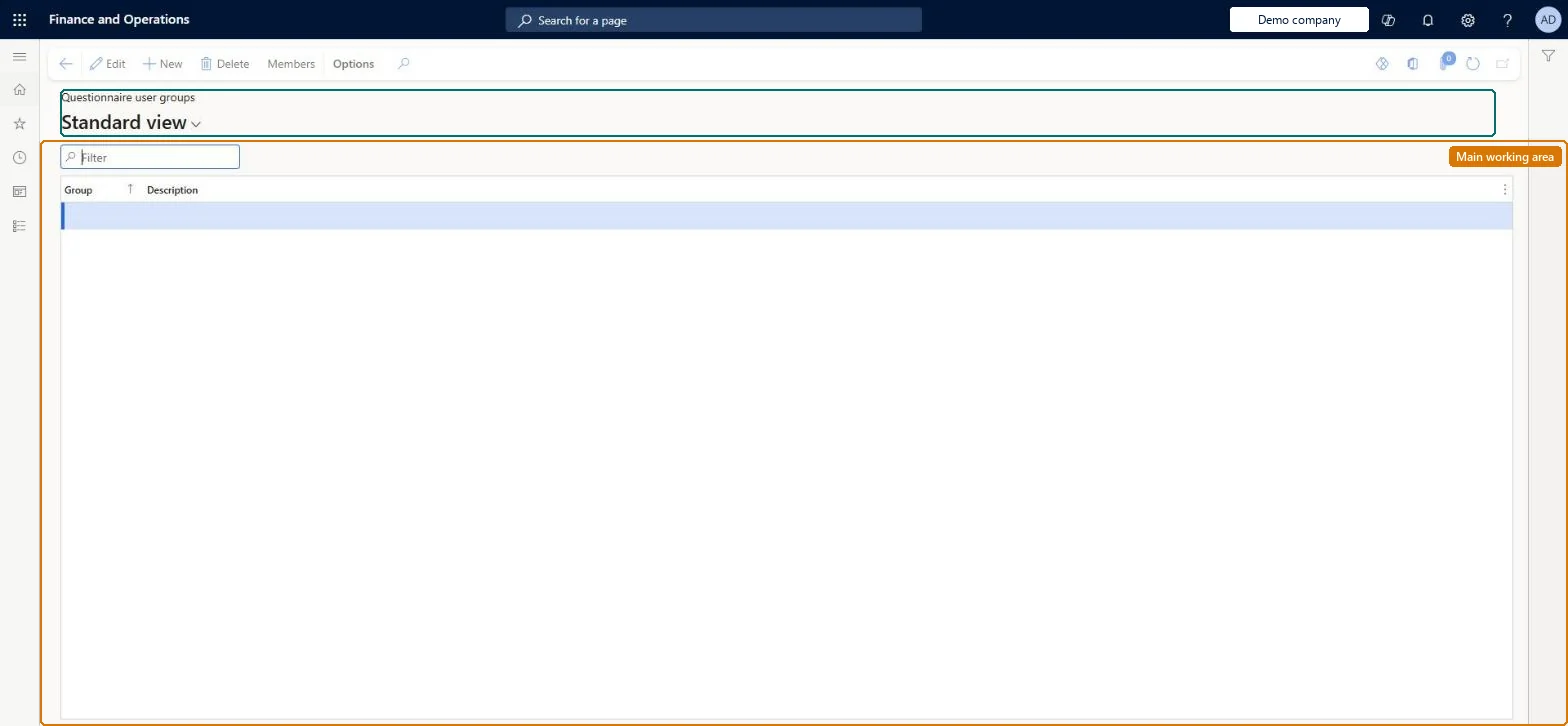
Setup step on the Questionnaire user groups page · Questionnaire
Set up Questionnaire user groups
Use this page to create groups of respondents and add members, then assign a group to a questionnaire through User rights to restrict who can complete it.
Vendor account manager, Product design manager, Collections manager and 12 more roles
Business process
Configure and manage surveys
Menu item
HRMVirtualNetworkGroupQuestionnaire
Main table
HRMVirtualNetworkGroup
Setup steps
1 on this page
Show what matters for
SETUP GUIDEHow to set it up8 sections. Choose a role to highlight what matters to you.
Everyone
1What it is and why
What it is
A page where you set up groups of people so that only members of a group can complete the questionnaires assigned to that group.
What you do here
Use this page to create groups of respondents and add members, then assign a group to a questionnaire through User rights to restrict who can complete it.
Example
For example, BEAT creates the group CONTRACT with its 14 contractors and assigns it under User rights to the contractor onboarding questionnaire, so only they can answer it.
The page in Dynamics 365. page title tab to open what to set or check
About the examples: Examples and screenshots in this guide use BEAT, a demo company in a Dynamics 365 test environment. Use your own company's codes and values instead of copying them.
Setup steps on this page
Set up Questionnaire user groups
Use this page to create groups of respondents and add members, then assign a group to a questionnaire through User rights to restrict who can complete it.
Steps from Microsoft
Go to Questionnaire > Distribute > Questionnaire user groups.
Select New and enter the Group and Description.
Select Members and add the people who may answer.
On Questionnaires, select User rights and assign the group, then set the questionnaire Active.
A respondent doesn't see the questionnaire on Complete a questionnaire
Check that Active is set on the questionnaire. If User rights names a questionnaire group, the respondent must be a member of that group. Microsoft Learn
A questionnaire group can't be deleted
It is still assigned to a questionnaire under User rights; remove it there first. Microsoft Learn
Test checklist
Create a group and add one member.
On Questionnaires, select User rights and assign the group, then set Active.
Sign in as the member and check the questionnaire is listed on Complete a questionnaire.
Sign in as a non-member and check it is not listed.
One group per target audience (for example contractors or a pilot group), assigned to the questionnaire through User rights before it is saved as ActiveOnly members of the assigned group can complete the questionnaire, which Learn recommends for testing on a select group or targeting an audience.
No Feature management feature is needed for questionnaires; Microsoft Learn describes them without one. Questionnaires belong to the Human resources area, and in this system the same pages are also granted through procurement (vendor and RFQ questionnaires), sales and marketing (campaigns, telemarketing) and case management duties, as the Security section shows. The HR administrator maintains groups and members.
Restricts who can answer: once a group is assigned under User rights, only its members can complete that questionnaire instead of all employees. Microsoft Learn
Can it be undone
Reversible: Group membership and User rights can be changed; they control who can open the questionnaire from now on.
If you change it later
Once a group is assigned to an active questionnaire, only that group's members can complete it, instead of all employees. Microsoft Learn
Technical architect
6Technical
Menu item
HRMVirtualNetworkGroupQuestionnaireChecked in Dynamics 365
Form
HRMVirtualNetworkGroupChecked in Dynamics 365
Table
HRMVirtualNetworkGroupShown as “QUESTIONNAIRE USER GROUPS” in Record infoChecked in Dynamics 365
Who can open it
PrivilegesView network groups HRMVirtualNetworkGroupQuestionnaiViewMaintain network groups HRMVirtualNetworkGroupQuestionnMaintainDutiesEnable case management CaseCaseManagementEnableEnable questionnaire process HcmQuestionnaireProcessEnableInquire into questionnaire process HcmQuestionnaireProcessInquireMaintain campaigns smmCampaignsMaintainMaintain telemarketing smmTelemarketingMaintainInquire into vendor questionnaire progress VendVendorQuestionnaireInquire15 security rolesProduct design manager BOMProductDesignManagerCollections manager CollectionLetterCollectionsManagerMarketing coordinator CRMMarketingCoordinatorMarketing manager CRMMarketingManagerHuman resource assistant HcmHumanResourceAssistantHuman resource manager HcmHumanResourceManagerTraining manager HcmTrainingManagerProject manager ProjProjectManagerProcess engineering manager RouteProcessEngineeringManagerService delivery manager SMAServiceDeliveryManagerCustomer service manager TradeCustomerServiceManagerPurchasing manager TradePurchasingManagerSales manager TradeSalesManagerVendor account manager VendVendorAccountManagerand 1 moreChecked in Dynamics 365
Roles to set it up and use it
To set it up or change itHuman resource assistant HcmHumanResourceAssistantPurchasing manager TradePurchasingManagerMarketing coordinator CRMMarketingCoordinatorMarketing manager CRMMarketingManagerCustomer service manager TradeCustomerServiceManagerTo use itHuman resource manager HcmHumanResourceManagerVendor account manager VendVendorAccountManagerGive people one of these roles. On this system, 14 roles can open this page.Checked in Dynamics 365
Actions on the page
(Action Pane without tabs): MembersChecked in Dynamics 365
Load order: Questionnaire user groups has no data entity in Data management, so it can't be loaded from a file or a configuration template. Create the groups and add members by hand after the people exist as users.Checked in Dynamics 365