Setup step on the Form setup page · Procurement and sourcing
Set up Form setup
Use this page to control what goes on procurement documents, such as which type of note attached to a purchase order is included when it is sent through cXML.
SETUP GUIDEHow to set it up8 sections. Choose a role to highlight what matters to you.
Everyone
1What it is and why
What it is
A setup page where you set how printed or stored procurement documents look, such as requests for quotation and purchase orders.
What you do here
Use this page to control what goes on procurement documents, such as which type of note attached to a purchase order is included when it is sent through cXML.
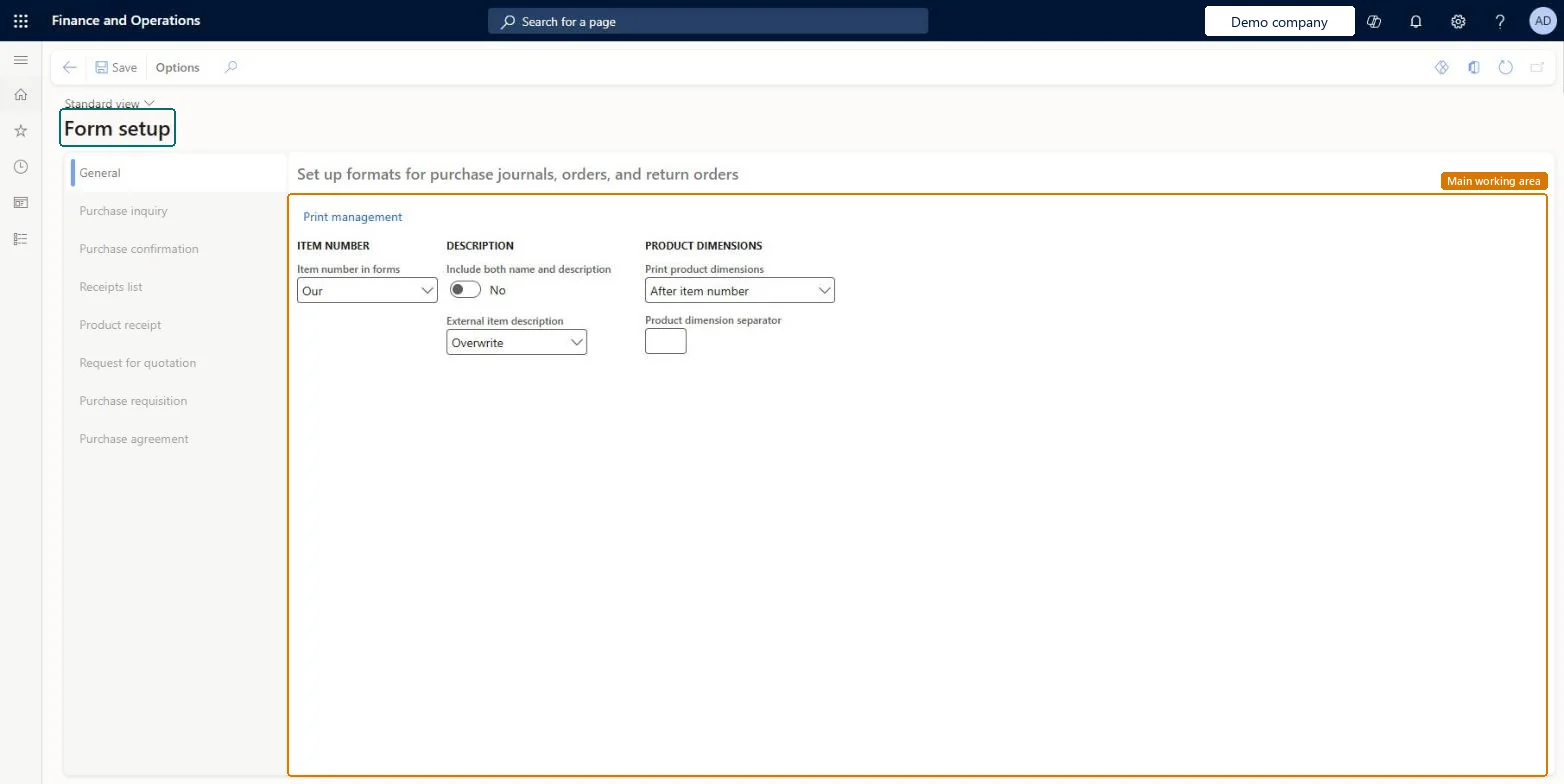
The page in Dynamics 365. page title tab to open what to set or check
About the examples: Examples and screenshots in this guide use BEAT, a demo company in a Dynamics 365 test environment. Use your own company's codes and values instead of copying them.
Step by step, with screenshots
Set up Form setup1 screen
Use this page to control what goes on procurement documents, such as which type of note attached to a purchase order is included when it is sent through cXML.
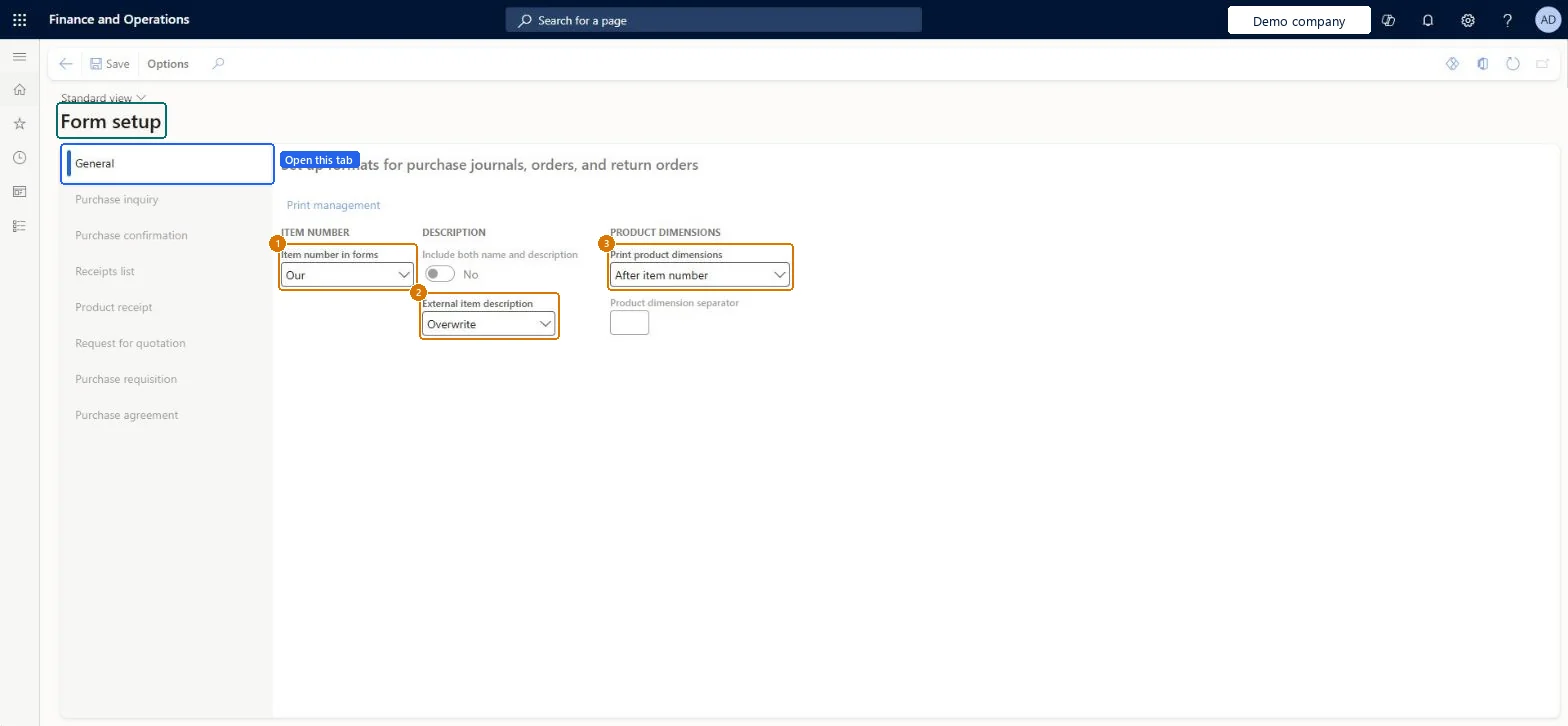
Screen 1
Choose how purchase documents print items
Go to Procurement and sourcing > Setup > Forms > Form setup, General tab
Open the General tab
Choose which item number prints on purchase documents
Choose how the external item description and product dimensions print
Select Save after any change
1Item number in forms
Our
2External item description
Overwrite
3Print product dimensions
After item number
Show the full screen page title tab to open what to set or check
How to use it
Go to Procurement and sourcing > Setup > Forms > Form setup.
On the General tab, set Item number in forms, Include both name and description and External item description.
Under PRODUCT DIMENSIONS, set Print product dimensions and the Product dimension separator.
Select another tab, such as Purchase inquiry, Purchase confirmation, Receipts list, Product receipt, Request for quotation, Purchase requisition or Purchase agreement, to set up that document.
Select Save.
Source: Checked in Dynamics 365
Fields on the page
Field
What it means
Example
Table column
Include documents of type
On the Purchase order tab, the type of note attached to a purchase order that is included in the cXML document; only text notes are included.Microsoft Learn
Item number in forms
Our
ItemNum
External item description
Overwrite
ExternalItemOverwriteAppend
Print product dimensions
After item number
ItemDimPlacement
Test checklist
Set Include documents of type on the Purchase order tab to a note type, and set POCOMMENTS to TRUE on the vendor's external catalog.
Create a purchase order for the cXML vendor and attach a text note of that type with Restriction External, plus one with Restriction Internal.
With cXML test mode set to Test, confirm the order.
On the Purchase order request page, open the Request XML text tab and check that only the external note appears in the header comments.
On the Purchase order tab, set Include documents of type to the note type your buyers use for vendor-facing notesWhen POCOMMENTS or VENDCOMMENTS is TRUE on the external catalog, only text notes whose Type matches this field and whose Restriction is External are added to the cXML purchase order.
Expecting every note on the order to reach the vendor. Notes with Restriction set to Internal, notes of another type, and file attachments are left out of the cXML message.
Reversible: The setting is read when the cXML message is built at purchase order confirmation, so a change applies to orders confirmed afterwards.
Technical architect
6Technical
Menu item
PurchFormLetterParametersChecked in Dynamics 365
Form
PurchFormLetterParametersChecked in Dynamics 365
Table
VendFormletterParametersShown as “Vendor, form parameters” in Record infoChecked in Dynamics 365
Data entities
PurchFormletterRequestForQuotationFormPrintingConfigurationEntityRequest for quotation form printing configurations Microsoft data model VendorFormSetupEntityVendor, form parameters Microsoft data model PurchFormletterPurchaseRequisitionFormPrintingConfigurationEntityPurchase requisition form printing configurations Microsoft data model PurchFormletterPurchaseOrderFormPrintingConfigurationEntityPurchase order form printing configurations Microsoft data model VendFormletterVendorFacingFormPrintingConfigurationEntityVendor facing form printing configurations Microsoft data model PurchFormletterWarehouseReceiptListFormPrintingConfigurationEntityReceipt list form printing configurations Microsoft data model PurchFormletterProductReceiptFormPrintingConfigurationEntityProduct receipt form printing configurations Microsoft data model PurchFormletterPurchaseAgreementFormPrintingConfigurationEntityPurchase agreement form printing configurations Microsoft data model PurchFormletterPurchaseInquiryFormPrintingConfigurationEntityPurchase inquiry form printing configurations Microsoft data model VendFormletterVendorInvoiceFormPrintingConfigurationEntityVendor invoice form printing configurations Microsoft data model
Who can open it
PrivilegesMaintain setup of purchase order documents PurchFormLetterParametersMaintainView setup of purchase order documents PurchFormLetterParametersViewDutiesInquire into purchase order to invoice policies PurchOrderToInvoicePoliciesInquireEnable purchase order to invoice process PurchOrderToInvoiceProcessEnable3 security rolesAuditor AuditPolicyManagerPurchasing manager TradePurchasingManagerAccounts payable manager VendInvoiceAccountsPayableManagerChecked in Dynamics 365
Roles to set it up and use it
To set it up or change itPurchasing manager TradePurchasingManagerAccounts payable manager VendInvoiceAccountsPayableManagerTo use itAuditor AuditPolicyManagerGive people one of these roles. On this system, 3 roles can open this page.Checked in Dynamics 365
Actions on the page
Options: Personalize, Page options, Edit, ShareChecked in Dynamics 365
PurchFormletterRequestForQuotationFormPrintingConfigurationEntity data entity Microsoft data model
Data migration
PurchFormletterRequestForQuotationFormPrintingConfigurationEntity (Request for quotation form printing configurations): loaded for each company, in Microsoft's default template 320 - Procurement and sourcing.VendorFormSetupEntity (Vendor, form parameters): loaded for each company, in Microsoft's default template 120 - Accounts payable.PurchFormletterPurchaseRequisitionFormPrintingConfigurationEntity (Purchase requisition form printing configurations): loaded for each company, in Microsoft's default template 320 - Procurement and sourcing.Load order: Microsoft's default template 320 - Procurement and sourcing loads Request for quotation form printing configurations at execution unit 1, level 30, sequence 10. Lower levels load first, and entities at the same level load in sequence order.Load first: the default templates at lower levels (System setup to General ledger)Microsoft Learn
Checked in a working Dynamics 365 system, version 10.0.49: the menu item, form, table and security, the page, the demo records and the values in the screenshots.
To cite this step: PS-SETUP-260, Set up Form setup. Beyond ERP Atlas Hub, 2026-11-11. https://www.beyonderp.cloud/atlas/step/PS-SETUP-260