| What it is | A setup page where you set the sorting order for requisitions, receipt lists, packing slips and invoices. |
|---|---|
| What you do here | Use this page to decide the order in which these documents are sorted when they are printed. |
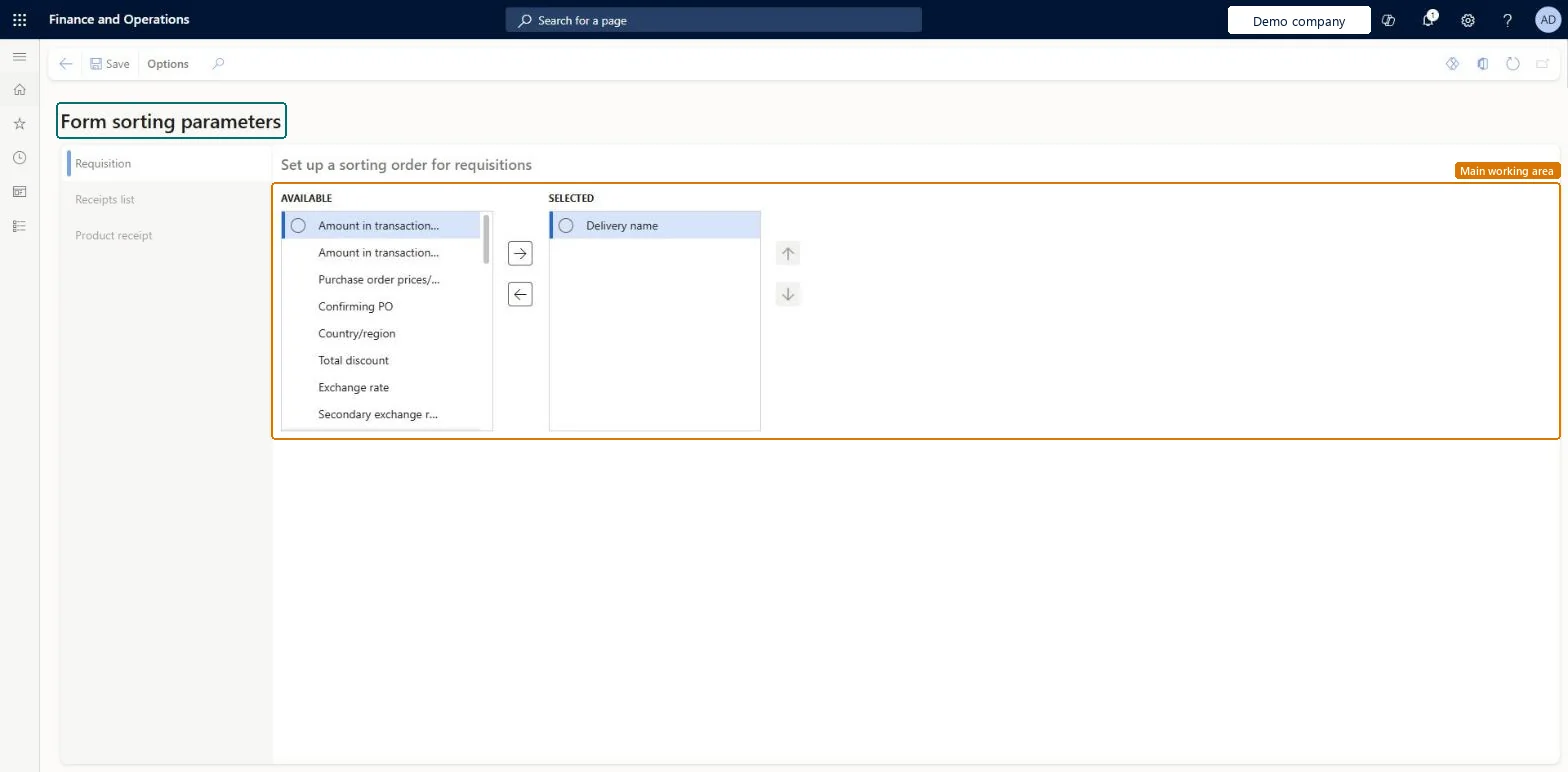
Setup step on the Form sorting parameters page · Procurement and sourcing
Use this page to decide the order in which these documents are sorted when they are printed.
PurchFormLetterSortingParameters| What it is | A setup page where you set the sorting order for requisitions, receipt lists, packing slips and invoices. |
|---|---|
| What you do here | Use this page to decide the order in which these documents are sorted when they are printed. |
| Business process | Procure goods and services |
|---|---|
| Menu path | Procurement and sourcing › Setup › Forms › Form sorting parameters |
| Related pages | Form setup Microsoft Learn Form notes Microsoft Learn |
| In this process | Set up Form setup · Set up Product relationship types |
About the examples: Examples and screenshots in this guide use BEAT, a demo company in a Dynamics 365 test environment. Use your own company's codes and values instead of copying them.
Use this page to decide the order in which these documents are sorted when they are printed.
Screen 1
Go to Procurement and sourcing > Setup > Forms > Form sorting parameters, Requisition tab
| 1Selected | Delivery name |
|---|
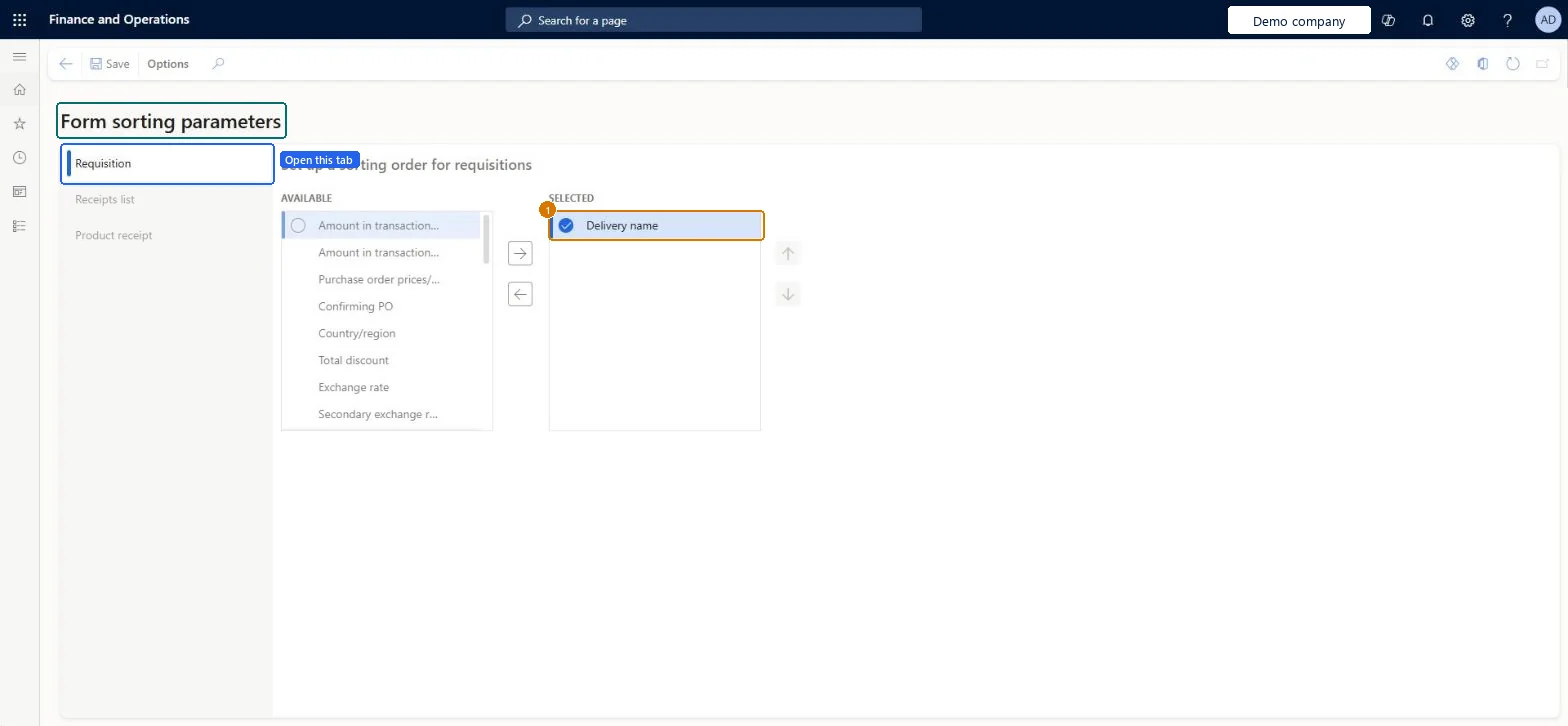
Source: Checked in Dynamics 365
| Field | What it means | Example |
|---|---|---|
| Selected | Delivery name |
| Menu item | PurchFormLetterSortingParameters Checked in Dynamics 365 |
|---|---|
| Form | PurchFormLetterSortingParameters Checked in Dynamics 365 |
| Who can open it | PrivilegesMaintain setup of forms and comments PurchFormLetterSortingParameterMaintainView setup of forms and comments PurchFormLetterSortingParametersViewDutiesInquire into purchase order to invoice policies PurchOrderToInvoicePoliciesInquireEnable purchase order to invoice process PurchOrderToInvoiceProcessEnable3 security rolesAuditorAuditPolicyManagerPurchasing manager TradePurchasingManagerAccounts payable manager VendInvoiceAccountsPayableManager |
| Roles to set it up and use it | To set it up or change itPurchasing manager TradePurchasingManagerAccounts payable manager VendInvoiceAccountsPayableManagerTo use itAuditor AuditPolicyManagerGive people one of these roles. On this system, 3 roles can open this page.Checked in Dynamics 365 |
| Actions on the page | Options: Personalize, Page options, Edit, ShareChecked in Dynamics 365 |
| Open it by URL | https://<your-environment>/?mi=PurchFormLetterSortingParameters |
|---|
To cite this step: PS-SETUP-270, Set up Form sorting parameters. Beyond ERP Atlas Hub, 2026-11-11. https://www.beyonderp.cloud/atlas/step/PS-SETUP-270