| What it is | A setup page where you define the types of rebate programs that represent vendor rebates. |
|---|---|
| What you do here | Use this page to create rebate program types with default accrual and expense accounts for rebate agreements to use. |
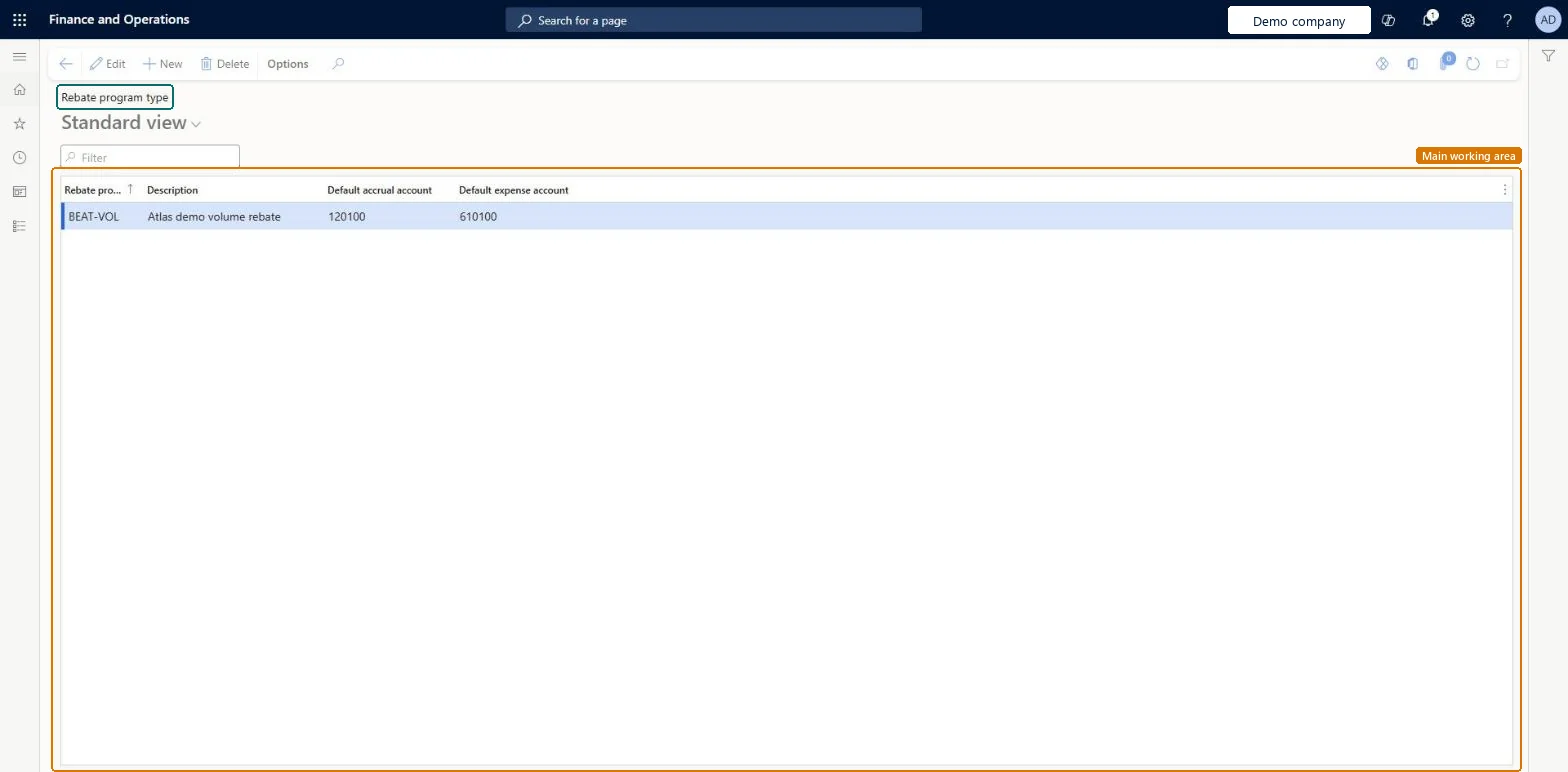
Setup step on the Rebate program types page · Procurement and sourcing
Use this page to create rebate program types with default accrual and expense accounts for rebate agreements to use.
TAMVendRebateProgramTAMVendRebate| What it is | A setup page where you define the types of rebate programs that represent vendor rebates. |
|---|---|
| What you do here | Use this page to create rebate program types with default accrual and expense accounts for rebate agreements to use. |
| Business process | Procure goods and services |
|---|---|
| Menu path | Procurement and sourcing › Vendor rebates › Rebate program types |
| Used next by | Rebate agreements Microsoft Learn |
| Related pages | Vendor rebate groups Microsoft Learn Item rebate groups Microsoft Learn |
| In this process | Set up Item discount groups · Set up Item rebate groups |
About the examples: Examples and screenshots in this guide use BEAT, a demo company in a Dynamics 365 test environment. Use your own company's codes and values instead of copying them.
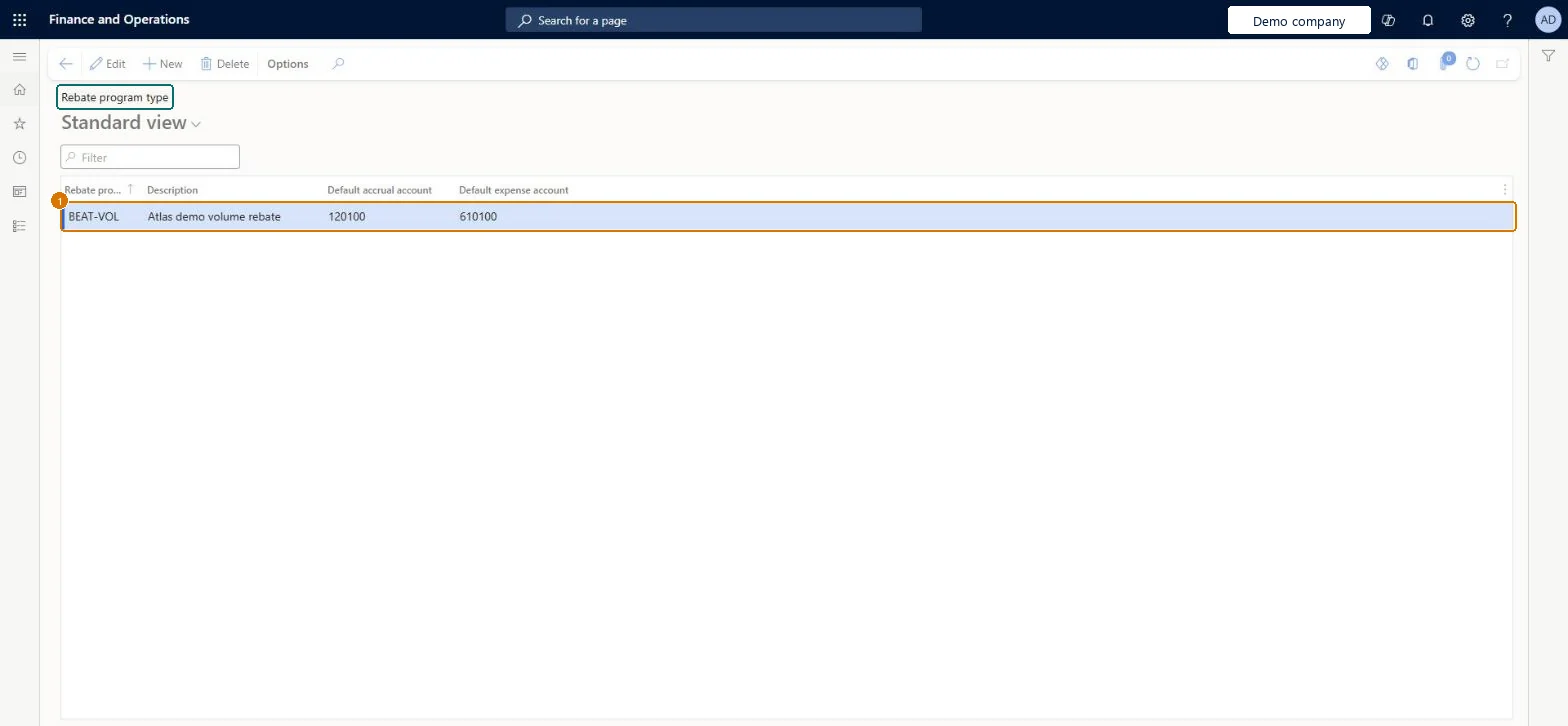
Use this page to create rebate program types with default accrual and expense accounts for rebate agreements to use.
Screen 1
Go to Procurement and sourcing > Vendor rebates > Rebate program types
| 1Rebate program | BEAT-VOL |
|---|---|
| Default accrual account | 120100 |
| Default expense account | 610100 |
Source: Microsoft Learn
| Field | What it means | Example | Table column |
|---|---|---|---|
| Rebate program | VOLUME | ||
| Default accrual account | 120100 | LedgerDimension | |
| Default expense account | 610100 | OffsetLedgerDimension |
Source: Microsoft Learn
| Setup step | Recommended value and why | Decision, common mistake and test |
|---|---|---|
| Set up Rebate program types | One rebate program type per kind of vendor rebate program, with the default accrual and expense accounts finance wants rebate claims to use between approval and processingWhen a claim is approved, a rebate accrual journal debits the accrued vendor rebates receivable account and credits the interim rebates received account; the agreement's Rebate program accrual account and Rebate program expense account hold those accounts. | Setting up the program types but not the Rebate program tab of Procurement and sourcing parameters. The procurement category there decides the Discounts and Allowances Received account on the rebate credit note, and Manual invoice posting decides whether that credit note posts automatically. |
| Shared or per company | Per company: each legal entity has its own records. Microsoft data model |
|---|---|
| Can it be undone | Reversible: Program types and their default accounts can be changed; claims already accrued keep the accounts used when they were approved. |
| Menu item | TAMVendRebateProgram Checked in Dynamics 365 |
|---|---|
| Form | TAMVendRebate Checked in Dynamics 365 |
| Table | TAMVendRebateShown as “Rebate program types” in Record infoChecked in Dynamics 365 |
| Who can open it | PrivilegesView rebate types TAMVendRebateProgramMaintainDutiesMaintain purchase rebates TAMVendRebateMaintain1 security roleAccounts payable managerVendInvoiceAccountsPayableManager |
| Roles to set it up and use it | To set it up or change itAccounts payable manager VendInvoiceAccountsPayableManagerGive people one of these roles. On this system, 1 role can open this page.Checked in Dynamics 365 |
| Actions on the page | Options: Personalize, Page options, ShareChecked in Dynamics 365 |
| Open it by URL | https://<your-environment>/?mi=TAMVendRebateProgram |
|---|---|
| Table definition | TAMVendRebate columns and relations Microsoft data model |
To cite this step: PS-REBATE-020, Set up Rebate program types. Beyond ERP Atlas Hub, 2026-11-11. https://www.beyonderp.cloud/atlas/step/PS-REBATE-020