About the examples: Examples and screenshots in this guide use BEAT, a demo company in a Dynamics 365 test environment. Use your own company's codes and values instead of copying them.
Setup steps on this page
Set up Rebate agreements
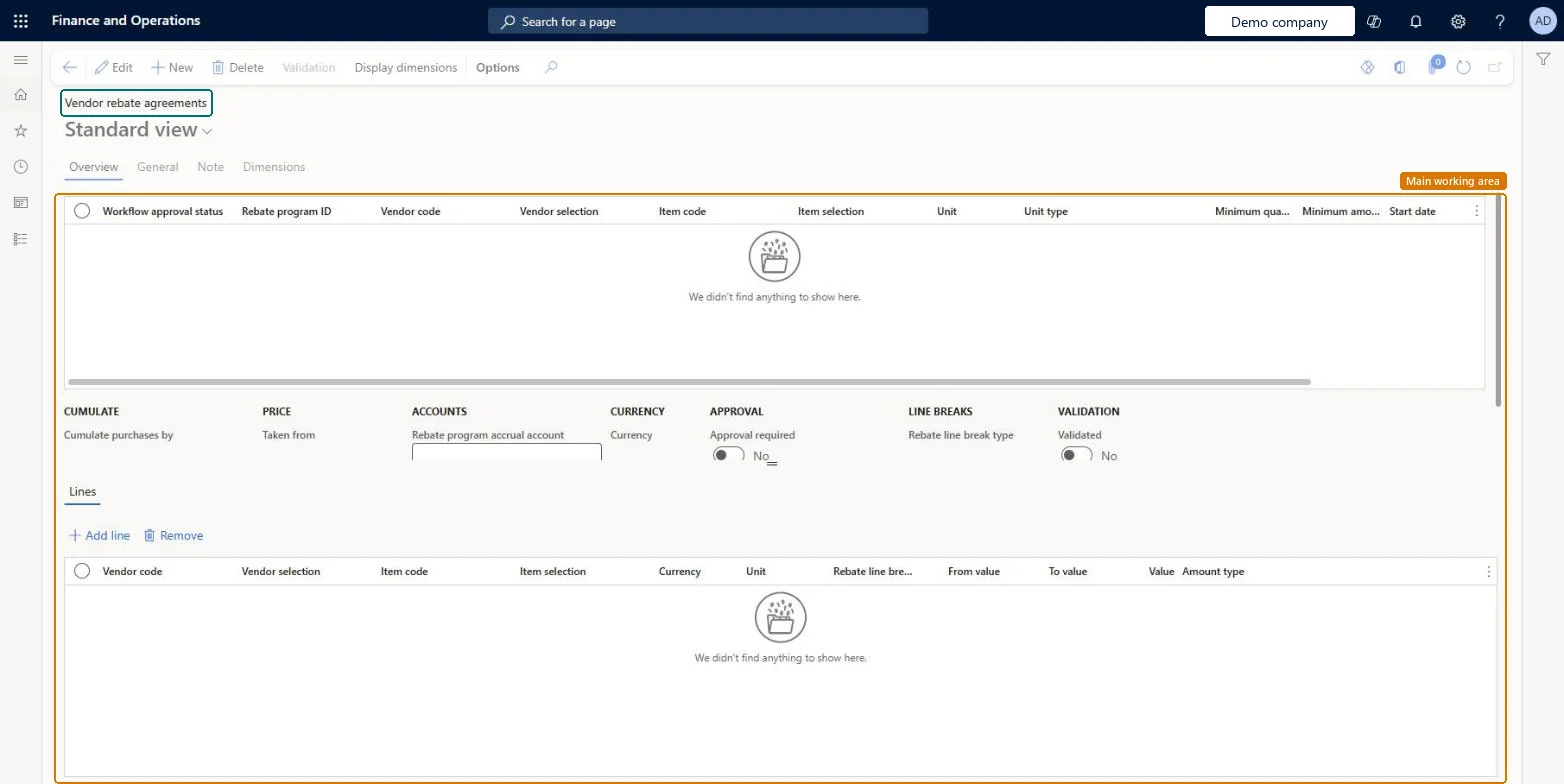
Use this page to set up and review the conditions of a rebate agreement, such as the products, quantity tiers and how purchases are cumulated.
Steps from Microsoft
Go to Procurement and sourcing > Vendor rebates > Rebate agreements.
Select New.
On the Overview tab, select the Rebate program ID, Vendor code, Vendor selection, Item code and Item selection.
Set Cumulate purchases by, Taken from, the accrual and expense accounts, Approval required and Rebate line break type.
On the General tab, set the Unit of measure rebate option and the Calculation date type.
On the Lines FastTab, add a line for each range and enter the From value, To value, Value and Amount type.
On the Action Pane, select Validation and fix any errors in the agreement.
The type of rebate program the agreement belongs to.Microsoft Learn
RebateProgramId
Item code
Whether the agreement applies to one item, an item rebate group or all items.Microsoft Learn
Unit of measure rebate option
Whether a purchase line must use the same unit of measure as the agreement to qualify (Exact match) or is converted (Convert).Microsoft Learn
RebateUOMOption
Calculation date type
Which date (the order's creation date or the requested delivery date) decides whether a purchase falls in the agreement's validity period.Microsoft Learn
VendRebateCalcDateType
Cumulate purchase by
Whether the rebate is worked out per invoice or for purchases added up over a period such as a week, month or year.Microsoft Learn
CumulatePurchaseBy
Taken from
Whether the rebate is calculated from the gross price or the net price after other discounts.Microsoft Learn
RebateTakenFrom
Rebate program accrual account
The account that receives accrued rebate amounts between approval and processing, together with the expense account.Microsoft Learn
LedgerDimension
Approval required
If set to Yes, rebate claims must be approved before they can be accrued or paid out.Microsoft Learn
ApprovalRequired
Rebate line break type
Whether rebates are based on quantity (volume) or amount.Microsoft Learn
RebateLineBreakType
From value
The start of a range on an agreement line; the From value is included and the To value is not.Microsoft Learn
FromValue
Workflow approval status
Shows whether the agreement is approved and can apply to purchase orders.Microsoft Learn
WFApprovalStatus
Test checklist
Make sure Enable price details is Yes on the Prices tab of Procurement and sourcing parameters.
Create a rebate agreement for one item with Rebate line break type Quantity, a tier, Cumulate purchase by Invoice and Approval required Yes, and get it to Approved.
Post a purchase invoice that meets the tier and check a rebate claim with status Calculated is created and shows in Price details > Rebates.
Approve the claim and check the rebate accrual journal posts; run Process and check a vendor credit note is created.
Item code Table for an item-specific deal; set Workflow approval status to Approved before the first qualifying purchase invoice is postedOnly an Approved agreement applies to purchase orders, and claims are generated per order line when the purchase invoice is posted. Lines with Item code Group or All are processed per qualifying item, not across all items.
Using Item code Group or All and expecting quantities to cumulate across the whole group. Each item is processed on its own, so a tier based on combined volume is never reached.
Hard to reverse: Claims are created as invoices post. Approving a claim posts a rebate accrual journal, and processing it reverses the accrual and creates a vendor credit note. Changing the agreement doesn't rewrite claims already generated.
If you change it later
An agreement applies to purchase orders only after its Workflow approval status is Approved. Microsoft Learn
Technical architect
6Technical
Menu item
TAMVendRebateAgreementsChecked in Dynamics 365
Form
TAMVendRebateAgreementChecked in Dynamics 365
Table
TAMVendRebateAgreementShown as “Rebate agreements” in Record infoChecked in Dynamics 365
Data entities
TAMVendorRebateAgreementHeaderEntityVendor rebate agreement headers Microsoft data model
Who can open it
PrivilegesMaintain vendor rebate agreements TAMVendRebateAgreementMaintainView vendor rebate agreement information TAMVendRebateAgreementViewDutiesInquire into vendor rebate agreements TAMVendRebateAgreementInquireMaintain vendor rebate agreements TAMVendRebateAgreementMaintain2 security rolesPurchasing manager TradePurchasingManagerAccounts payable manager VendInvoiceAccountsPayableManagerChecked in Dynamics 365
Roles to set it up and use it
To set it up or change itPurchasing manager TradePurchasingManagerTo use itAccounts payable manager VendInvoiceAccountsPayableManagerGive people one of these roles. On this system, 2 roles can open this page.Checked in Dynamics 365
Actions on the page
Options: Personalize, Page options, ShareChecked in Dynamics 365