About the examples: Examples and screenshots in this guide use BEAT, a demo company in a Dynamics 365 test environment. Use your own company's codes and values instead of copying them.
Step by step, with screenshots
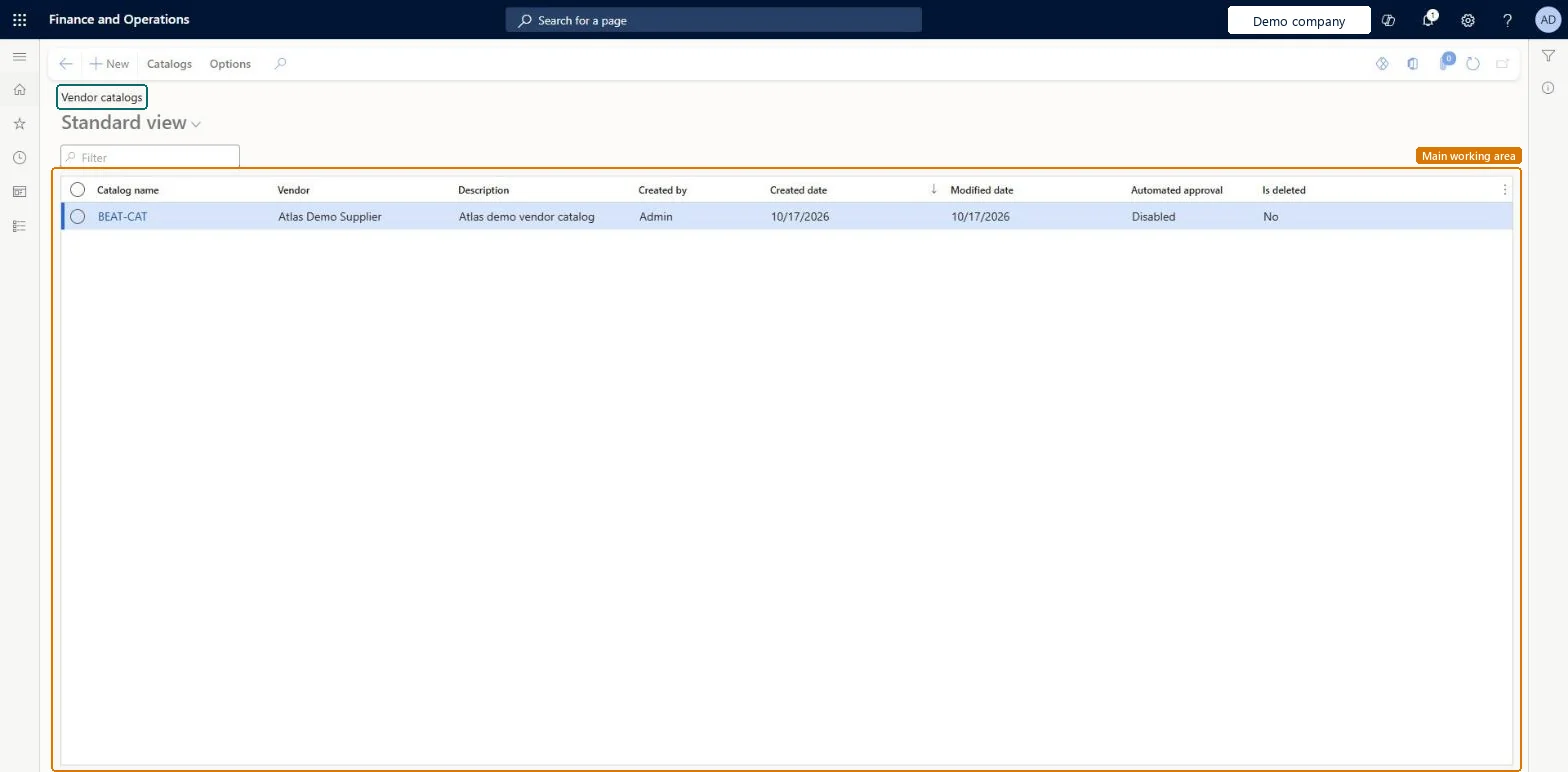
Set up Vendor catalogs1 screen
Use this page to upload a vendor's catalog file and review, approve or reject the products in it.
Screen 1
Create the vendor catalog
Go to Procurement and sourcing > Catalogs > Vendor catalogs
Select New
Choose the vendor and enter the catalog name and description
Select Save, and select Yes if asked to enable the vendor for catalog import
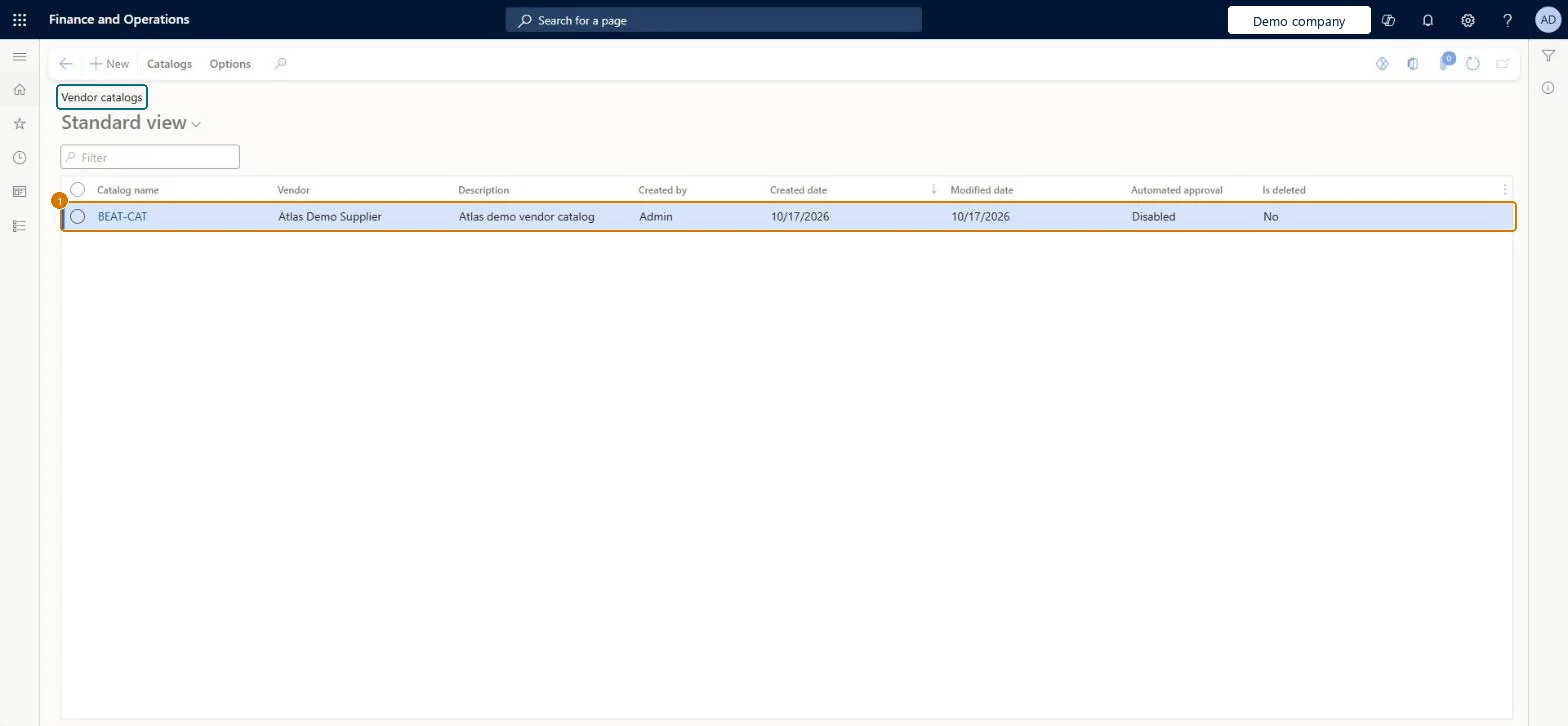
1Catalog name
BEAT-CAT
Vendor
Main supplier
Show the full screen page title tab to open what to set or check
Steps from Microsoft
Set up a data project in the Data management workspace with your data mapping rules.
Set up a procurement category hierarchy and assign the vendor to procurement categories.
On the vendor, select Procurement > Set up > Configure vendor for catalog import.
Configure the workflow for catalog import, and share a CMR file template with the vendor.
Go to Procurement and sourcing > Catalogs > Vendor catalogs and create a vendor catalog.
Upload the CMR file.
Review, approve or reject the products in the vendor catalog.
Assign the vendor to a procurement category and run Configure vendor for catalog import on the vendor.
Create a vendor catalog, select Generate catalog template > Procurement category and check the XSD only lists that vendor's categories.
Upload a small CMR file built from the template.
Approve one product and reject another, then check the approved product exists in Released products for the selected legal entity and the rejected one doesn't.
Before the first upload: assign the vendor to its procurement categories, configure the vendor for catalog import, and send the vendor a template generated with the Procurement category optionThe template only includes the procurement categories the vendor is authorized for, and uploaded products are mapped to procurement categories automatically, so the vendor's category setup drives what can be imported.
Approving products without review. Approved products are added to the product master and released to the selected legal entities, so a careless approval creates master data in several companies.
Hard to reverse: Approval writes products into the product master and releases them to legal entities. Rejecting a product before approval is easy; undoing an approval means cleaning up released products.
If you change it later
Approved products are added to the product master and released to the selected legal entities. Microsoft Learn
Technical architect
6Technical
Menu item
CatVendorCatalogChecked in Dynamics 365
Form
CatVendorCatalogListPageChecked in Dynamics 365
Table
CatVendorCatalogShown as “Vendor catalogs” in Record infoChecked in Dynamics 365
Who can open it
PrivilegesMaintain vendor catalogs using the client CatVendorCatalogAXClientDutiesMaintain catalogs CatProcurementCatalogMasterMaintain2 security rolesPurchasing agent VendPurchasingAgentPurchasing Agent - Public Sector VendPurchasingAgent_PSNChecked in Dynamics 365
Roles to set it up and use it
To set it up or change itPurchasing agent VendPurchasingAgentPurchasing Agent - Public Sector VendPurchasingAgent_PSNGive people one of these roles. On this system, 2 roles can open this page.Checked in Dynamics 365
Actions on the page
Catalogs: Maintain, Related informationOptions: Personalize, Page options, ShareChecked in Dynamics 365
Checked in a working Dynamics 365 system, version 10.0.49: the menu item, form, table and security, the page, the demo records and the values in the screenshots.
To cite this step: PS-CATALOG-010, Set up Vendor catalogs. Beyond ERP Atlas Hub, 2026-11-11. https://www.beyonderp.cloud/atlas/step/PS-CATALOG-010