Setup step on the Timesheet period types page · Project management and accounting
Set up Timesheet period types
A setup page where you create the period types that timesheets are entered in: each period type sets how often a timesheet period starts (for example weekly), the day the week starts, and whether a week that crosses a period end is split. You generate the periods from the period type and link workers to it.
Business Performance Planning app role, Data management administrator, Data management migration user and 4 more roles
Business process
Manage project delivery
Menu item
TSTimesheetPeriod
Main table
ProjPeriodTable
Data entity
ProjPeriodEntity
Setup steps
1 on this page
Show what matters for
SETUP GUIDEHow to set it up8 sections. Choose a role to highlight what matters to you.
Everyone
1What it is and why
What it is
A setup page where you create the period types that timesheets are entered in: each period type sets how often a timesheet period starts (for example weekly), the day the week starts, and whether a week that crosses a period end is split. You generate the periods from the period type and link workers to it.
What you do here
Use this page to decide the timesheet rhythm of workers: create the period type, generate its periods for the year and assign it to workers, so that My timesheets offers the right weeks.
Example
For example, BEAT creates the period type WEEKLY with frequency Week, starting on Monday, with Auto split week on, generates 53 periods for 2026 and links its 140 consultants to it, so the week of 03/30/2026 to 04/05/2026 is split at the month end.
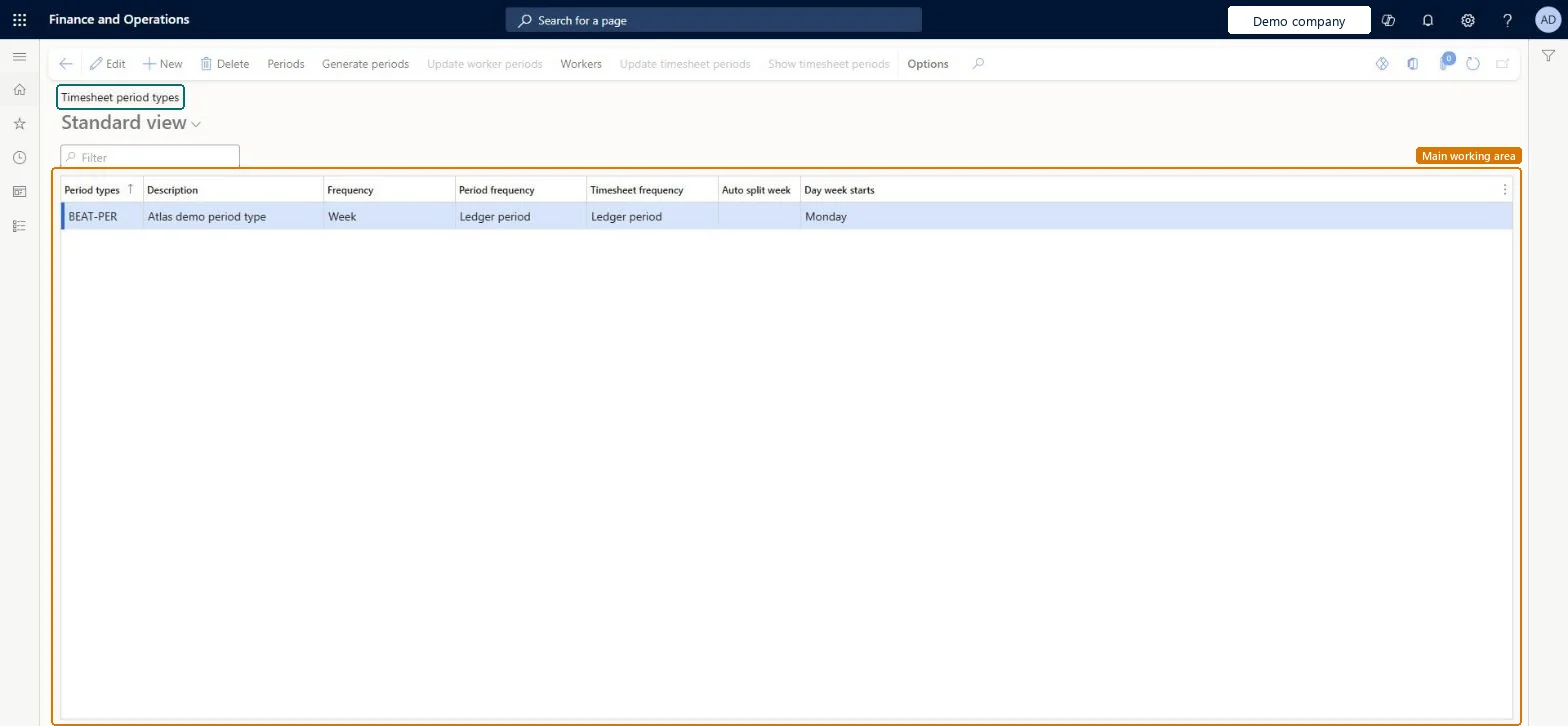
The page in Dynamics 365. page title tab to open what to set or check
About the examples: Examples and screenshots in this guide use BEAT, a demo company in a Dynamics 365 test environment. Use your own company's codes and values instead of copying them.
Step by step, with screenshots
Set up Timesheet period types1 screen
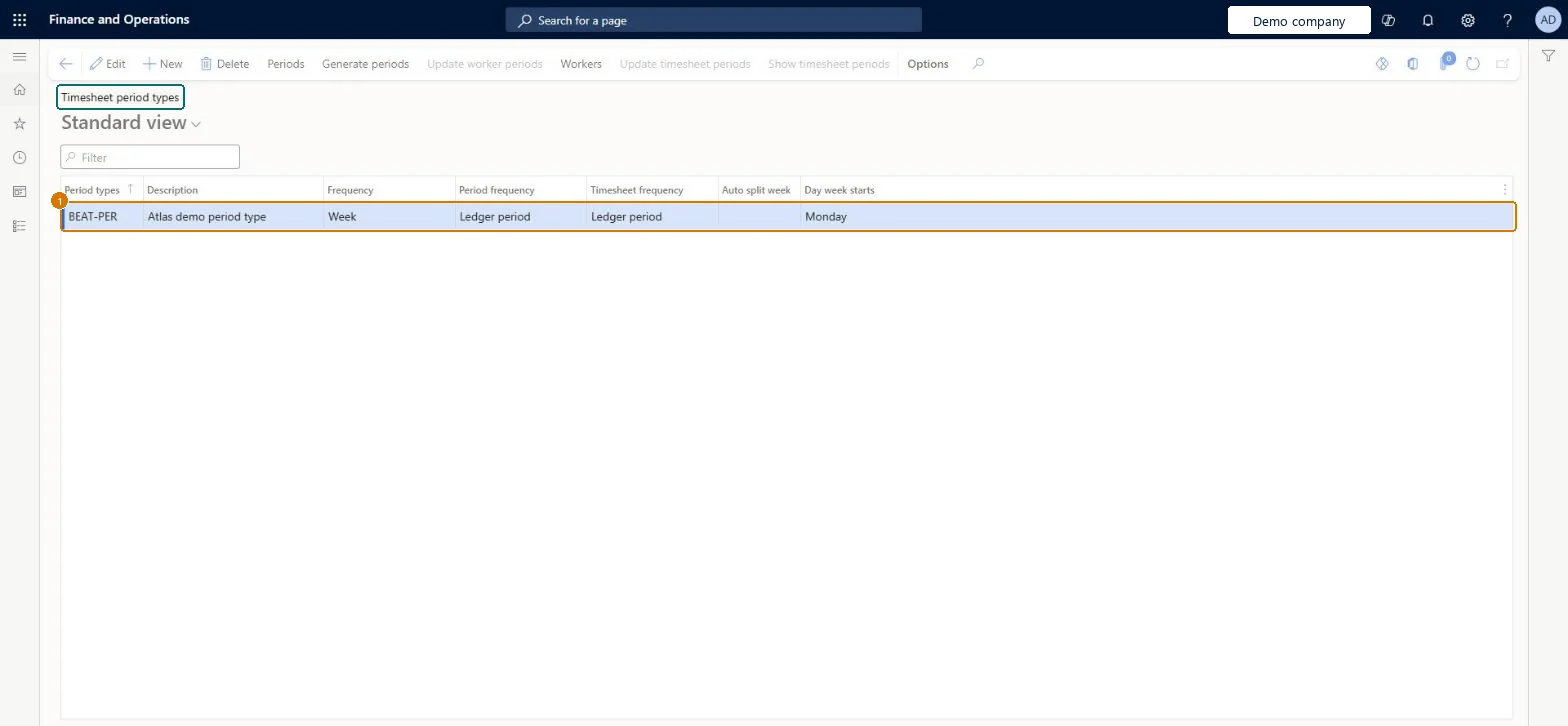
Screen 1
Set up a timesheet period type
Go to Project management and accounting > Setup > Timesheets > Timesheet period types
Select New
Enter the period type code and description
Select the frequency, such as Week
Select the period frequency and the timesheet frequency
Select the day the week starts
Select Save
1Period types
BEAT-PER
Description
Period type
Frequency
Week
Day week starts
Monday
Show the full screen page title tab to open what to set or check
Steps from Microsoft
Go to Project management and accounting > Setup > Timesheets > Timesheet period types.
Select New, enter the Period types code and Description, and select the Frequency, such as Week.
Set Day week starts and Auto split week, then save.
With the period type selected, select Generate periods and enter the start date and the number of periods.
Select Periods to review the generated periods, then select Workers to link the workers who use this period type.
The code of the period type that workers are linked to.Checked in Dynamics 365
WEEKLY
PeriodId
Description
A short description of the period type.Checked in Dynamics 365
Weekly timesheets from Monday
Description
Frequency
How often a new period starts: Day, Week, Bi-weekly, Semi-monthly, Month, Quarter or Year come from the calendar; Ledger period uses the ledger's fiscal periods; Unlimited lets you enter custom periods.Microsoft Learn
Week
Day week starts
The weekday each weekly timesheet starts on.Checked in Dynamics 365
Monday
WeekStart
Common errors and fixes
Message
What to do
A worker can't create a timesheet for a date.
No period has been generated for that date, or the worker isn't linked to a period type. Select Generate periods for the next year and check Workers. Microsoft Learn
Test checklist
Create period type WEEKLY with frequency Week starting Monday.
Generate 53 periods from 12/29/2025.
Link one worker to WEEKLY.
As that worker, create a timesheet for 03/04/2026 and check it covers 03/02/2026 to 03/08/2026.
One weekly period type that starts on the company's first working day, with Auto split week on when month-end reporting matters, and periods generated a year aheadTimesheets can only be created inside generated periods, and the split at period end keeps hours in the month they were worked.
On the live system, Project supervisor, Resource manager, Information technology manager, Business Performance Planning app role and Data management migration user can maintain this page.
Hard to reverse: Periods used by timesheets should be kept; change the rhythm with a new period type.
If you change it later
Timesheets can be created only for dates that have a generated period. Workers linked to the period type get its weeks on My timesheets; changing a worker's period type affects their next timesheets. Microsoft Learn
Technical architect
6Technical
Menu item
TSTimesheetPeriodChecked in Dynamics 365
Form
ProjPeriodTableChecked in Dynamics 365
Table
ProjPeriodTableShown as “Project periods” in Record infoKey field: PeriodIdChecked in Dynamics 365
PrivilegesMaintain project periods ProjPeriodTableMaintainDutiesMaintain Master entity data for data management DataManagementApplicationMasterEntitiesMaintainEnable project accounting process ProjProjectAccountingProcessEnableResource manager ProjResourceManager7 security rolesBusiness Performance Planning app role BPPBudgetPlanningAppRoleData management administrator DataManagementAdministratorData management migration user DataManagementMigrationUserProject supervisor ProjProjectSupervisorResource manager ProjResourceManagerDemand planning app role ScpDemandPlanningAppRoleInformation technology manager SysServerITManagerChecked in Dynamics 365
Roles to set it up and use it
To set it up or change itProject supervisor ProjProjectSupervisorResource manager ProjResourceManagerInformation technology manager SysServerITManagerBusiness Performance Planning app role BPPBudgetPlanningAppRoleData management migration user DataManagementMigrationUserGive people one of these roles. On this system, 7 roles can open this page.Checked in Dynamics 365
Actions on the page
Options: Personalize, Page options, ShareChecked in Dynamics 365
ProjPeriodEntity (Project periods): loaded for each company, in Microsoft's default template 650 - Project accounting.Load order: Microsoft's default template 650 - Project accounting loads Project periods at execution unit 1, level 30, sequence 20. Lower levels load first, and entities at the same level load in sequence order.Load first: the default templates at lower levels (System setup to General ledger)Microsoft Learn
Checked in a working Dynamics 365 system, version 10.0.49: the menu item, form, table and security, the page, the demo records and the values in the screenshots.
To cite this step: PM-SETUP-300, Set up Timesheet period types. Beyond ERP Atlas Hub, 2026-11-11. https://www.beyonderp.cloud/atlas/step/PM-SETUP-300