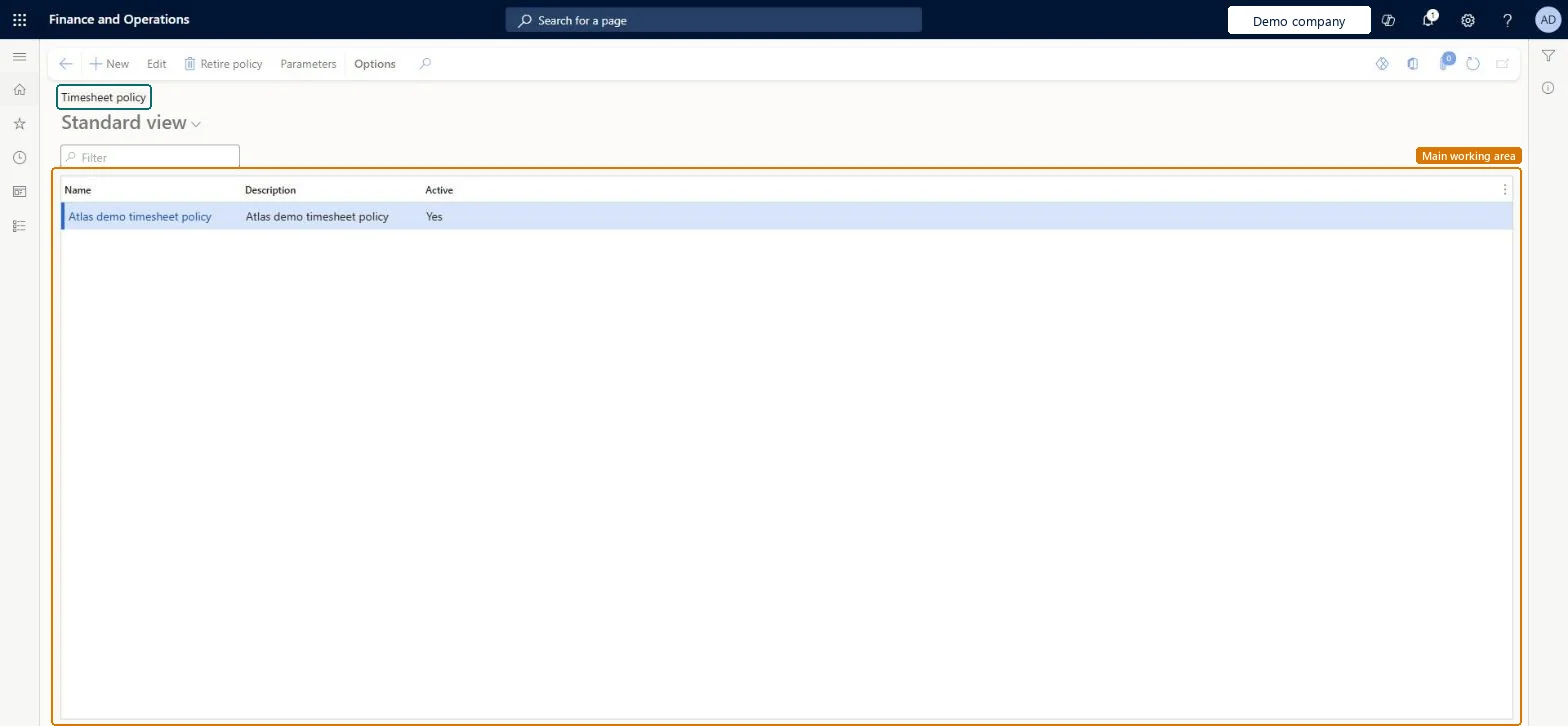
A setup page where you keep the timesheet policies: named, shared rule sets that check timesheets when workers enter or submit them, and that can be active or retired.
PAGE GUIDEWhat the page does and how to use it8 sections. Choose a role to highlight what matters to you.
Everyone
1What it is and why
What it is
A setup page where you keep the timesheet policies: named, shared rule sets that check timesheets when workers enter or submit them, and that can be active or retired.
What you do here
Use this page to create and edit timesheet policies, retire a policy that is no longer needed, and open the timesheet policy Parameters.
Example
For example, BEAT creates the policy TS-WEEK for its weekly timesheets and retires the old policy TS-2025 once TS-WEEK is active, so the 140 consultants who submit timesheets each week are checked against one rule set.
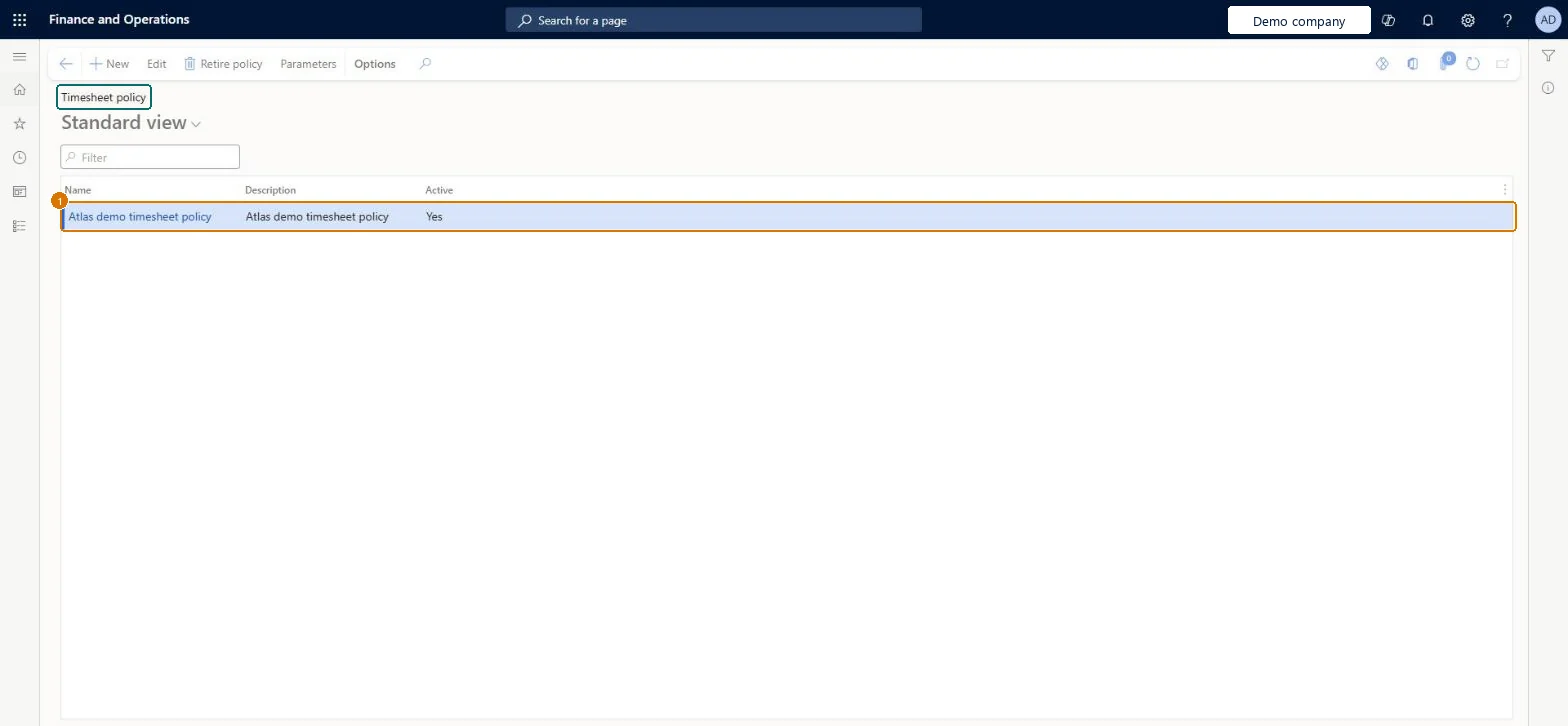
The page in Dynamics 365. page title tab to open what to set or check
About the examples: Examples and screenshots in this guide use BEAT, a demo company in a Dynamics 365 test environment. Use your own company's codes and values instead of copying them.
Step by step, with screenshots
Set up Timesheet policy1 screen
Screen 1
Create a timesheet policy
Go to Project management and accounting > Setup > Policies > Timesheet policy
Select New
Enter the policy name and a description
Select Save
Select the organization hierarchy and the organizations the policy applies to, then set up the policy rules
Name
Timesheet policy
Description
Timesheet policy
Show the full screen page title tab to open what to set or check
Steps from Microsoft
Go to Project management and accounting > Setup > Policies > Timesheet policy.
Select New, enter a Name and Description, and set the rules of the policy.
Select Parameters to review the timesheet policy parameters.
Select Retire policy on the old policy once the new one is active, then submit a test timesheet.
One active timesheet policy per rule set; retire, don't delete, the policy it replacesPolicies are shared records, so one active policy per rule set keeps the checks the same and a retired policy keeps the history readable.
Reversible: A policy can be edited or retired; timesheets already submitted are not rechecked. Microsoft data model
If you change it later
Policies are stored in the shared SysPolicy table, so the same policy records are seen from every legal entity. A retired policy is kept for history but is no longer active. Microsoft data model
Technical architect
6Technical
Menu item
TSPolicyDetailsChecked in Dynamics 365
Form
SysPolicyListPageChecked in Dynamics 365
Table
SysPolicyShown as “Policy” in Record infoChecked in Dynamics 365
PrivilegesMaintain policies for timesheets TSPolicyMaintainDutiesEnable project accounting process ProjProjectAccountingProcessEnable1 security roleProject supervisor ProjProjectSupervisorChecked in Dynamics 365
Roles to set it up and use it
To set it up or change itProject supervisor ProjProjectSupervisorGive people one of these roles. On this system, 1 role can open this page.Checked in Dynamics 365
Actions on the page
Options: Personalize, Page options, ShareChecked in Dynamics 365
SysPolicyEntity Policies, shared by all companies; covers only the policy headers.Load order: Timesheet policy has no data entity in Data management of its own (the Data management read of this page found none). SysPolicyEntity loads only the shared policy headers; set up the rules and the organizations of each timesheet policy by hand on this page.Load first: Legal entitiesMicrosoft Learn
Checked in a working Dynamics 365 system, version 10.0.49: the menu item, form, table and security, the page, the demo records and the values in the screenshots.