BeyondERP.Newsletter
Menu

Setup step on the All project forecasts page · Project management and accounting

Read forecasts by model

Keep forecast versions apart.

Business process
Plan projects
Menu item
ProjForecastListPagev2
Main table
ProjForecastUnion
Data entity
ProjForecastEmplEntity
Setup steps
1 on this page
Show what matters for
SETUP GUIDEHow to set it up8 sections. Choose a role to highlight what matters to you.
Everyone

1What it is and why

What it isThe list of forecast transactions for every project in the company, regardless of the project hierarchy, for all forecast types: hour, expense, item, fee and on-account.
What you do hereUse it to enter and review forecast lines by forecast model, project, activity and category, for example to see the planned cost of all projects in one model.
ExampleFor example, BEAT keeps model BUD-2027 with 1,200.00 forecast hours and 85,000.00 of expenses across its 14 projects, and filters it on Transaction type Hour to see the resource plan.
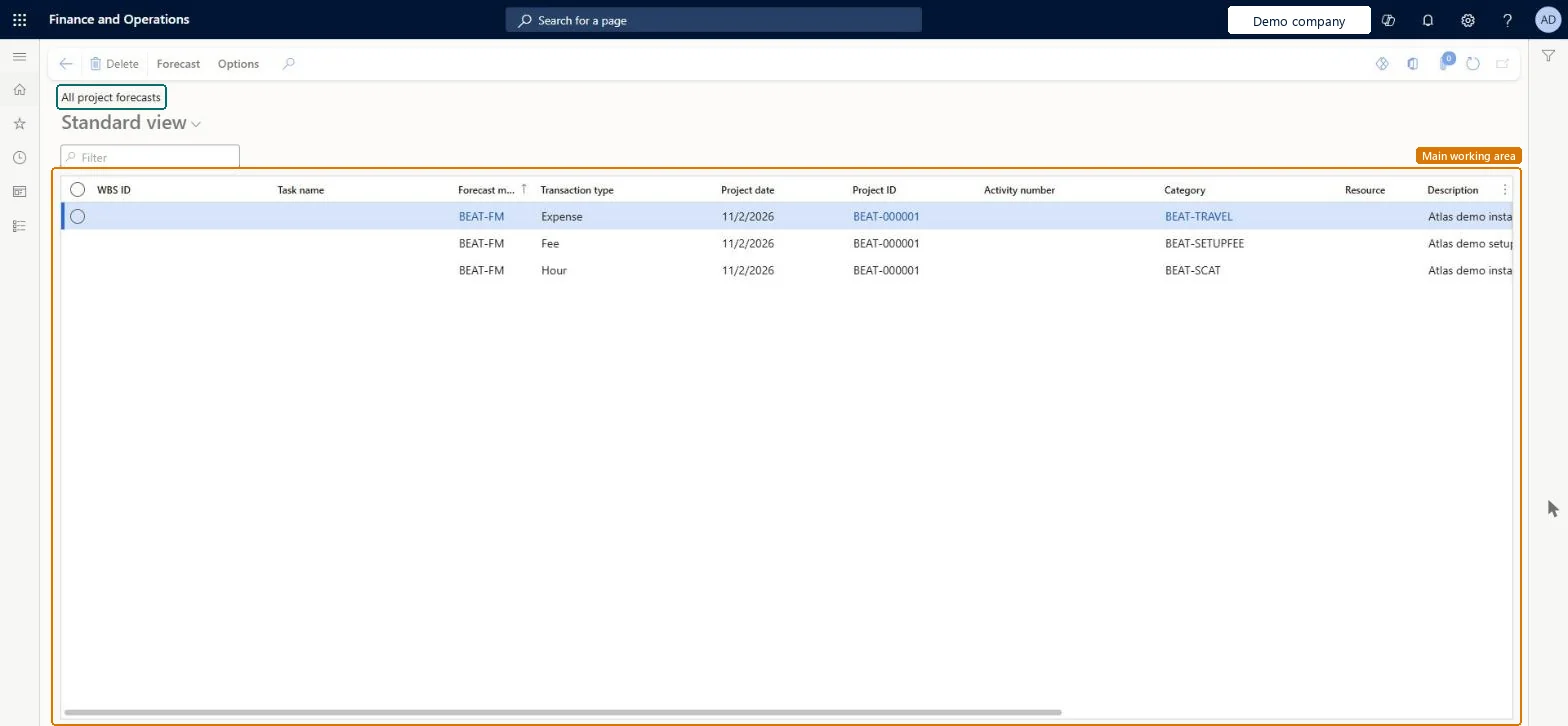
All project forecasts page in Dynamics 365
The page in Dynamics 365. page title tab to open what to set or check
Functional consultant · Solution architect

2Where it fits

Business processPlan projects
Menu pathProject management and accounting › Transactions › All project forecasts
Set up firstForecast models Microsoft Learn
Used next byCopy forecasts to ledger Microsoft Learn
Related pagesCopy forecasts Microsoft Learn Delete forecasts Microsoft Learn
In this process Follow up open resource requests
End user · Functional consultant

3How to do it

About the examples: Examples and screenshots in this guide use BEAT, a demo company in a Dynamics 365 test environment. Use your own company's codes and values instead of copying them.

Setup steps on this page

Read forecasts by model

Keep forecast versions apart.

Steps from Microsoft

  1. Go to Project management and accounting > Transactions > All project forecasts.
  2. Filter on the forecast model and the project.
  3. Check the Transaction type, Project date, Activity number and Category columns.
  4. On the Forecast tab, select New and enter a forecast line for the transaction type you need.
  5. Run Copy forecasts if you want to keep this model as a baseline before you revise it.

Source: Microsoft Learn

Fields on the page

FieldWhat it meansExampleTable column
Forecast modelThe model that holds the forecast; every project forecast needs one.Microsoft Learn BUD-2027ModelId
Transaction typeThe kind of forecast line: hour, expense, item, fee or on-account.Microsoft Learn Hour
Project dateThe date the forecast amount is expected.Checked in Dynamics 36515/01/2027
CategoryThe project category that prices and posts the forecast.Checked in Dynamics 365HOURS

Common errors and fixes

MessageWhat to do
Forecast lines changed and nobody knows who changed them.Forecasts have no approval or change history; copy the model to a baseline model before revising. Microsoft Learn

Test checklist

  1. Enter an hour forecast line for a project in a forecast model.
  2. Copy the model to a second model and check the line is copied.
  3. Post actual hours on the project and check the reduction model balance drops while the copy stays unchanged.
  4. Transfer the forecast to a general ledger budget and check the amounts arrive.

Source: Microsoft Learn

Functional consultant

4Setup decisions

Setup stepRecommended value and whyDecision, common mistake and test
Read forecasts by modelFilter on one forecast model before you add up forecast lines.The page lists every model of every project; adding across models counts the same plan twice.How are forecast versions kept?Comparing a reduction model with the original plan: a model with forecast reduction loses the actuals posted against it.Test: Forecast total for one model

Feature management and licence

Licence or add-inOn the live system, Project manager, Project accountant, Project assistant and Sales manager use this page.

Checked in Dynamics 365

Solution architect

5Design impact

Shared or per companyPer company: each legal entity has its own forecast lines; forecast models are set up per company. Microsoft Learn
Can it be undoneReversible: Forecast lines can be revised, copied or deleted at any time.
If you change it laterForecasts have no approval step, so anyone with access to the forecast pages can change them without review. Microsoft Learn
Technical architect

6Technical

Menu itemProjForecastListPagev2 Checked in Dynamics 365
FormProjForecastListPageV2 Checked in Dynamics 365
TableProjForecastUnionShown as “Forecast” in Record infoChecked in Dynamics 365
Data entitiesProjForecastEmplEntityProject hour forecasts Microsoft data model ProjForecastCostEntityProject expense forecasts Microsoft data model ProjForecastSalesEntityProject item forecasts Microsoft data model ProjForecastRevenueEntityFee forecast Microsoft data model ProjForecastOnAccEntityProject on-account forecasts Microsoft data model
Roles to set it up and use itTo set it up or change itProject manager ProjProjectManagerProject accountant ProjProjectAccountantProject assistant ProjProjectClerkSales manager TradeSalesManagerProduction planner ReqProductionPlannerTo use itTreasurer PaymTreasurerMaterials manager InventMaterialsManagerGive people one of these roles. On this system, 8 roles can open this page.Checked in Dynamics 365
Actions on the pageForecast: New, MaintainOptions: Personalize, Page options, ShareChecked in Dynamics 365
Developer

7Developer

Open it by URLhttps://<your-environment>/?mi=ProjForecastListPagev2
Integrate withProjForecastEmplEntity data entity Microsoft data model
Data migrationProjForecastEmplEntity (Project hour forecasts): per company.ProjForecastCostEntity (Project expense forecasts): per company.ProjForecastRevenueEntity (Fee forecast): per company.Load order: Load forecast models, projects, activities and categories first, then one forecast entity per transaction type.Load first: Forecast models, Projects, Project categoriesMicrosoft Learn
Everyone

8Sources

To cite this step: PM-OPS-260, Read forecasts by model. Beyond ERP Atlas Hub, 2026-11-11. https://www.beyonderp.cloud/atlas/step/PM-OPS-260