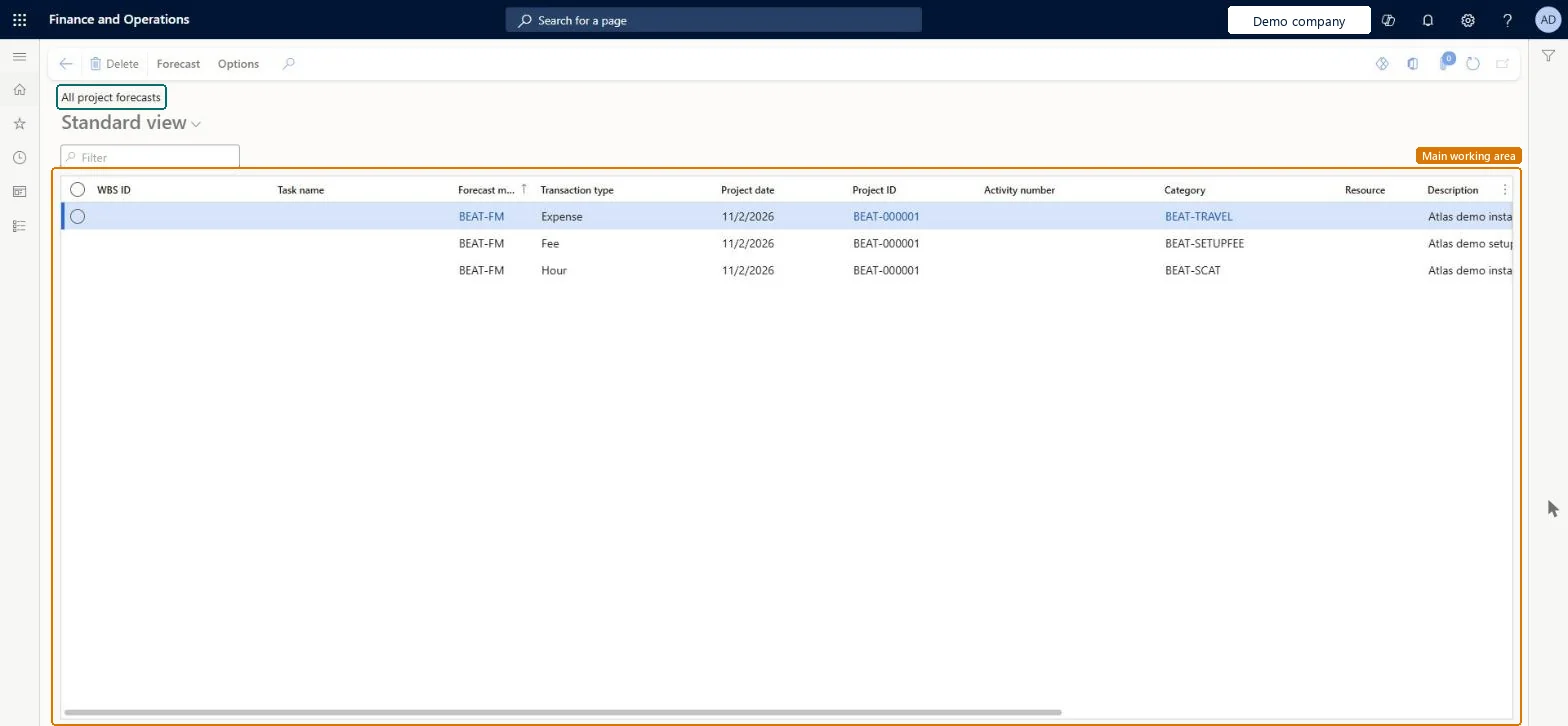
The list of forecast transactions for every project in the company, regardless of the project hierarchy, for all forecast types: hour, expense, item, fee and on-account.
PAGE GUIDEWhat the page does and how to use it8 sections. Choose a role to highlight what matters to you.
Everyone
1What it is and why
What it is
The list of forecast transactions for every project in the company, regardless of the project hierarchy, for all forecast types: hour, expense, item, fee and on-account.
What you do here
Use it to enter and review forecast lines by forecast model, project, activity and category, for example to see the planned cost of all projects in one model.
Example
For example, BEAT keeps model BUD-2027 with 1,200.00 forecast hours and 85,000.00 of expenses across its 14 projects, and filters it on Transaction type Hour to see the resource plan.
The page in Dynamics 365. page title tab to open what to set or check
About the examples: Examples and screenshots in this guide use BEAT, a demo company in a Dynamics 365 test environment. Use your own company's codes and values instead of copying them.
Setup steps on this page
Read forecasts by model
Keep forecast versions apart.
Steps from Microsoft
Go to Project management and accounting > Transactions > All project forecasts.
Filter on the forecast model and the project.
Check the Transaction type, Project date, Activity number and Category columns.
On the Forecast tab, select New and enter a forecast line for the transaction type you need.
Run Copy forecasts if you want to keep this model as a baseline before you revise it.
Filter on one forecast model before you add up forecast lines.The page lists every model of every project; adding across models counts the same plan twice.
On the live system, Project manager, Project accountant, Project assistant and Sales manager use this page.
Checked in Dynamics 365
Solution architect
5Design impact
Shared or per company
Per company: each legal entity has its own forecast lines; forecast models are set up per company. Microsoft Learn
Can it be undone
Reversible: Forecast lines can be revised, copied or deleted at any time, but there is no approval or change history. Forecast reduction subtracts actuals without an audit trail, so keep a copy of the original model if you need to compare later. Microsoft Learn
If you change it later
Forecasts have no approval step, so anyone with access to the forecast pages can change them without review. Microsoft Learn
Technical architect
6Technical
Menu item
ProjForecastListPagev2Checked in Dynamics 365
Form
ProjForecastListPageV2Checked in Dynamics 365
Table
ProjForecastUnionShown as “Forecast” in Record infoChecked in Dynamics 365
To set it up or change itProject manager ProjProjectManagerProject accountant ProjProjectAccountantProject assistant ProjProjectClerkSales manager TradeSalesManagerProduction planner ReqProductionPlannerTo use itTreasurer PaymTreasurerMaterials manager InventMaterialsManagerGive people one of these roles. On this system, 8 roles can open this page.Checked in Dynamics 365
Actions on the page
Forecast: New, MaintainOptions: Personalize, Page options, ShareChecked in Dynamics 365