Review your posted transactions by period and invoice status
Project management and accountingTransactions
ProjPostedProjectTransactions_MyProj
Used by
Chief executive officer, Field Service Integration User, Project accountant and 3 more roles
Business process
Manage project financials
Menu item
ProjPostedProjectTransactions_MyProj
Main table
ProjPostTransView
Data entity
ProjPostTransViewEntity
Setup steps
1 on this page
Show what matters for
SETUP GUIDEHow to set it up8 sections. Choose a role to highlight what matters to you.
Everyone
1What it is and why
What it is
The posted transactions of your own projects, filtered by a date range and invoice status, with the same adjustment and billing actions as Posted project transactions.
What you do here
Use it as a project manager to review what has been posted to your projects in a period and what is still to be invoiced.
Example
For example, before the December invoice run the manager of PRJ-0042 sets Start date 01/12/2026, End date 31/12/2026 and Invoice status Not invoiced, and finds 46.00 hours worth 5,520.00 still to bill.
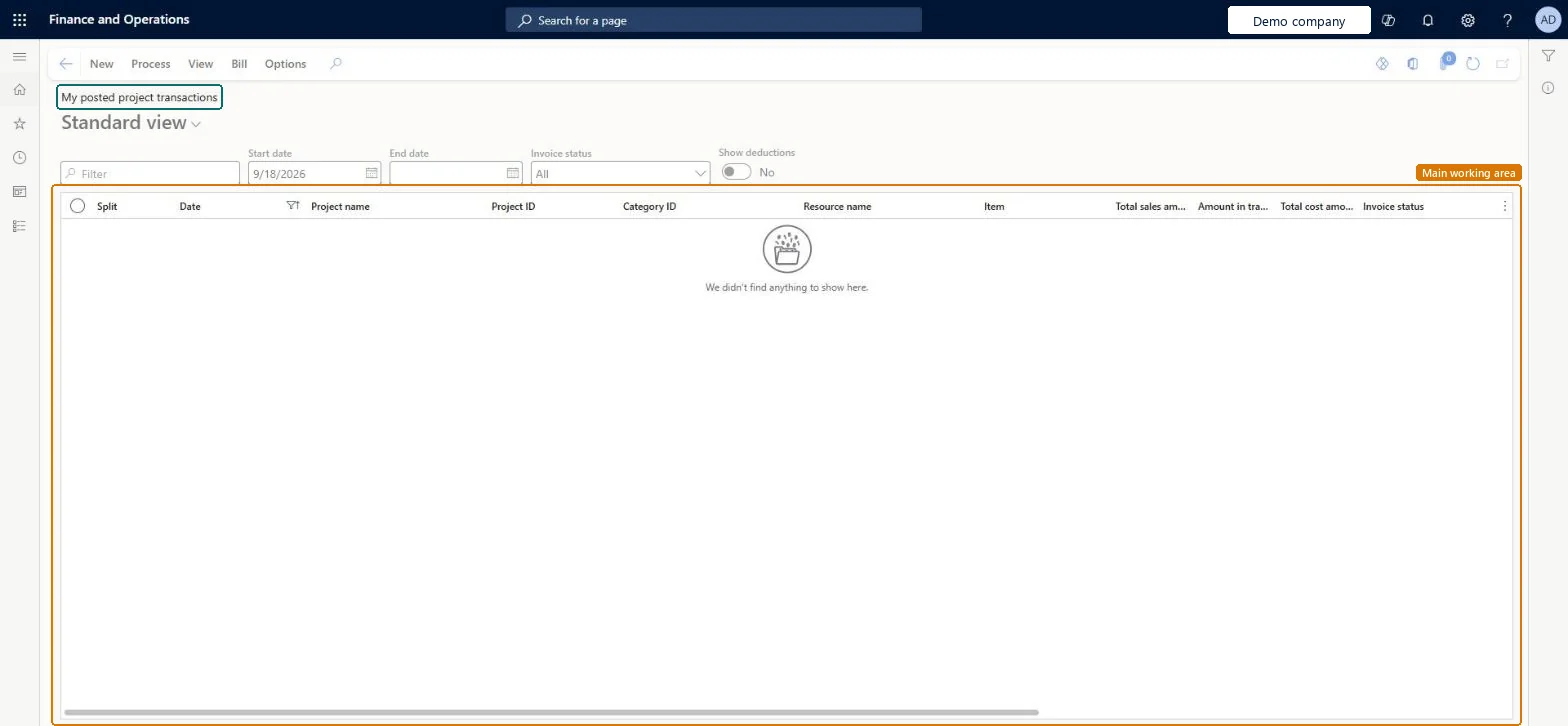
The page in Dynamics 365. page title tab to open what to set or check
About the examples: Examples and screenshots in this guide use BEAT, a demo company in a Dynamics 365 test environment. Use your own company's codes and values instead of copying them.
Setup steps on this page
Review your posted transactions by period and invoice status
Know what is posted and still to bill.
Steps from Microsoft
Go to Project management and accounting > Transactions > My posted project transactions.
Enter a Start date and an End date.
In the Invoice status field, choose which transactions to show.
Turn on Show deductions if you want deductions included.
Select a transaction and use Adjustment if its billable status or category is wrong, or open the Bill tab to invoice.
Set the date range and Invoice status first, for example Not invoiced for the billing period.Without those filters the list adds up every period and status of your projects.
On the live system, Project accountant, Project assistant, Project manager and Project supervisor use this page.
Checked in Dynamics 365
Solution architect
5Design impact
Shared or per company
Per company: the list shows posted transactions of your projects in the legal entity you work in. Microsoft Learn
Can it be undone
Reversible: Reversible: reading changes no data.
If you change it later
An adjustment doesn't overwrite the original: the system reverses it, marks it Adjusted and creates a new transaction with your changes. Microsoft Learn
Technical architect
6Technical
Menu item
ProjPostedProjectTransactions_MyProjChecked in Dynamics 365
Form
projProjectTransactionsListPageChecked in Dynamics 365
Table
ProjPostTransViewShown as “Project transactions” in Record infoChecked in Dynamics 365
PrivilegesMaintain an individual's posted project transactions ProjPostedProjectTransactions_MMaintainView an individual's posted project transactions ProjPostedProjectTransactions_MyPViewDutiesMaintain project transactions ProjProjectTransactionsMaintainMaintain project transactions ProjProjectTransactionsMaintainNoPostReview project transactions ProjProjectTransactionsReviewInquire into project transaction status ProjProjectTransactionStatusInquire6 security rolesChief executive officer CompanyChiefExecutiveOfficerField Service Integration User FieldServiceIntegrationUserProject accountant ProjProjectAccountantProject assistant ProjProjectClerkProject manager ProjProjectManagerProject supervisor ProjProjectSupervisorChecked in Dynamics 365
Roles to set it up and use it
To set it up or change itProject accountant ProjProjectAccountantProject assistant ProjProjectClerkTo use itProject manager ProjProjectManagerProject supervisor ProjProjectSupervisorChief executive officer CompanyChiefExecutiveOfficerField Service Integration User FieldServiceIntegrationUserGive people one of these roles. On this system, 6 roles can open this page.Checked in Dynamics 365
ProjPostTransViewEntity (Project posted transactions): per company, transaction category.Load order: Posted transactions aren't loaded through this view; opening balances go through the Beginning balance journal.Load first: Projects, Beginning balance journalMicrosoft Learn
Checked in a working Dynamics 365 system, version 10.0.49: the menu item, form, table and security, the page.
To cite this step: PM-OPS-250, Review your posted transactions by period and invoice status. Beyond ERP Atlas Hub, 2026-11-11. https://www.beyonderp.cloud/atlas/step/PM-OPS-250