SETUP GUIDEHow to set it up8 sections. Choose a role to highlight what matters to you.
Everyone
1What it is and why
What it is
The list of transactions posted to projects in the legal entity, and the place where posted transactions are adjusted.
What you do here
Use it to review posted project transactions and adjust them, for example to change their billable status, recalculate cost after a configuration change or update funding sources.
Example
For example, 6.00 hours posted to PRJ-0042 as non-billable should have been billable; the BEAT project accountant selects the transaction, adjusts its line property to CHARGE and posts, which reverses the original and creates a new billable transaction of 6.00 hours.
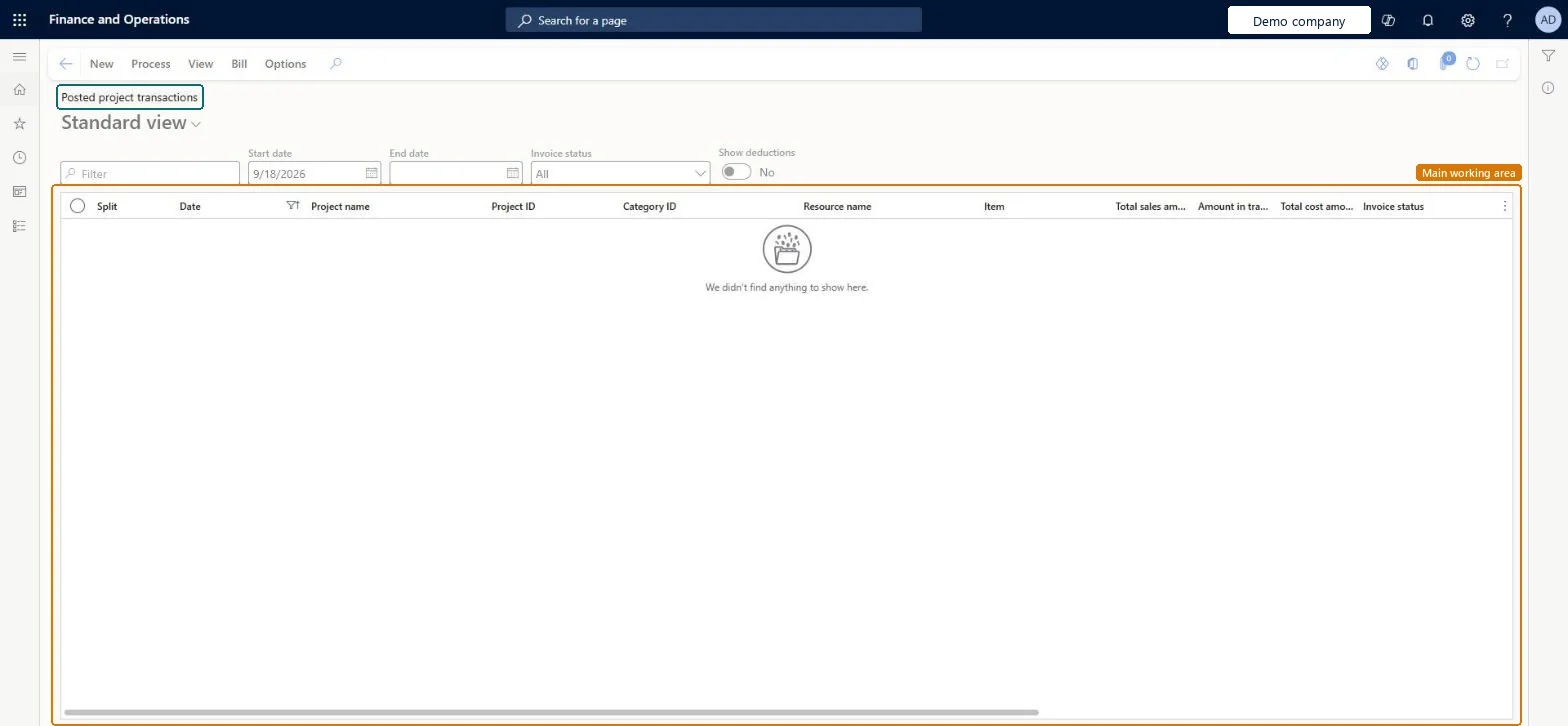
The page in Dynamics 365. page title tab to open what to set or check
About the examples: Examples and screenshots in this guide use BEAT, a demo company in a Dynamics 365 test environment. Use your own company's codes and values instead of copying them.
Setup steps on this page
Correct posted transactions with adjustments
Fix billable status, cost or funding after posting.
Steps from Microsoft
Go to Project management and accounting > Transactions > Posted project transactions.
Filter the list and select the transactions to adjust.
Select Adjustment, then select Adjust and change the attributes on the lines, for example the line property.
Review the pending adjustments in the lower half of the page.
Select Post to post the adjustment transactions.
Check the original now shows Invoice Status Adjusted next to a reversal and a new transaction.
Shows the invoicing state of a transaction; an adjusted original is set to Adjusted.Microsoft Learn
Adjusted
Packing slip ID
The packing slip that a transaction came from, so that an original and its cancellation can be viewed together.Microsoft Learn
PS-000231
Intercompany
Shows whether the transaction is an intercompany transaction.Microsoft Learn
Yes
Adjustment date
The ledger date of the adjustment; it defaults to today.Microsoft Learn
31/12/2026
Common errors and fixes
Message
What to do
One or more transactions couldn't be selected for adjustment because they're already being processed. If this isn't expected, wait until adjustments are complete and clear the adjustments posting cache.
If no adjustment is running, run Clear adjustments posting cache, then select the transaction again. Microsoft Learn
Test checklist
Post 6.00 non-billable hours on PRJ-0042.
Adjust the transaction to a billable line property and post.
Filter the list on PRJ-0042.
Check three transactions: the original with Invoice Status Adjusted, a reversal of -6.00 and a new 6.00 billable line.
Allow adjustment only for the transaction statuses you need (for example Posted and Invoice proposal) and adjust from this page, with batch for more than a few lines.The parameters decide which statuses can be selected; the adjustment reverses the original and posts a new transaction.
Multi-select posted project transactions for adjustments and credit notes (Optional)
Licence or add-in
On the live system, Project accountant, Project assistant, Project manager and Project supervisor use this page. Learn describes an optional feature for this page: Multi-select posted project transactions for adjustments and credit notes.
Per company: each legal entity has its own posted project transactions; intercompany transactions are marked. Microsoft Learn
Can it be undone
Hard to reverse: Each adjustment posts a reversal and a new transaction.
If you change it later
An adjustment doesn't overwrite the original: the system reverses it, marks it Adjusted and creates a new transaction with your changes. Microsoft Learn
Technical architect
6Technical
Menu item
ProjPostedProjectTransactionsChecked in Dynamics 365
Form
projProjectTransactionsListPageChecked in Dynamics 365
Table
ProjPostTransViewShown as “Project transactions” in Record infoChecked in Dynamics 365
To set it up or change itProject accountant ProjProjectAccountantProject assistant ProjProjectClerkTo use itProject manager ProjProjectManagerProject supervisor ProjProjectSupervisorChief executive officer CompanyChiefExecutiveOfficerField Service Integration User FieldServiceIntegrationUserService delivery manager SMAServiceDeliveryManagerGive people one of these roles. On this system, 15 roles can open this page.Checked in Dynamics 365
ProjPostTransViewEntity (Project posted transactions): per company, transaction category.Load order: Posted transactions aren't loaded through this view. Open balances of running projects are loaded through the Beginning balance journal.Load first: Projects, Beginning balance journalMicrosoft Learn