Project management and accountingPeriodicForecasts
action:ProjForecastBudgettransfer
Business process
Plan projects
Menu item
action:ProjForecastBudgettransfer
Setup steps
1 on this page
Show what matters for
SETUP GUIDEHow to set it up8 sections. Choose a role to highlight what matters to you.
Everyone
1What it is and why
What it is
A periodic job that transfers the forecast transactions of a project forecast model to a general ledger budget model as budget amounts.
What you do here
Use it to turn an approved project forecast into ledger budget amounts, so budget reports in the general ledger show the project plan.
Example
BEAT approves the 2026 forecast for PRJ-0042 in model FC-2026: 186,400.00 of cost. The project accountant transfers the cost and revenue statement types for project dates 01/01-12/31/2026 to ledger budget model BUD-2026, so the ledger budget report shows the project plan by month.
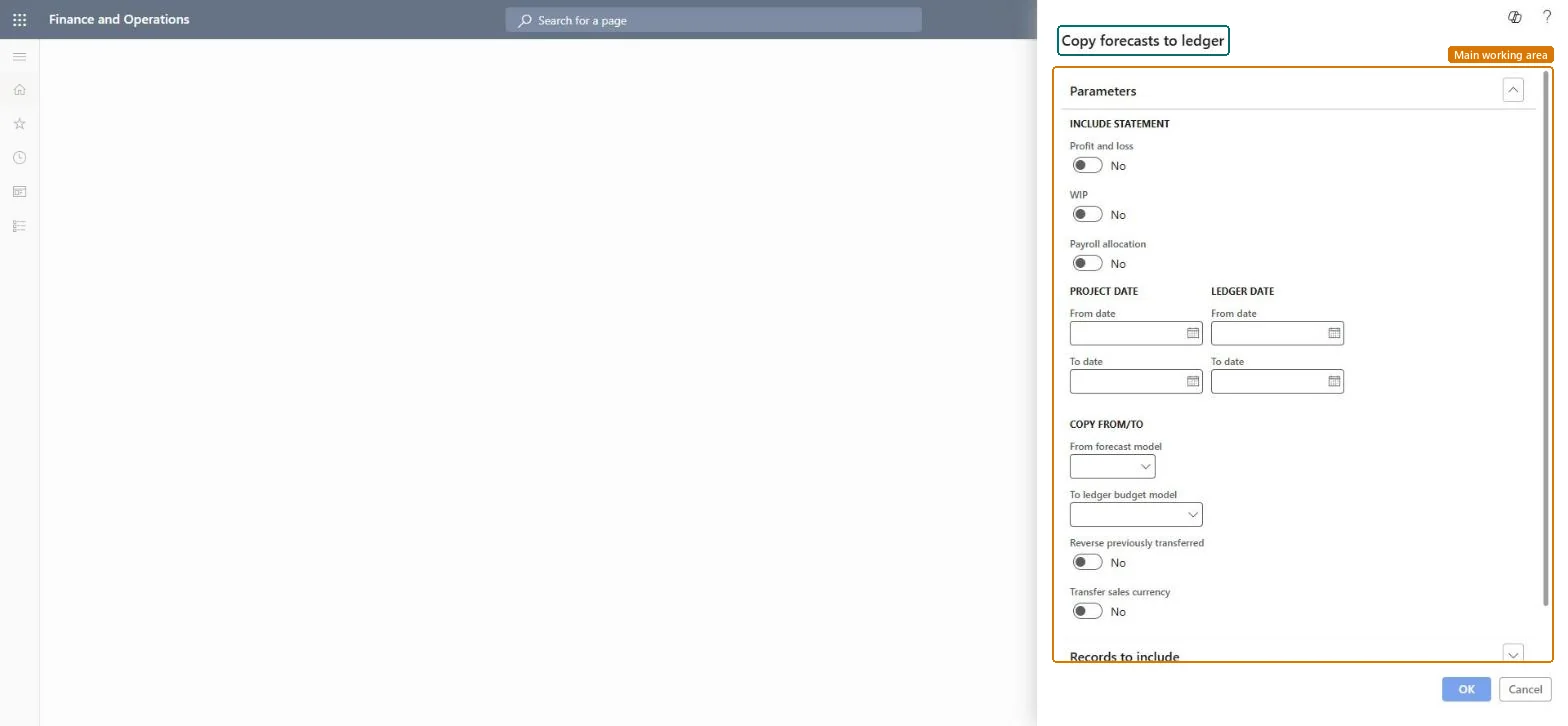
The page in Dynamics 365. page title tab to open what to set or check
About the examples: Examples and screenshots in this guide use BEAT, a demo company in a Dynamics 365 test environment. Use your own company's codes and values instead of copying them.
When to run it
When to run it
When a project forecast is approved and the ledger budget must reflect it.
How often
On demand, after each approved forecast revision.
Batch settings
Run in the background for models that cover many projects.
What the output shows
Budget amounts in the chosen ledger budget model for the ledger dates. A later transfer to the same model can overwrite the earlier one.
Show the approved project plan in the ledger budget.
Steps from Microsoft
Go to Project management and accounting > Periodic > Forecasts > Copy forecasts to ledger.
Under Include statement, select the statement types to transfer.
Enter the Project date range of the forecast transactions and the Ledger date range that receives the amounts.
Select the From forecast model and the To ledger budget model. If the Cash flow project forecast feature is on, stop: transferring would count project forecasts twice in cash flow.
Run the job and open Budgeting > Budget register entries for BUD-2026 to compare the total with the project forecast.
The general ledger budget model that receives the amounts.Microsoft Learn
BUD-2026
Common errors and fixes
Message
What to do
The cash flow forecast shows project amounts twice.
With the Cash flow project forecast feature on, project forecasts already feed cash flow; don't also transfer them to a ledger budget model. Microsoft Learn
Test checklist
Total the cost forecast of FC-2026 for 2026 (for example 186,400.00).
Run the transfer to BUD-2026.
Total the budget register entries of BUD-2026 for the ledger dates: 186,400.00.
Run the transfer again and check the total is still 186,400.00.
Transfer only approved forecast models, to a dedicated ledger budget model, and not at all when the Cash flow project forecast feature is on.A dedicated model can be overwritten safely; with the cash flow feature on, project forecasts are already in cash flow.
On the live system, Project accountant uses this page.
Checked in Dynamics 365
Solution architect
5Design impact
Shared or per company
Per company: the job reads project forecasts and writes ledger budget amounts of the legal entity you run it in. Microsoft data model
Can it be undone
Partly reversible: A new transfer overwrites the earlier amounts in the same model.
If you change it later
Creates or overwrites general ledger budget amounts. Ledger budget reports, budget control and cash flow forecasts that include budget register entries change. Microsoft Learn
Technical architect
6Technical
Menu item
action:ProjForecastBudgettransferChecked in Dynamics 365
Form
DialogChecked in Dynamics 365
Roles to set it up and use it
To use itProject accountant ProjProjectAccountantGive people one of these roles. On this system, 1 role can run this page.Checked in Dynamics 365
Load order: Copy forecasts to ledger has no data entity in Data management: it is a periodic job and keeps no records of its own. Migrate project forecasts with their forecast entities and ledger budgets with the budget register entities, then rerun the transfer.Load first: ProjForecastEmplEntityMicrosoft data model
Checked in a working Dynamics 365 system, version 10.0.49: the menu item, form, table and security, the page.
To cite this step: PM-JOB-050, Transfer the project forecast to a ledger budget. Beyond ERP Atlas Hub, 2026-11-11. https://www.beyonderp.cloud/atlas/step/PM-JOB-050